To create a position and add position information:
- Go to Tasks > Establishment > Positions > Create Positions.
- At the Create Positions summary screen, click Search to see a list of all existing positions.
 | Depending on the volume of records, searching for all positions may take some time. Try narrowing the search by searching for a specific position number, where possible. |
- When you select a record in the list, at the top of the screen, EmpowerHR displays the position number, together with the description and classification valid at today's date.
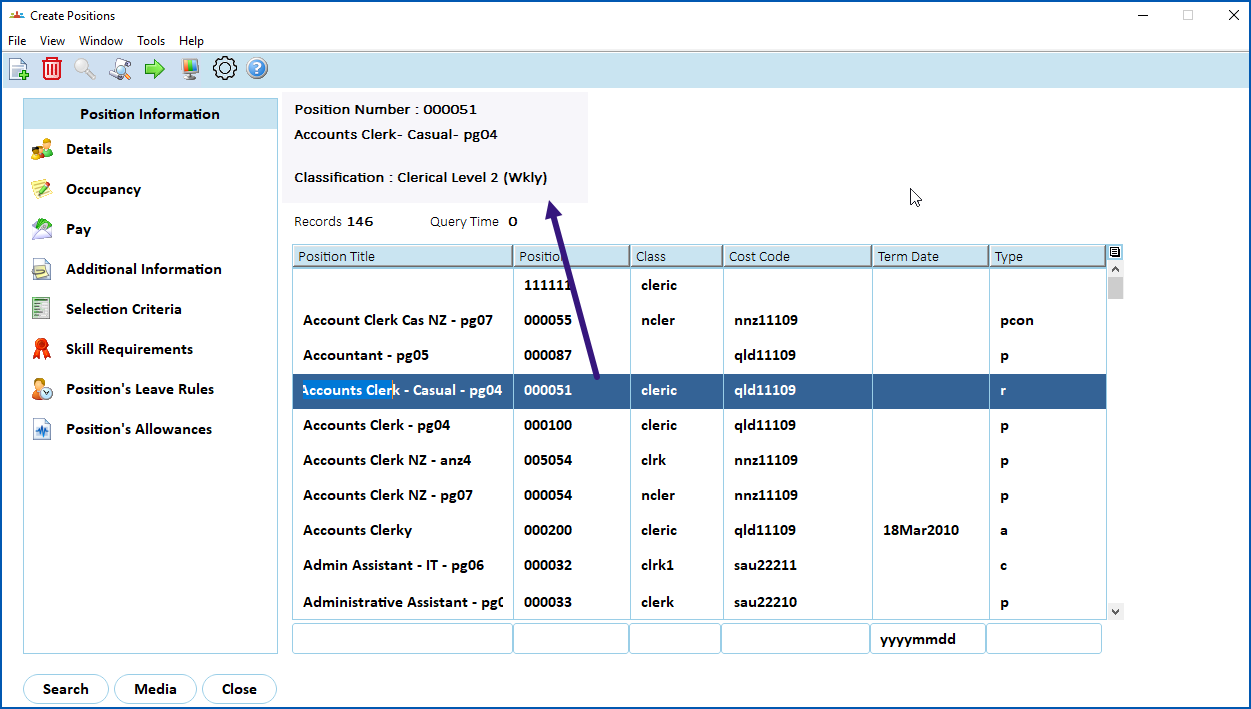
- Check the list and, if the position:
- already exists, see update a position for instructions on making changes. No further action required.
- doesn't exist, go to step 5.
- Click New.
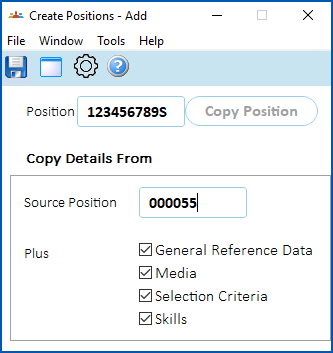
- EmpowerHR displays the Create Positions - Add (initiation) screen.
- Depending on your organisation's policy, EmpowerHR automatically generates the position number, or requires you to enter the position number. If EmpowerHR is:
- not set to generate a position number, enter a unique position number (up to 10 characters), and then press Tab. Go to step 8.
- set to generate a position number, press Tab, and the next available position number displays. Go to step 8.
|
See automatic generation of position numbers for more information. |
- The Copy Position button becomes available. To:
- create a position from scratch, click Save, or
- copy an existing position, click Copy Position, select/enter the Source Position, and then select the Plus options you want. Click Save.
- EmpowerHR displays the Position Details screen.
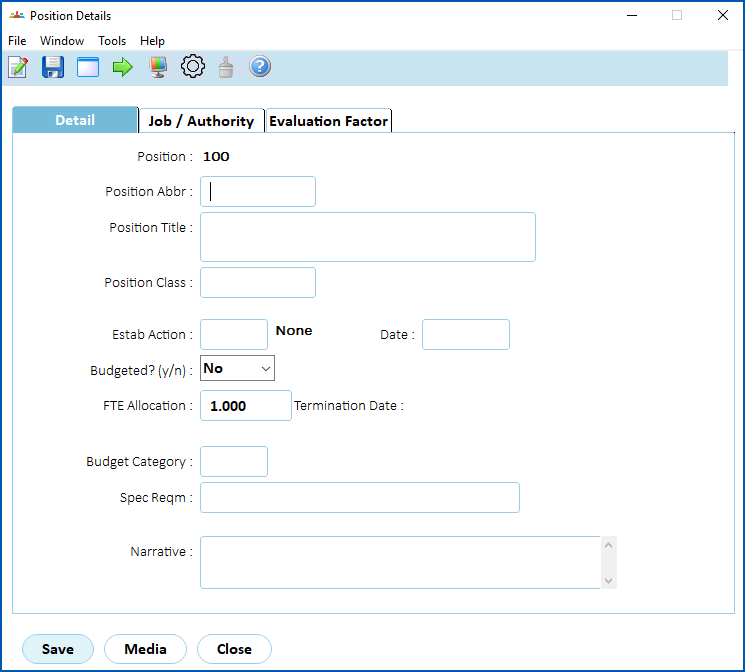
- Use the following instructions to complete the tabs on the Positions detail screen, and then the Position - Details 2 (occupancy) and Position - Pay screens.
Add detail
- At the Detail tab, complete any detail fields your organisation requires.
- When you've finished adding detail, click the Job/Authority tab.
Add job/authority information
- At the Job/Authority tab, complete any job/authority fields your organisation requires.
- When you've finished adding job/authority information, click the Evaluation Factor tab.
Add evaluation factor information
- At the Evaluation Factor tab, complete any job/authority fields your organisation requires.
- When you've finished adding evaluation factor information, click Save. EmpowerHR displays the Position - Details 2 (occupancy) screen. See the following procedure for what to do next.
Add details 2 (occupancy) information
- At the Position - Details 2 (occupancy) screen, complete any details 2 (occupancy) fields your organisation requires.
- When you've finished adding occupancy information, click Save. EmpowerHR displays the Position - Pay screen.
Add pay information
- At the Position - Pay screen, complete any pay fields your organisation requires.
- When you've finished adding position pay information, click Save.
- EmpowerHR displays the Create Positions summary screen, listing the position you created.
Add other information to the position
For what to do next when creating a position, see:
- Add position additional information
- Add selection criteria
- Add skills requirements
- Add position's leave rules
- Add position's allowances
- Add job descriptions for self service organisation chart
© 2023 Fusion5. All rights reserved.