EmpowerHR's position leave rules feature lets you allocate accruing normal leave rules to a particular position.
To add accruing normal leave rules to a position:
- At the Create Positions summary screen, select the position, and then click Position's Leave Rules.
- EmpowerHR displays the Position's Leave Rules summary screen.
- Click New.
- EmpowerHR displays the Position's Leave Rules - Add details screen.
- In Leave Type, click Window, find and double-click a code to add it to the field. EmpowerHR populates the Leave Code field based on the leave type code you selected.
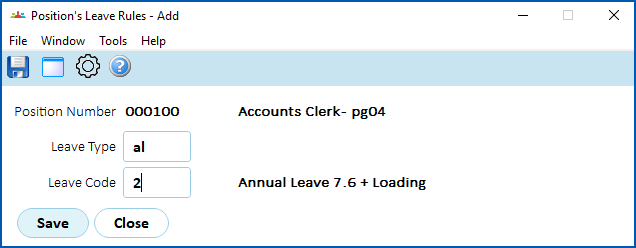
- Click Save.
- EmpowerHR displays the Position's Leave Rules summary screen, listing the leave rule you allocated.
- Repeat this procedure, starting at step 3, until you have allocated all the relevant normal accruing leave rules to the position.
- When you're finished, click Close.
© 2023 Fusion5. All rights reserved.