Claims for casual relief workflow
EmpowerHR's workflow automates the approval process for casual relief work claims. (For more information about workflows in general, see design workflow.)
To complete the setup of the workflow, you need to define:
- workflow tasks (approval steps)
- a new workflow element (clvc)
- roles in the workflow
Define workflow tasks
Tasks are the approval steps needed to process a claim for casual relief work.
The first task is Task 1 and EmpowerHR automatically generates this task. While not essential, we recommend you:
- make Task 1 the employee approval step (empl)
- assign the employee approval step to the manager’s role (the role is only used during the timeout routine)
- apply a timeout period to the employee approval step and set the timeout period to one day
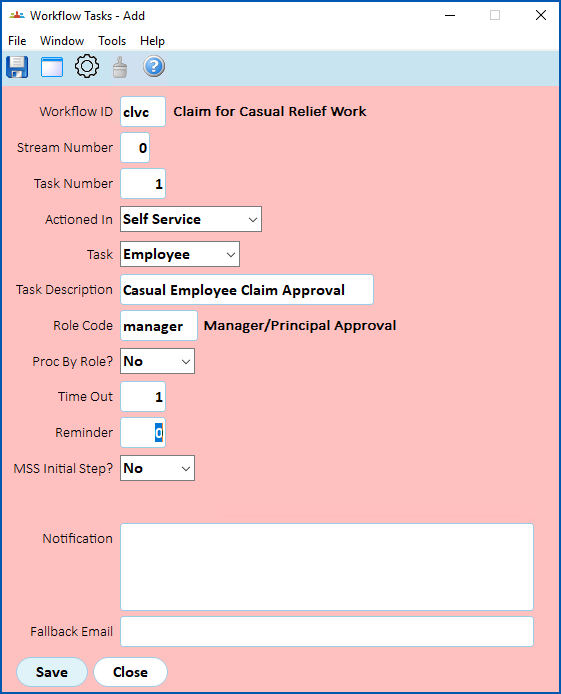
See define workflow tasks to learn how to set this up.
Define workflow elements
To define a workflow element:
- Go to Administration > Workflow > Workflow Elements.
- At the Workflow Elements summary screen, click Find Now to see a list of existing elements.
- Click New.
- At the Workflow Elements detail screen, in the Workflow ID field, enter clvc, and then press Tab. EmpowerHR displays the ID description, Claim for Casual Relief Work.
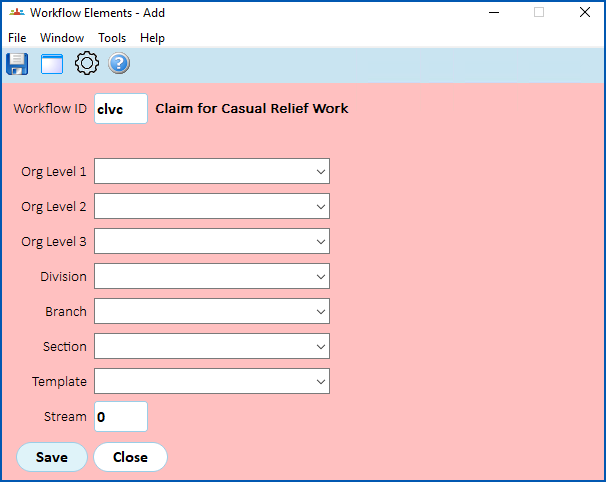
- Complete the fields using the following table as a guide.
| At this field... | Do this... | ||
|---|---|---|---|
Org Level 1 Org Level 2 Org Level 3 Division Branch Section | Optional: You can restrict the workflow to organisational levels in your organisation by making selections from the dropdown lists in any of these six fields, or else by making a selection from the Template dropdown list. | ||
Template | |||
Stream | If the workflow has multiple streams, enter the stream number, for example enter 1. Otherwise, leave the default of 0.
|

- Click Save.
Define workflow roles
We recommend you:
- refer to roles by position on the Employee / Position Roles screen (for the role code)
- make sure the Auto Emp/Role Creation (crbsrole) background job is scheduled to run each night
- set up roles to redirect to a central person if you are using the timeout function
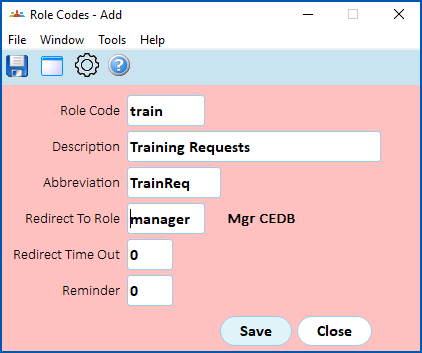
See define workflow roles to learn how to set this up.
© 2023 Fusion5. All rights reserved.