Define the approval steps (tasks) needed to process a request.
To define workflow tasks:
- Go to Administration > Workflow > Workflow Tasks.
- At the Workflow Tasks summary screen, click Find Now to see a list of existing tasks.
- Click New.
- At the Workflow Tasks detail screen, complete the fields using the following table as a guide.
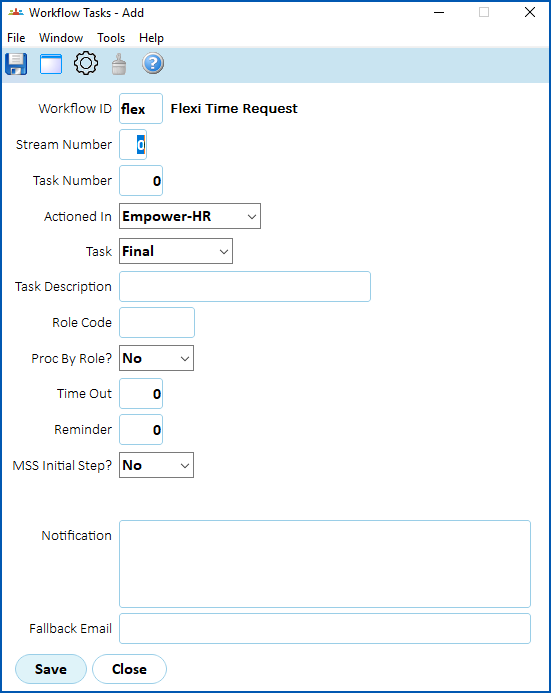

|
Some fields are only available for a particular workflow. |
| At this field... | Do this... | ||
|---|---|---|---|
Workflow ID | Enter the workflow ID if you know it, or Click Window, find and double-click the ID to add it to the field. | ||
Stream Number | Enter the number of the workflow stream if the workflow has multiple streams, for example, enter 1 or else leave the default of 0. | ||
| Task Number | Enter a number for the task, that is, its position in the ascending sequence of workplace tasks, for example, 10. | ||
| Actioned In | Select the location from the dropdown list, for example, Self Service. | ||
| Task | Select the type of task from the dropdown list, for example, Manager or Final. | ||
| Task Description | Enter a description for the task, for example, Manager approval. | ||
| Role Code | Click Window, find and double-click the role code to add it to the field. For example, manager. | ||
Proc by Role? | Select:
| ||
Time Out Reminder | These fields are only required if you're using time out functionality. | ||
| MSS Initial Step? | Select Yes if you want this task to be the starting approval step when used from Manager Self Service (MSS).
| ||
| Fallback Email | This field is only required if you're using time out functionality. |
- Click Save.
- Repeat this procedures, starting with step 3, until you've created all the workflow tasks you need.
© 2023 Fusion5. All rights reserved.