Do you need to restrict a leave type to only specific positions?
EmpowerHR’s position leave rules allow you to add the relevant normal accruing leave rules to a position.
Add position leave rules to a position
To add position leave rules to a position:
Go to Tasks > Establishment > Position > Position Leave Rules.
At the Position Leave Rules summary screen, enter the position number if you know it, or click Window, find and double-click the code to add it to the field.
Click New.
- At the Position Leave Rules detail screen, in Leave Type, click Window, find and double-click the code to add it to the screen.
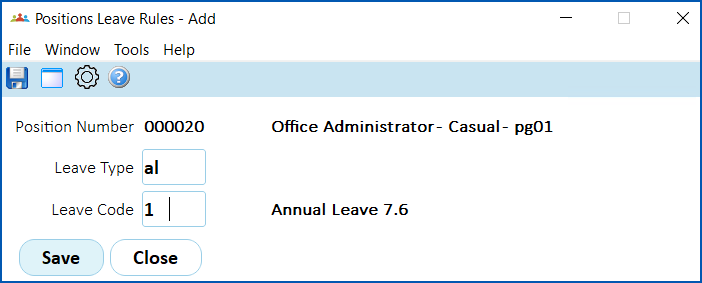
- Click Save. The leave type is added to the Position Leave Rules summary screen.
- Repeat this procedure, starting at step 3, until you’ve added all the normal accruing leave types applicable to the position.
- Click Close, when you're finished.
| What happens? | When you're ready to allocate leave to an employee, EmpowerHR checks if there are any leave rules associated with the position and, if there are, displays just them. Alternatively, if there aren't any, the system displays all leave rules. |
Are you taking on leave history?
EmpowerHR allows manual accruals. For example, where an employee has a carry-over from prior service.
You can use a manual accrual, also known as take-on, to correct a person’s leave balance via the Leave History Take-on screen.
Do you need to distinguish pay for public holidays from other pay?
The way to distinguish pay for public holidays from other pay is by:
- using separate payment codes
- setting the installation option called Public Holiday Pay Code for PBE Pay + option to set work pattern hours (pubh) to:
- y (yes), or
- h - for salaried paid employees so EmpowerHR looks at the employees' work pattern rather than calculating the average hours using the working days in the month
Do you want to generate leave provisions for GL oncosts/provisions?
EmpowerHR's leave provision process calculates the years of service to:
- work out the appropriate probability factor
- reduce the non-current liability figures
- produce detailed program activity where it is split
The leave provision process captures the following data which is useful for general ledger and reporting.
leave provisions | EmpowerHR can calculate your organisation’s leave liabilities by payroll code A payroll code is a unique code used to identify each pay cycle. |
leave provisions including leave probability factor The probability factor is an actuarial figure, which is the probability that long service leave will become liable one day. For example, employees with six years of service are more likely to qualify for LSL than employees with one year of service, therefore their probability factor is higher. | The Leave Provision process calculates the years of service, works out the right probability factor, reduces the non-current liability figure, and produces details of where it is split (for example, cost centre percentage split). |
leave provisions at cash rate | If your organisation includes an employee's Super Guarantee (SG) contributions in their salary, EmpowerHR deducts the superannuation component from the salary, and uses this reduced amount to value the leave provisions. |
leave provisions error enquiry | If the leave provision calculation process finds any problems, EmpowerHR highlights the errors, making it easy to troubleshoot. |
You use these control codes to indicate how you want each pay code to be reported in the general ledger. |
Do you want to report on leave liability (provisions)?
EmpowerHR calculates your organisation's leave liabilities by payroll code  .
A payroll code is a unique code used to identify each payroll cycle.
It values leave balances at an employee's current rate of pay, including any necessary allowances. Calculations include:
- normal leave
- leave loading
- long service leave
- RDOs (Rostered Days Off)
Except for timesheet accruals and bookings, the provision amount includes:
- bookings that start on or before the provision date
- accruals due on or before the provision date
 |
Timesheet accruals/bookings cannot be forward-accrued. EmpowerHR includes only those actually recorded. |
| Leave provisions pay element | To let EmpowerHR know which allowances to include in the calculation of provisions, set the right leave provisions pay element in the installation constants screen. A separate element is defined for terminations. |
| LSL liability | You set the long service leave (LSL) liability threshold at the rule level. It determines the point in an employee's service where the system starts making provision for LSL. |
To learn how to run the report, see run the leave liability report (no lsl).
Do you want to exclude any linked pay codes from provisions?
Setting the installation option called Provision Linked Pay Codes (plpc) to y (yes) excludes provisioning of linked pay codes.
Do you use a time capture system?
See time capture systems to learn about what EmpowerHR can offer.
© 2023 Fusion5. All rights reserved.