If your organisation wants to use self service cost centre change requests, you must:
- create a movement reason
- add transaction rules
- set up the approval workflow
- display the menu item
Create the position movement reason
Determine the position movement reason you want to create and use for cost centre change requests.
See create movement reasons for how to create the reason code.
Add transaction rules
Add the transaction rules for the position movement reason code you created.
See create and update transaction rules for instructions.
Set up approval workflow
The movt (position movement) workflow automates the request approval process. Use the following instructions to set up the workflow for cost centre change requests.

|
If you need more information about EmpowerHR workflows, see design workflow. |
Add movement reason to workflow setting
To add the movement reason you created to the workflow setting:
- Go to Administration > Workflow > Workflow Settings.
- At the Workflow Settings summary screen, click the workflow called movt Position Movement, and then click Next Level.
- At the Workflow Settings detail screen, on the row containing Cost Centre Change, enter the position movement reason you created in the Reason column, and then press Tab.
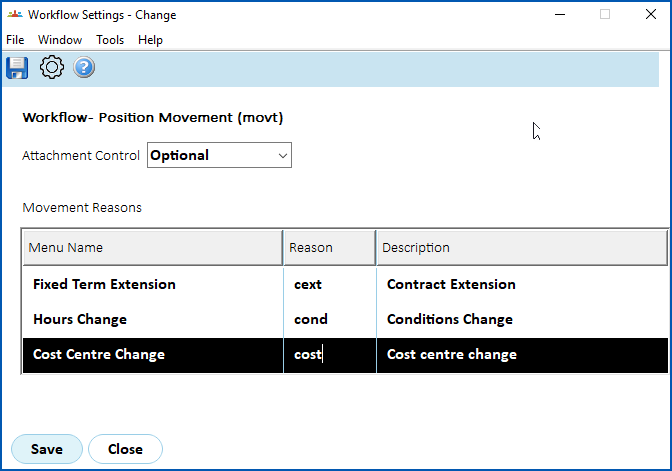
- Click Save.
Define workflow element (cost centre change request)
To define a workflow element:
- Go to Administration > Workflow > Workflow Elements.
- At the Workflow Elements summary screen, click Find Now to see a list of existing elements.
- Click New.
- At the Workflow Elements detail screen, in the Workflow ID field, enter movt.
- Press Tab. The Reason field displays.
- In the Reason field, enter the position movement reason you created and added to the workflow setting (for example, cost).
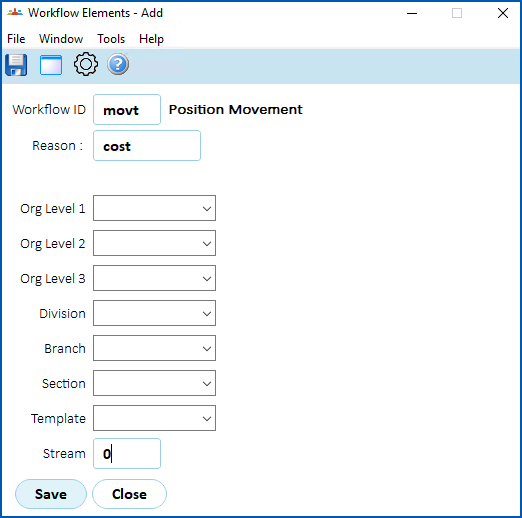
- Click Save.
Define workflow tasks
Set up the workflow tasks to suit your requirements.
See define workflow tasks for instructions.
Display the menu item
Make the cost code change request available to employees and managers.
To make the request available:
- Go to Administration > Security > Templates.
- The Templates catalogue displays.
- At the row containing the template you want to update, click Actions and then select Access from the menu.
- EmpowerHR displays the Security Access for... details screen with the self service menu (tree) structure.
- Expand Self Service, and then expand Requests.
- Grant access by selecting the checkbox next to Cost Centre Change.
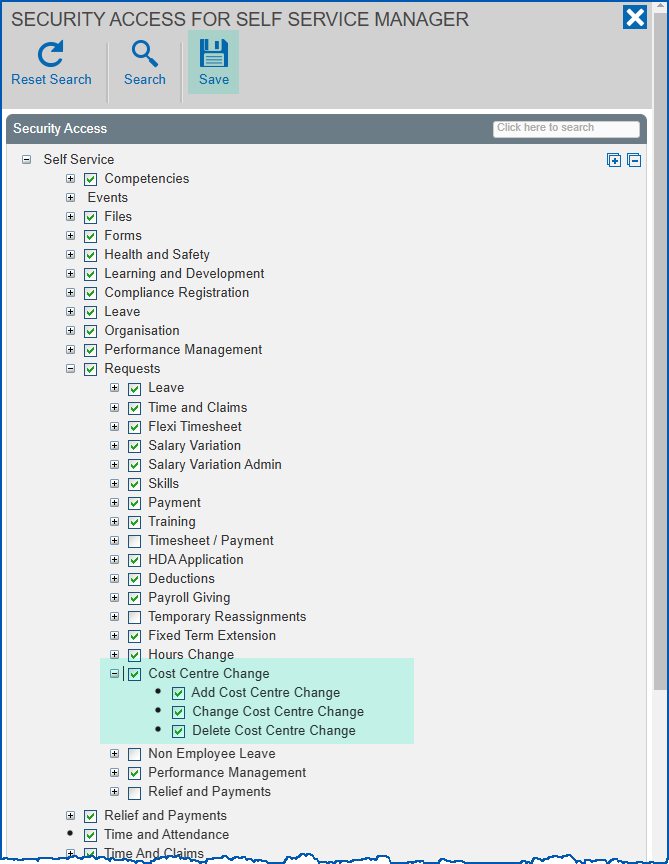
- Click Save.
- Repeat this procedure, starting at step 3, until you have updated any other relevant templates.
© 2023 Fusion5. All rights reserved.