There are three different types of transaction rules:
| default values (type d) | Default values are the values provided as one or more options for the user to choose from in a field. If you set an option as y (yes), the other default option should be set as n (no). |
| validation checks (type v) | Validation checks mostly occur when the user exits a field. They are similar to field error severity level settings. You can select the messages you want to display when validation fails, and set the error severity. |
| process controls (type p) |
Process controls allow you to define how EmpowerHR behaves, for example, you can set a field to Display Only. |
The combination of these transaction rules acts like a checklist to help users complete fields and accurately record a movement.
There are two screens available for managing transaction rules:
- Rules By Field - where you can change the transaction rules associated with a specific field, for all movement reasons
- Rules By Frame/Function - where you can change the transaction rules for all fields for a specific movement reason. This is the preferred screen for creating a new set of transaction rules.
Create a transaction rule
In examples shown in the following instructions, we use the Rules By Frame/Function screen to add a new set of transaction rules to the Employee Conditions Change screen for the movement reason called cntr (new contract).
To create a transaction rule:
- Go to Administration > Screen Management > Transaction Rules > Rules By Frame/Function.
- At the Rules By Frame/Function summary screen:
- select Move (movement code) from the Look in dropdown list
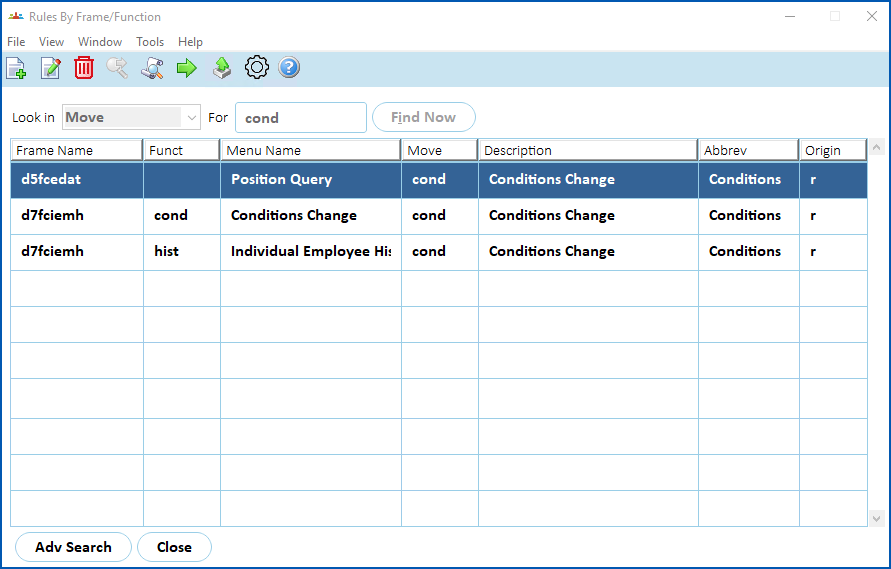
- enter the movement code in the For field (for example, cond), and then click Find Now
- The results are displayed.
 |
What do the codes in the Origin column mean? The codes are:
|
- Click New.
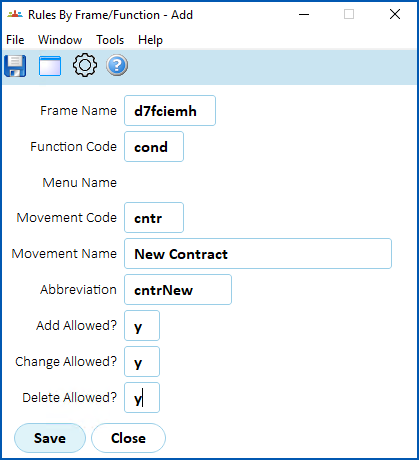
- At the Rules By Frame/Function detail screen, complete the fields using the following table as a guide.
| At this field... | Do this... |
|---|---|
Frame Name Function Code | Click Window, select and double-click the frame to add the frame name and function code to the fields. For example, Conditions Change (d7fciemh). |
Movement Code | Click Window, select and double-click the movement code to add it to the field. For example, cntr (the movement reason code you created earlier). |
Movement Name | Enter a movement name (up to 30 characters). For example, New Contract. |
Abbreviation | Nothing. The Abbreviation field is automatically populated when you select a code at the Movement Code field. |
Add Allowed? | Enter y (yes) to allow users to add or change the movement in different screens. Otherwise, leave the default value of n (no). The Add Allowed? option allows users different functional access for a movement code. For example:
|
Change Allowed? | Enter y (yes) to allow changes to the movement in this screen Otherwise, leave the default value of n (no). |
Delete Allowed? | Enter y (yes) to allow the movement to be deleted in this screen Otherwise, leave the default value of n (no). |
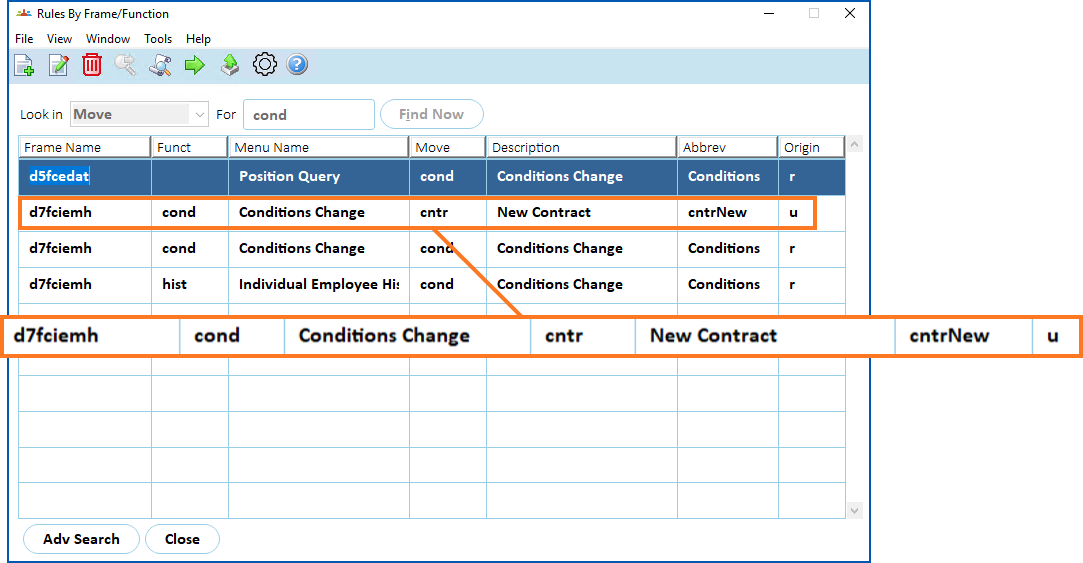
- Click Save. The Rules By Frame/Function summary screen displays the new movement reason with u (user-added) in the Origin column.
Update a transaction rule
Typically, you use the:
- Rules By Field screen to update a particular field and change the transaction rules for that field across a number of movement reasons
- Rules By Frame/Function screen to update the transaction rules for a number of fields on a particular movement reason
Use the rules by field screen
To use the Rules By Field screen to update a transaction rule:
- Go to Administration > Screen Management > Transaction Rules > Rules By Field.
- At the Rules By Field summary screen:
- select Field from the Look in dropdown list
- enter the field name in the For field (for example, hr_awrd_code), and then click Find Now
- The results are displayed.
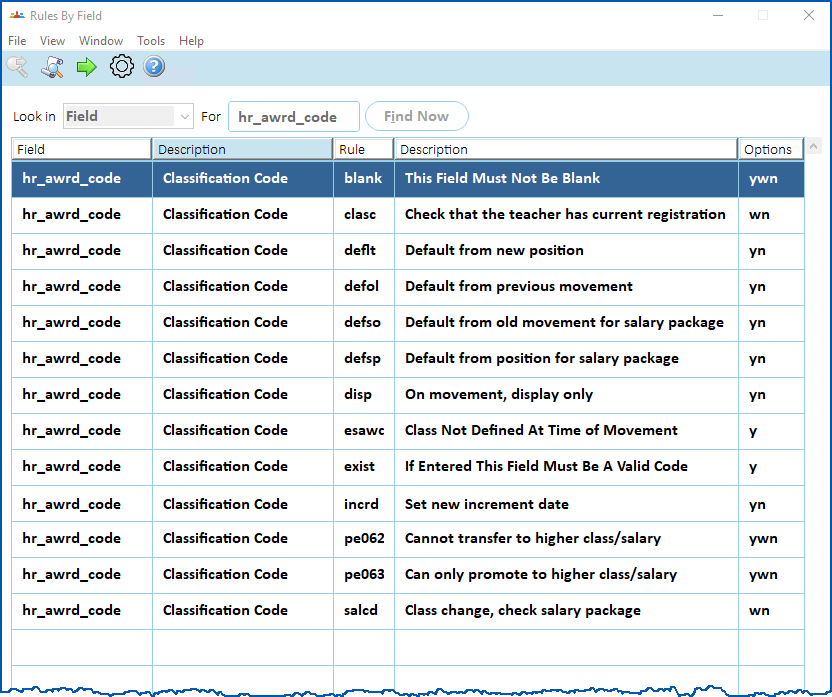
- Select the rule you want to work on, and then click Next Level.
- The Field Options screen displays the settings for each movement reason for the rule.
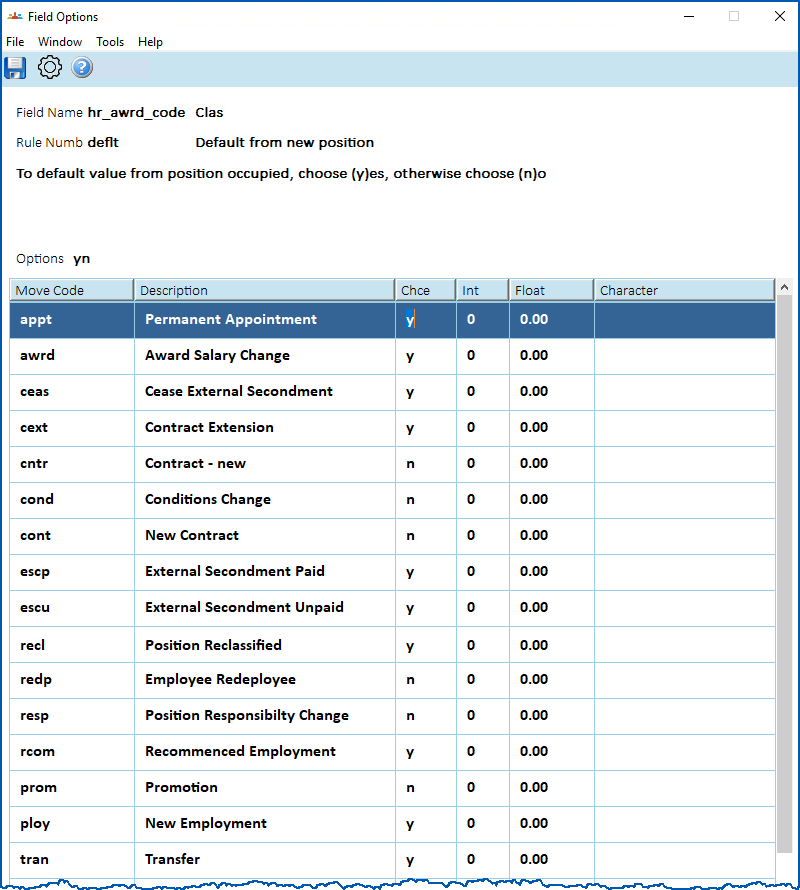
- Select a field, and then make your changes using the following table as a guide.
| At this field... | Do this... |
|---|---|
Move Code | Nothing. This column shows the movement code. |
Description | Nothing. This column shows the movement code description. |
Chce (choice) | Enter a choice. (You can find the available Options on the Rules By Field screen). |
Int (integer) | Enter a default value or checking value, if required. |
Float (floating point) | Enter a default value or checking value, if required. For example, 100.00. |
Character | Enter text, for example, the default characters or checking values for the rule. |
- Click Save.
Use the rules by frame/function screen
To use the Rules By Frame/Function screen to update a transaction rule:
- Go to Administration > Screen Management > Transaction Rules > Rules By Frame/Function.
- At the Rules By Frame/Function summary screen:
- select an option from the Look in dropdown list (for example, Frame Name)
- enter the search criteria in the For field (for example, d7fciemh), and then click Find Now
- The results are displayed.
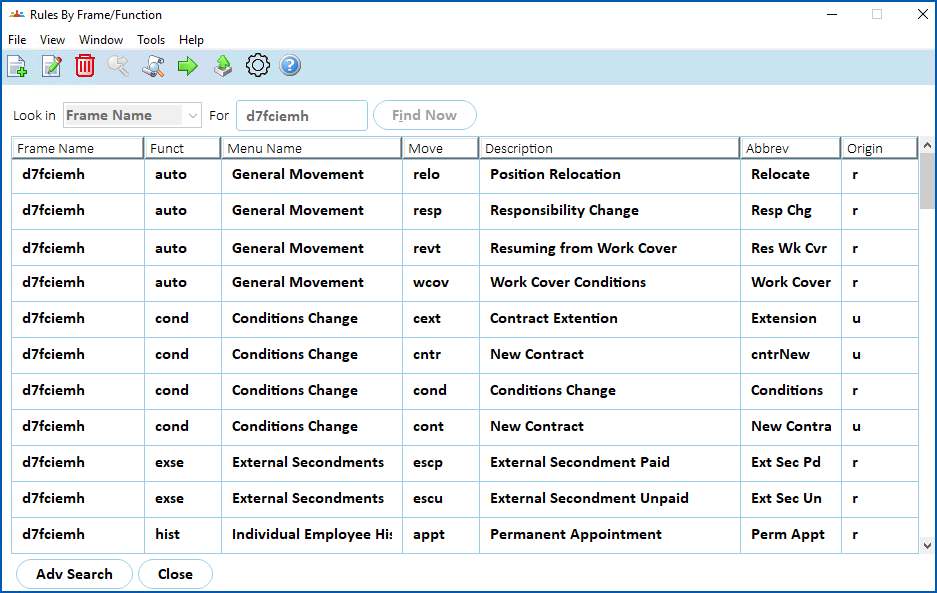
- Select the rule you want to work on, and then click Next Level.
- The Field Display screen displays. Click Find Now to display a list of all fields.
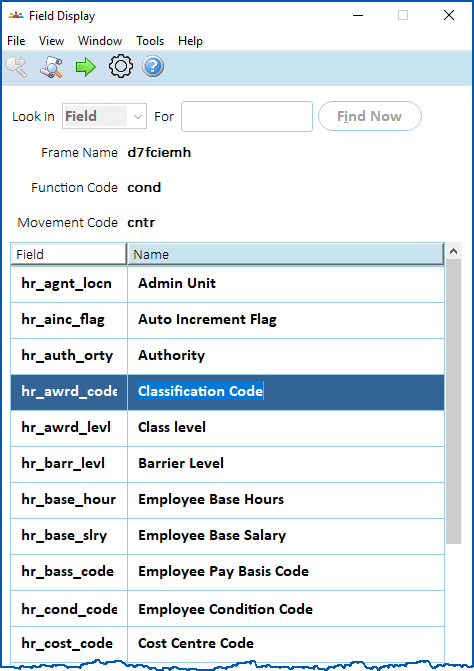
- Select the field you want to work on, and then click Next Level.
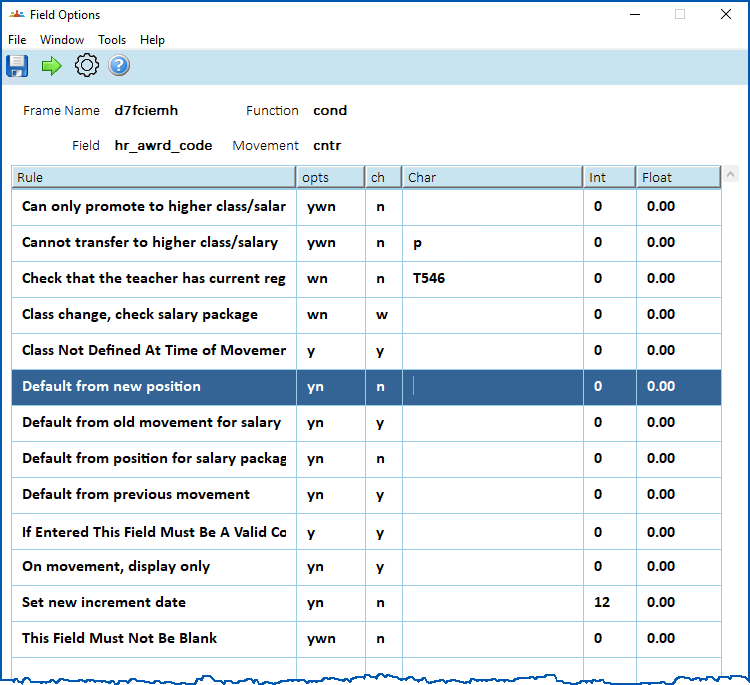
- The Field Options screen displays. Make your changes using the following table as a guide.
| At this field... | Do this... |
|---|---|
Rule | Nothing. This column shows the rule description. |
Opts (options) | Nothing. This column shows the available options. Select a rule, and then click Next Level to see an explanation of the available options. For example: 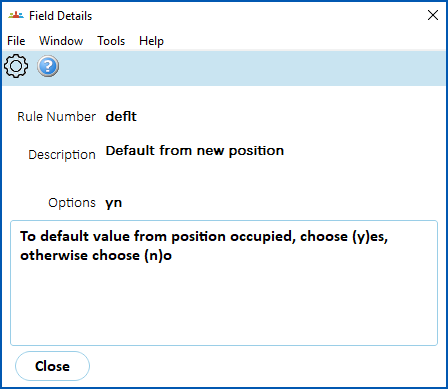 |
Ch (choice) | Change the choice (option), if required. |
Character | Enter text, for example, the default characters or checking values for the rule. |
Int (integer) | Enter a default value or checking value, if required. |
Float (floating point) | Enter a default value or checking value, if required. For example, 100.00. |
- Click Save.
© 2023 Fusion5. All rights reserved.