The self service Organisation Chart is a visual display of the organisation structure.
The Chart provides a view of the structure as at the date the chart was built, based on EmpowerHR records of structure changes and history.
There are two different view available:
- Reports To
- Organisation
View the self service organisation chart
To view the self service Organisation Chart:
- Go to Organisation > Organisation Chart.
- EmpowerHR displays the chart.
- Here is an example of the Reports To view.
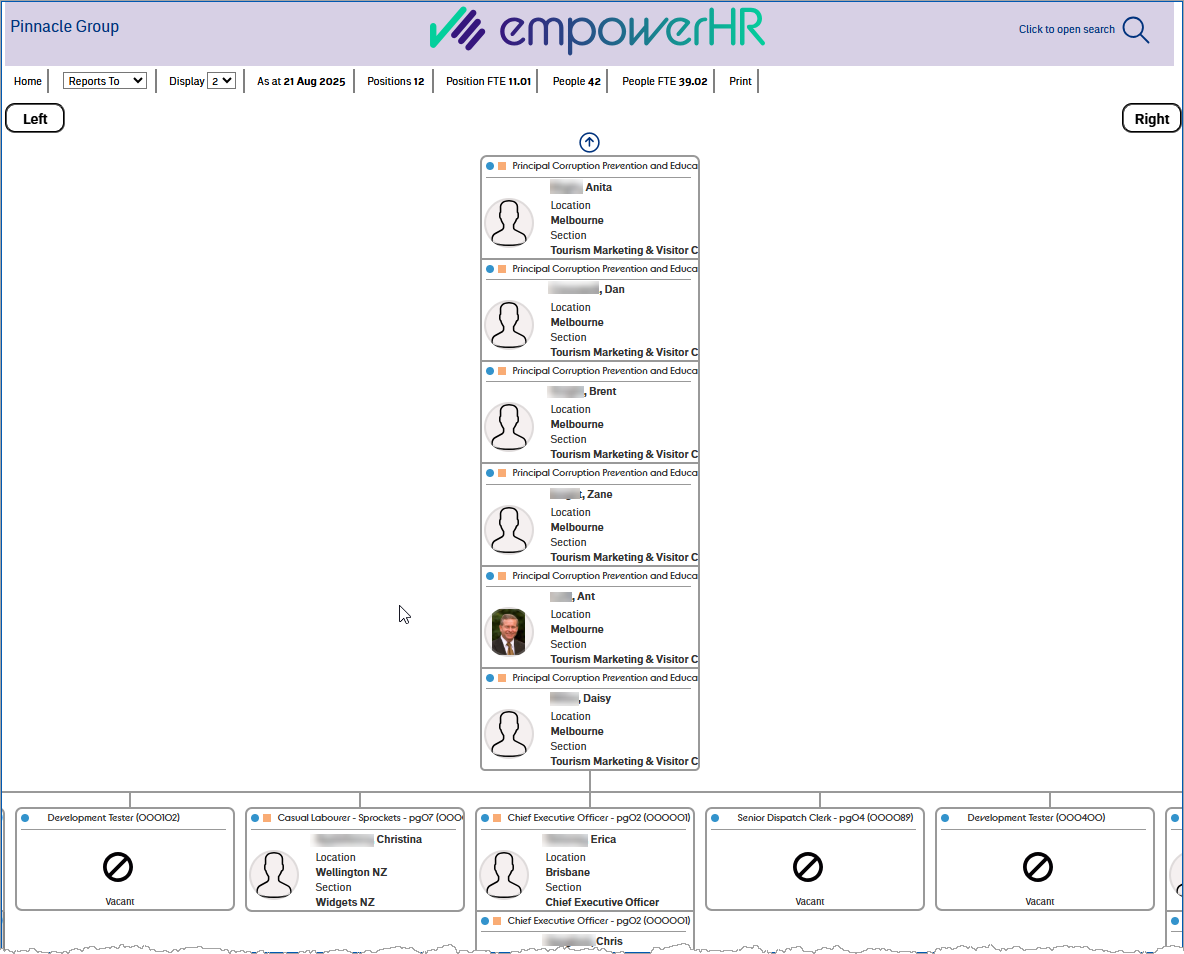
- Here is an example of the Organisation view.
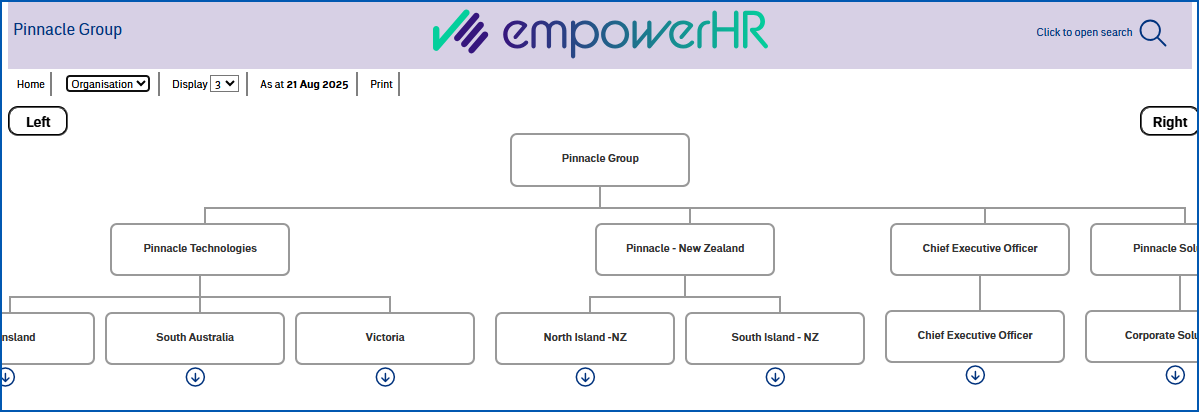
Here are the menu options for each of the views in the Organisation Chart:
| Use this menu option... | To do this... |
| Reports To view | |
| Home | Go to the position for the lowest employment in the chart. |
| Change charts dropdown | Switch to the Organisation chart view. |
| Display | Select the number of levels you want to view in the chart. |
| As at date | Nothing. EmpowerHR displays the date the chart was built. |
Positions Position FTE People People FTE | Nothing. In the menu bar, EmpowerHR displays the number of positions, the number of people, and the sum of the people FTE included in the displayed chart (whether they are visible or not). |
| Print | Print a hardcopy of the chart. |
| Organisation view | |
| Home | Go to the top of the organisation chart. |
| Display | Switch to the Reports To chart view. |
| As at date | Nothing. EmpowerHR displays the date the chart was built. |
| Print | Print a hardcopy of the chart. |
Navigation
Left and right buttons are available when the displayed Chart is wider than your browser window.
Up and down arrow buttons let you display higher and lower level cards in the Chart.
Search
Use the Click to open search to open a search panel where you can select a field, and enter text, to search on in the Chart.

|
You can use screen painting to define which fields you want to be able to search on. |
EmpowerHR:
- displays the number of matched positions or employees in the search panel
- reloads the Chart to the first matching position/employee card listed in the search panel
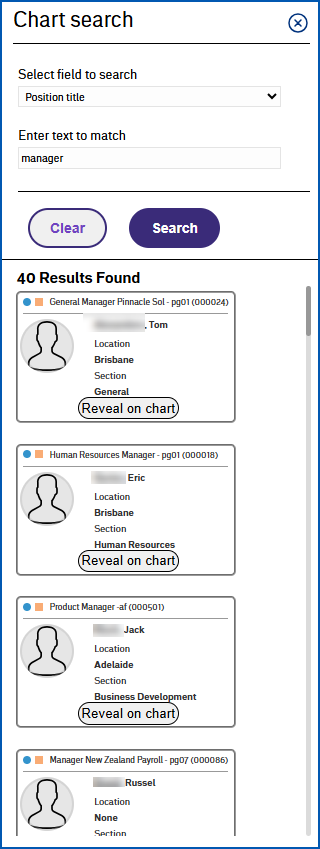
When you click Reveal on chart on any of the listed cards, EmpowerHR reloads the Chart with the selected position/occupant at the top of the Chart.
View the self service organisation chart
Position and people counts
The following details are included in the Reports To chart and displayed in the menu bar:
- number of positions
- sum of the positions FTE
- number of people
- sum of the peoples FTE
The people count includes employees acting in a position that reports to the manager, but excludes substantive employees acting in a position that does not report to the manager.

Position/occupant details
Click a card to display the position and occupant details.
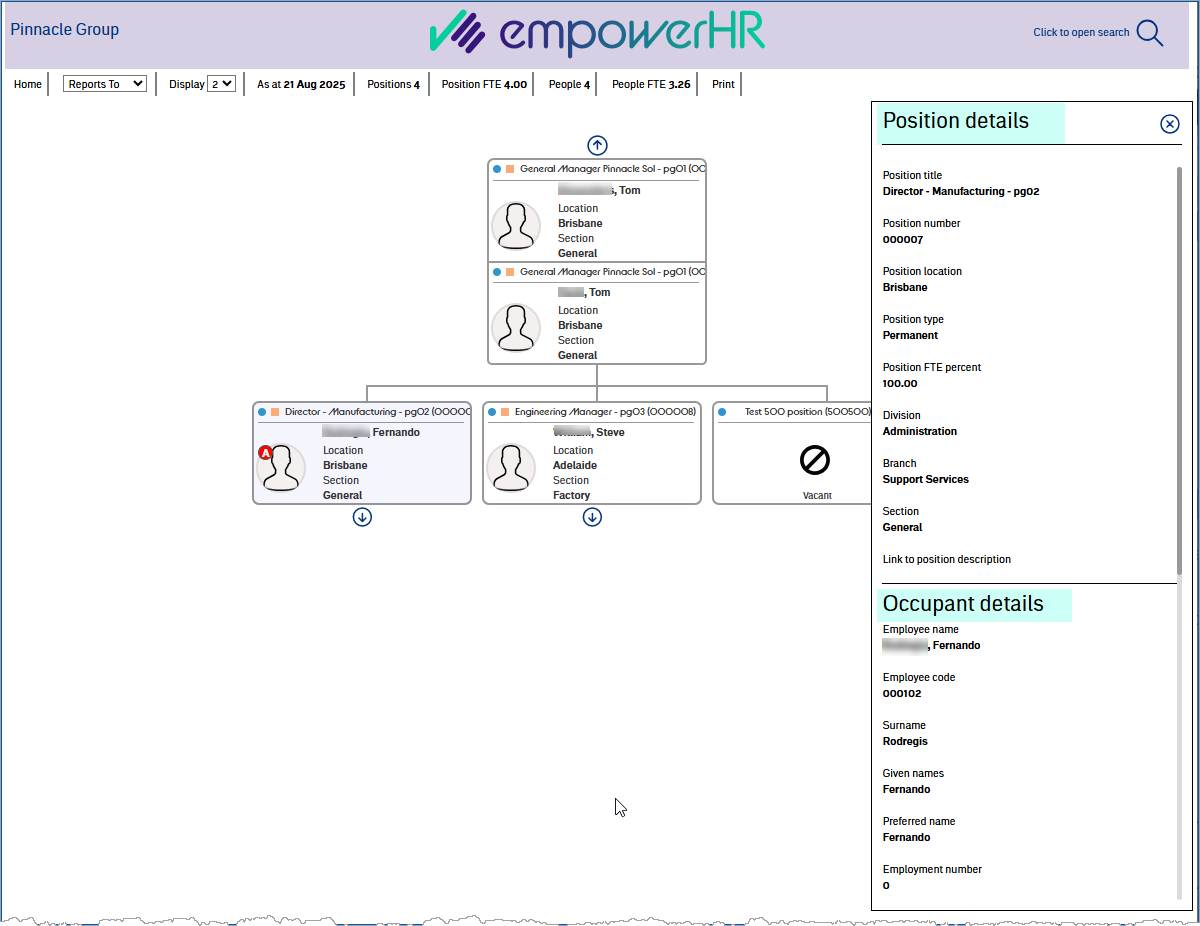
When a position has an associated job description document (stored via the desktop), EmpowerHR displays a link to the document under Position Details.
See add job descriptions for organisation chart for more information.
|
|
You can use screen painting to define which position/occupant fields you want to display (including the Link to position description). |
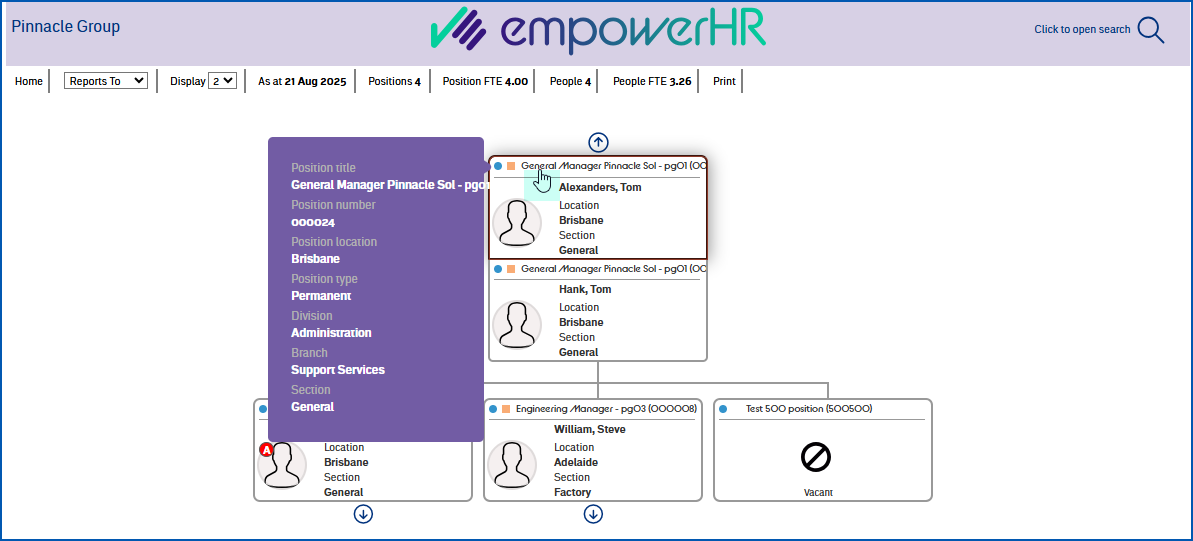
Hover feature
When you hover over the position title in a Reports To card, EmpowerHR displays position details.
|
|
You can use screen painting to define which fields you want to display for the hover function, or if you want to switch the hover feature off. |
© 2023 Fusion5. All rights reserved.