Screen painting is available on many EmpowerHR self service screens. This feature allows you to customise how fields display for your organisation.
Depending on the type of field, you can:
- change the field name (label)
- make the field editable or read only
- hide the field so it no longer appears on the screen
- change the field help message
How to use screen painting
To paint fields on a screen:
- Go to Administration > Screen Management > Screen Painting.
- At Screen Painting, expand a group of screens, and then keep expanding the group until you see the screen you want to work on. Alternatively, use Search to locate the screen.

|
You can only paint a screen that displays the Change option. |
- Click Change. EmpowerHR displays the Screen Painting - .... details screen like the following example.
|
|
Changes you make to the fields on one screen may flow through to other related screens so they are consistent across the system. Check Screen Instances for the list of related screens that may be affected by the changes you make. |
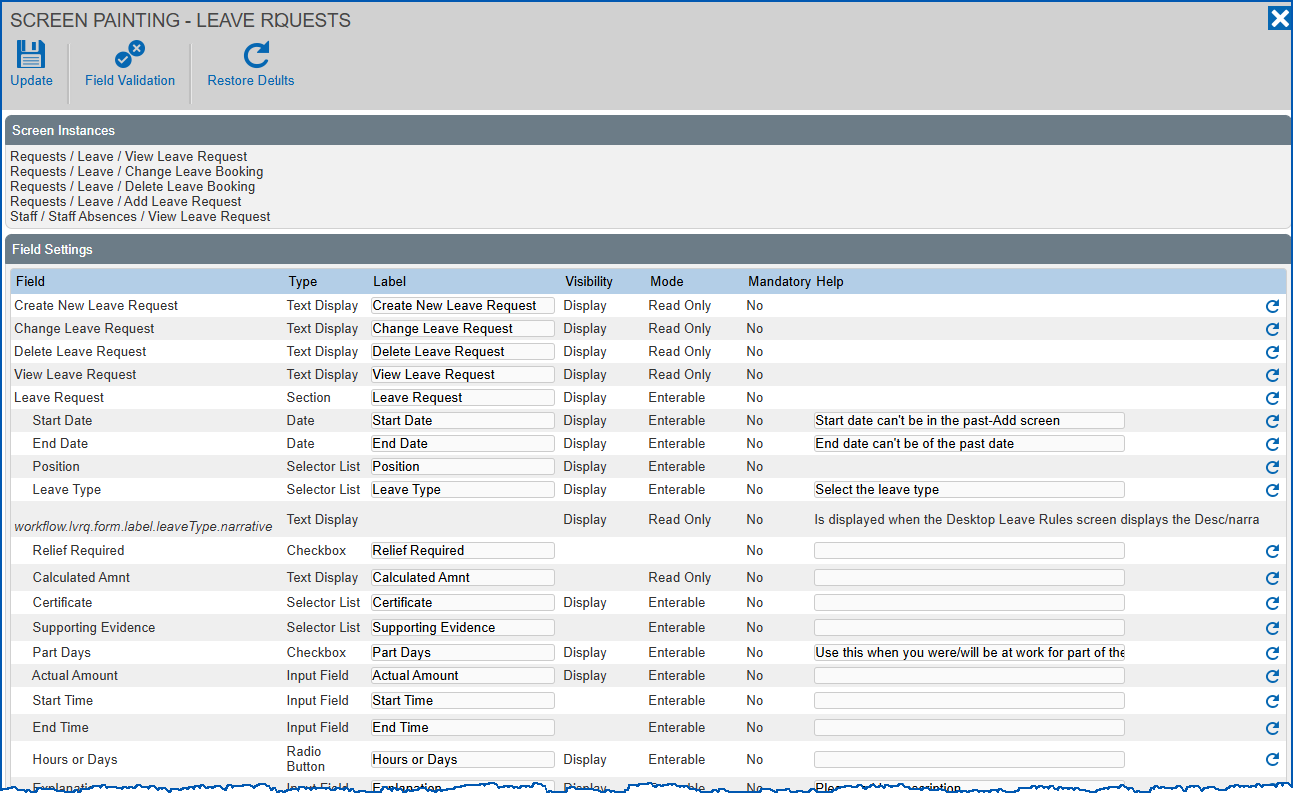
- Make your changes, using the following table as a guide.
| Some screen painting options are available only if the field is not considered critical to maintaining system integrity. |
| In this field... | Do this... |
|---|---|
Type | Nothing. This shows the type of field you are screen painting. |
Label | Change the name of the field, if required. |
Visibility | Select:
|
Mode | Select:
|
Mandatory | Nothing. You cannot change this setting. |
Help | Enter a customised help message to help the user understand what the field is for or what they need to do. |
Restore Defaults | Click this option to revert to the system's default setting for the field. |
- Click Update.
- When you change a field (for example, change its visibility), you may need to change the field error validation settings attached to that field. If so, see self service field error validation for instructions.
|
|
If you prefer, you can jump directly to field error validation details from the Screen Painting - ... details screen by clicking Field Validation. |
© 2023 Fusion5. All rights reserved.