EmpowerHR runs several checks when an employee submits a sick or carer's leave request. This article lists each check, where it applies, and where to configure it.
For how to change validation severity, see Field error validation (Desktop) or Self service field error validation (Self Service). For numeric caps set on Installation Constants, see Installation constants - Leave/super tab.
You can also add a carer's leave help message to prompt employees to pick the right Certificate option.
The checks
- Yearly limit without a certificate
- Yearly limit with a paramedical certificate
- Yearly limit with a carer's certificate
- Pay By Exception
- Overlap check
- Balance check
- Consecutive days without a certificate
- Max days per year without a certificate
Where to set severity
You set severity for most checks in Screen Management. Desktop and Self Service settings are independent, so you can block a request in one and warn in the other.
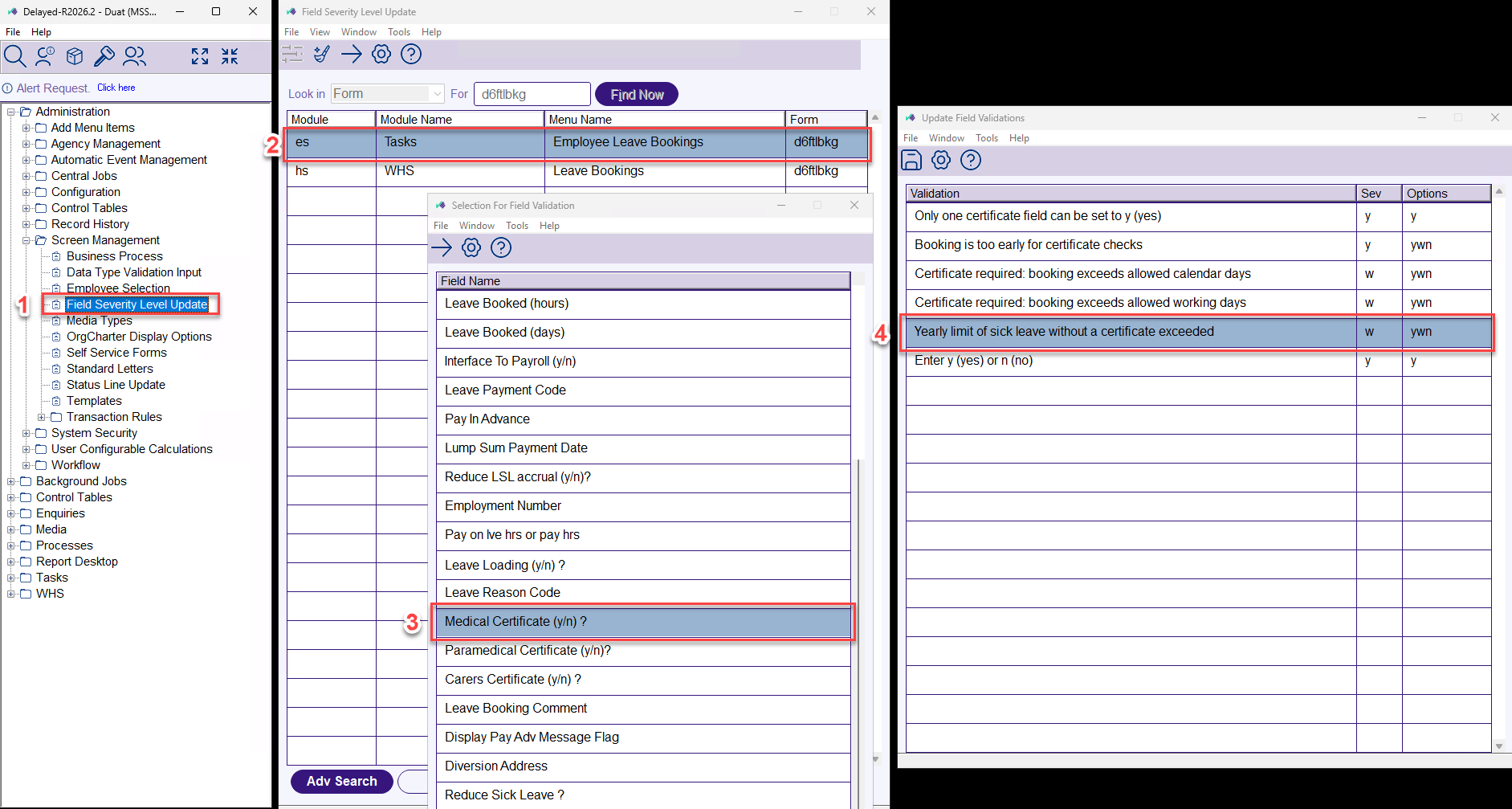
- Desktop: Administration > Screen Management > Field Severity Level Update → (Form: d6ftlbkg – Employee Leave Bookings)
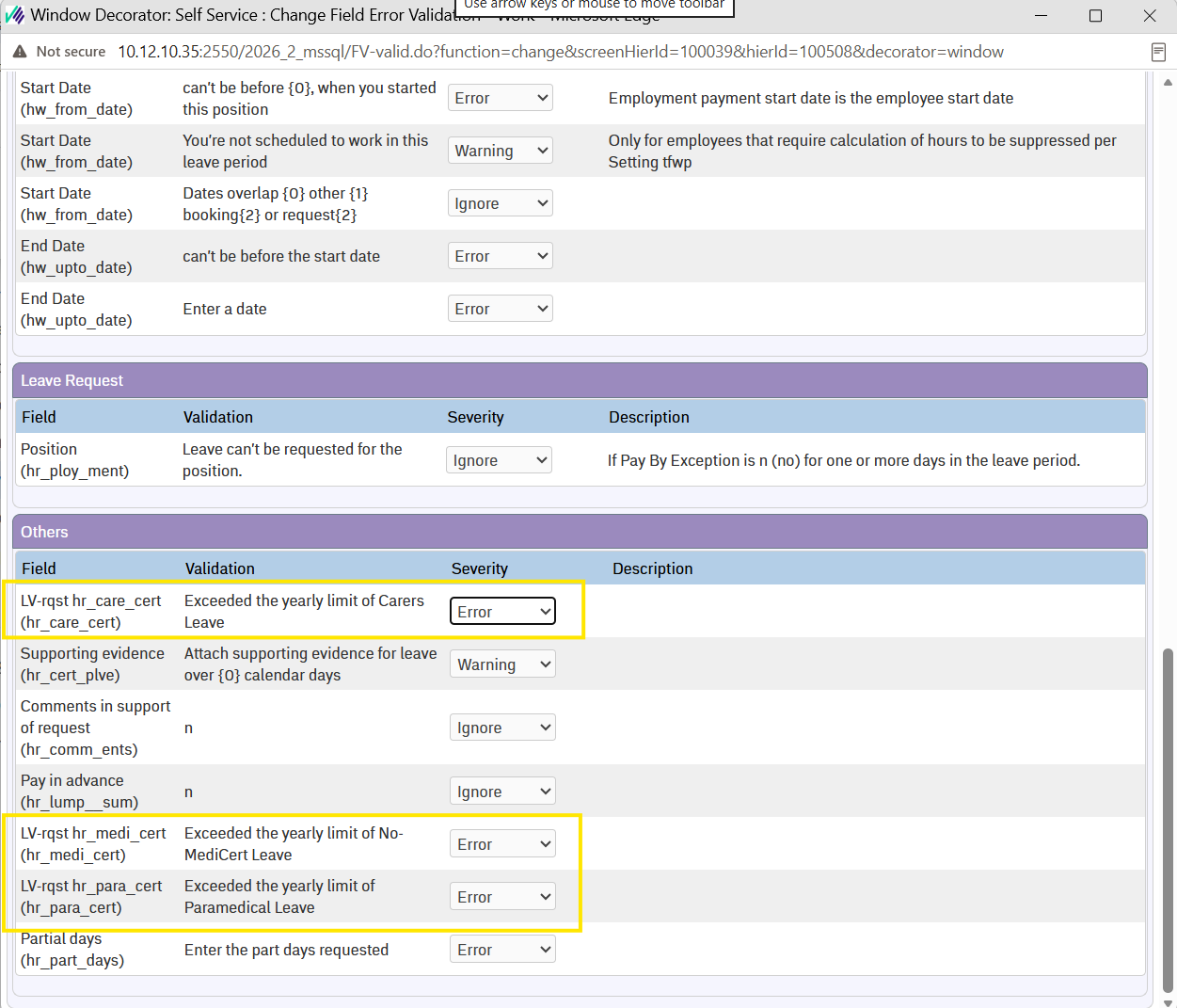
- Self Service: Administration > Screen Management > Field Error Validation > Self Service > Requests > Leave > Add Leave Request > Change
A few checks also need a value set on Installation Constants or Installation Options. You'll find those paths in the check itself.
Each check below tells you where it applies, and which field or validation to look for.
 |
The Self Service severity settings shown below sit on the Add Leave Request screen. The same tree also contains Change Leave Booking, Delete Leave Booking, View Leave Request, and View Leave Booking screens, each with their own severity settings. To apply consistent behaviour across the full leave lifecycle, set the same severity on each screen your employees interact with. |
Yearly limit without a certificate
- Applies in: Self Service and Desktop.
- What it does: caps how much sick leave an employee can take in a year without supplying a certificate.
- Numeric cap: for employees whose award is flagged to measure these limits in days, the cap comes from Installation Constants – see Max days per year without a certificate below. Otherwise it comes from the employee’s work pattern.
- Desktop severity:
- Field: Medical Certificate (y/n)?
- Validation: Yearly limit of sick leave without a certificate exceeded
- Self Service severity:
- Section: Others
- Field: LV-rqst hr_medi_cert (hr_medi_cert)
- Validation: Exceeded the yearly limit of No-MediCert Leave
Yearly limit with a paramedical certificate
- Applies in: Self Service and Desktop.
- What it does: caps how much paramedical leave an employee can take in a year.
- Numeric cap: taken from the employee's work pattern. See Set up award-based carer's leave entitlement.
- Desktop severity:
- Field: Paramedical Certificate (y/n)?
- Validation: Booking exceeds the yearly paramedical leave limit
- Self Service severity:
- Section: Others
- Field: LV-rqst hr_para_cert (hr_para_cert)
- Validation: Exceeded the yearly limit of Paramedical Leave
Yearly limit with a carer's certificate
- Applies in: Self Service and Desktop.
- What it does: caps how much carer's leave an employee can take in a year.
- Numeric cap: taken from the employee's award or classification (if configured), or falls back to the work pattern. See Set up award-based carer's leave entitlement.
- Desktop severity:
- Field: Carers Certificate (y/n)?
- Validation: Booking exceeds the yearly carers leave limit
- Self Service severity:
- Section: Others
- Field: LV-rqst hr_care_cert (hr_care_cert)
- Validation: Exceeded the yearly limit of Carers Leave
Pay By Exception
- Applies in: Self Service and Desktop.
- What it does: blocks leave on days when the employee's Pay By Exception is set to No.
- Desktop severity:
- Field: Upto Date
- Validation: Pay by exception is "n" for one or more days in this period
- Self Service severity:
- Section: Leave Request
- Field: Position (hr_ploy_ment)
- Validation: Leave can't be requested for the position
Overlap check
- Applies in: Self Service and Desktop. Applies to any leave type – not specific to sick or carer's leave.
- What it does: blocks leave that overlaps the employee's existing bookings or requests.
- Desktop severity:
- Field: From Date
- Validation: Leave booking already exists. This row appears twice on the From Date field. One checks current bookings, the other checks historical bookings.
- Self Service severity:
- Section: Create New Leave Request
- Field: Start Date (hw_from_date)
- Validation: Dates overlap {0} other {1} booking{2} or request{2}
Balance check
- Applies in: Self Service and Desktop.
- What it does: blocks leave that would take the employee's balance below zero.
- Desktop severity:
- Field: Leave Booked (days) / Leave Booked (hours)
- Validation: Not enough {sick} leave available to cover this booking
- Self Service severity:
- Section: Create New Leave Request
- Field: Start Date (hw_from_date)
- Validation: Balance {5} is {0} {1}. You need at least {2} {3} {4} (a related row on the same field – "There's no balance available for this leave type" – covers the zero-balance case)
- What counts as available balance: the check looks at the balance the employee has now. You can also count leave they'll accrue before their leave starts, along with leave they've already booked. Turn this on if your policy lets employees book leave before they accrue it.
- Desktop: Administration > Agency Management > Installation Options
- Self Service: Administration > Configuration > All Configuration > Leave
- Setting: Leave requests to include future accruals and bookings in tolerance checking (lrft). Both platforms change the same option.
Consecutive days without a certificate
- Applies in: Self Service and Desktop. The value sits on Installation Constants; the severity is settable through Screen Management in both.
- What it does: caps how many consecutive days of sick leave an employee can take before they need to supply a certificate.
- Where to set the limit: Administration > Agency Management > Installation Constants > Leave / Super tab, at Consecutive days without a certificate.
- Self Service severity:
- Section: Create New Leave Request
- Field: Leave Type (hr_leav_type)
- Validation: Certificate required: leave over {0} consecutive work days
- Desktop severity:
- Fields: Medical Certificate (y/n)?, Paramedical Certificate (y/n)?, and Carers Certificate (y/n)?
- Validations: Certificate required: booking exceeds allowed calendar days, and Certificate required: booking exceeds allowed working days
Max days per year without a certificate
- Applies in: Desktop only. The severity of the "exceeded" validation is covered by the Yearly limit without a certificate check above.
- What it does: sets the yearly cap for sick leave taken without a certificate. When an employee's request would exceed this cap, the Yearly limit without a certificate check fires.
- Where to set: Administration > Agency Management > Installation Constants > Leave / Super tab, at Max days / years without a certificate.
- This value is a fallback. If the employee's work pattern has a Leave Hours Without Certificate value, EmpowerHR uses that value instead.
Carer's leave help message
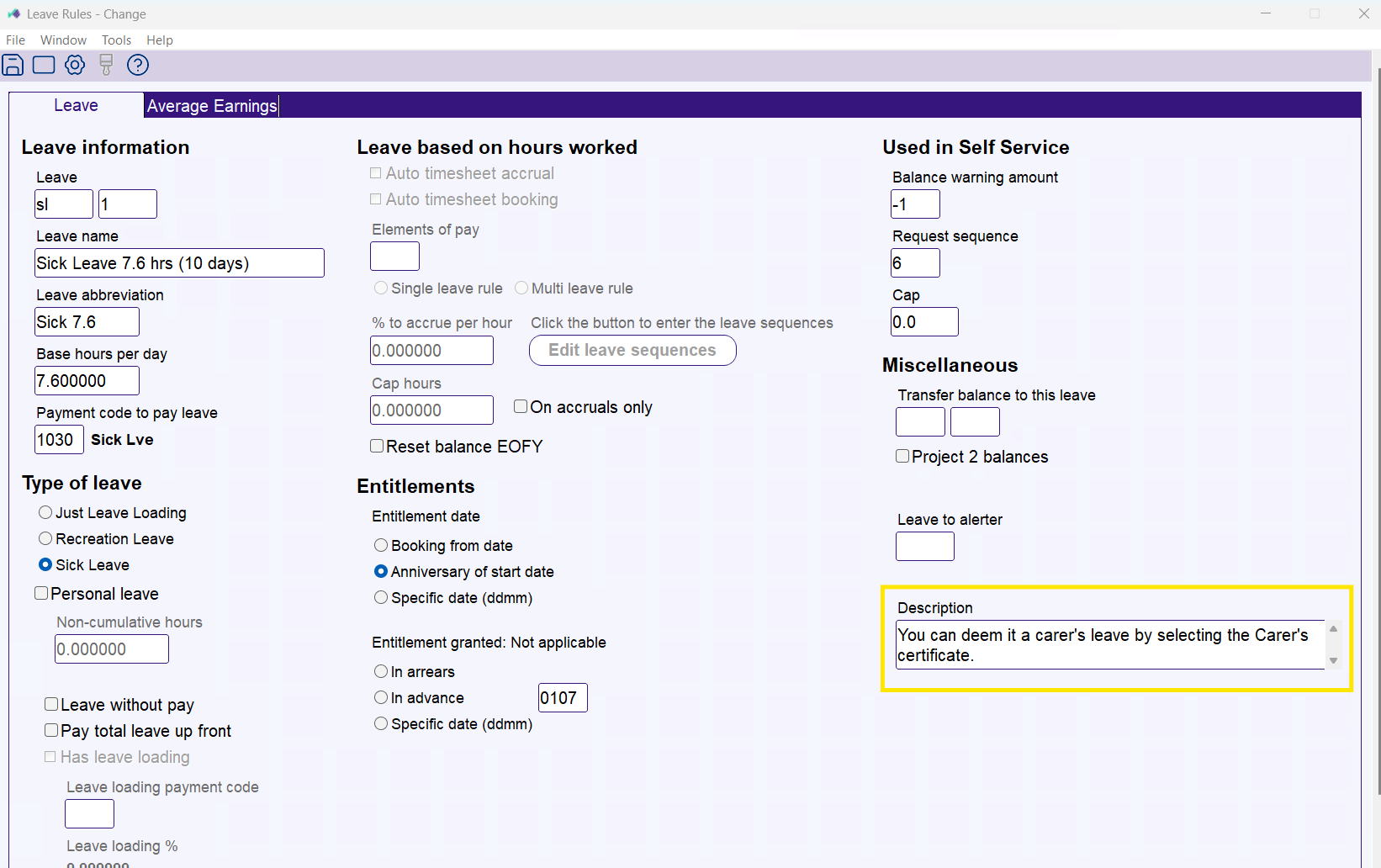
To prompt employees to select the Carer's certificate when their leave is for caring for someone, add a message to the Description field on your sick leave rule. The description appears next to the Leave Type field in Self Service when the employee selects that leave type.
Example message: "You can deem it a carer's leave by selecting the Carer's certificate."
Path: Tasks > Leave Accruals and Rules > Leave Rules > open the sick leave rule > Description field.
For details on the Description field and the other Leave Rule fields, see Leave rule fields.
Next topic |
|---|
© 2023 Fusion5. All rights reserved.