Need to take some sick or carer's leave? You can submit your request through Employee Self Service, and EmpowerHR checks everything as you go.
Fill in the request
To submit a request:
-
Go to Leave > Leave Details (or Requests > Leave).
-
At the Leave Details catalogue screen, click New Request.
-
At the Create New Leave Request detail screen, complete the fields:
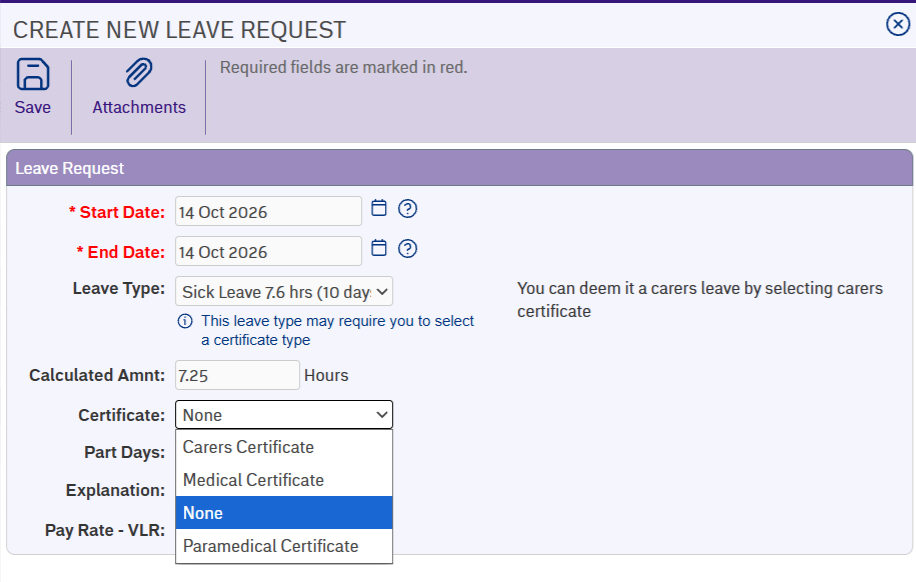
At this field Do this Start Date Click Date Lookup and pick the start date. End Date Click Date Lookup and pick the end date. Leave Type Pick your sick or personal leave type. The names depend on how your organisation has set them up – ask your administrator if you're not sure which one to pick.After you pick a leave type, either a Certificate field or a Supporting Evidence field appears next. The rest of the fields are the same.Calculated Amnt Check the calculated amount. Depending on how leave is set up, you might be able to change it. Certificate (if it appears) Choose the option that applies: Medical, Paramedical, Carer's, or None. Supporting Evidence (if it appears) Confirm whether you have supporting evidence for this request. Part Days Tick Part Days if your leave is only part days, not full days. Complete the extra fields that appear. Explanation Add a comment if you want to. Reason for Leave Pick a reason. Pay Rate - VLR (if it appears) Pick the pay rate for your leave – for example, 100 (full pay) or 50 (half pay). Options depend on your organisation's setup.
-
If you need to attach evidence, click Attachments and drag and drop the file onto the Drop files here... pane. Click Confirm to save the attachment.
-
Click Save. The Workflow Addressee window opens.
-
At Send To, pick your approver. Add a comment if you want to.
- Click Send To to submit your request.

|
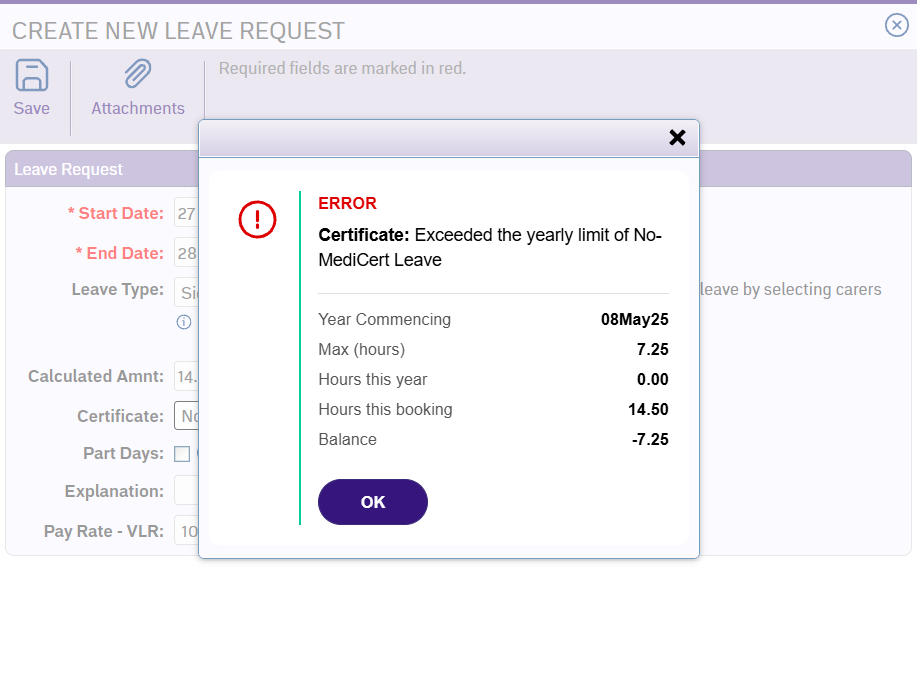
If your request breaks a rule (for example, exceeds your yearly limit), a pop-up appears explaining the issue. It also shows details such as your yearly limit, hours you've already taken, this booking's hours, and your resulting balance. Use the information to adjust your request.
|
Your Certificate choice sets your entitlement
EmpowerHR works out your entitlement from the option you pick:
- Medical – from your remaining leave balance.
- Paramedical, Carer's, or None – from your yearly cap for that certificate type.
Some sick leave types show a message next to the Leave Type field to guide your Certificate choice. Read the description before picking.
After you submit
Once you've submitted your request, EmpowerHR passes it to your approver and shows a confirmation. You get a notification when they take action.
If your request is approved, your leave is booked. If it's rejected, it comes back to you with the approver's comments so you can update it and resubmit.
You can check the status of any request from the Leave Details catalogue screen.
Next topic |
|---|
© 2023 Fusion5. All rights reserved.