You get notified when one of your employees submits a sick or carer's leave request. The steps to review and action it are the same as any other leave request – but there are a few things specific to sick and carer's leave worth knowing.
Find requests waiting on you
You get an email when a request needs your attention. Pending requests also appear in your Actions To Do list.
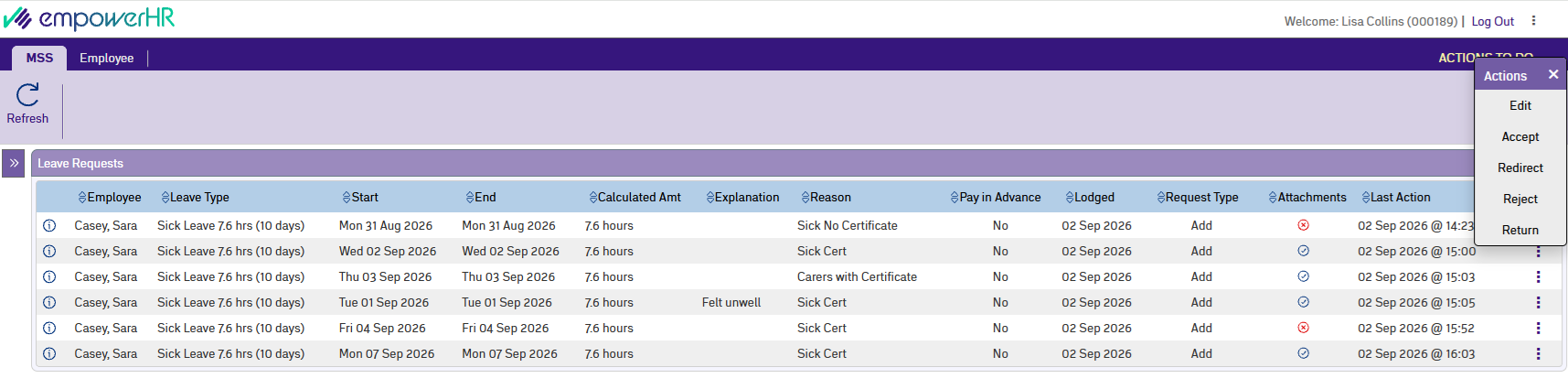
Open the Leave Requests screen from your Actions To Do list. Each row shows the employee, leave type, dates, calculated amount, reason, and current action code.
Action the request
From the Actions menu on any row, you can take a quick action, or click Edit to open the request detail first.
- Edit: opens the Process Leave Request detail screen so you can review before deciding.
- Accept: moves the request to the next step in the workflow. If you're the last approver, the request goes to Payroll for processing.
- Redirect: hand the request to another Payroll user. The Tasks Redirect popup opens – enter the person's employee code and click Save.
- Reject: decline the request. The employee is notified with your comments and the request closes. No further action from Payroll or other approvers..
- Return: send the request back to the employee to update. The employee adjusts and resubmits, and the request comes back to your Actions To Do list.
Comments you add appear in the workflow history and, where relevant, in the notification to the employee or next approver.
Review the request in detail
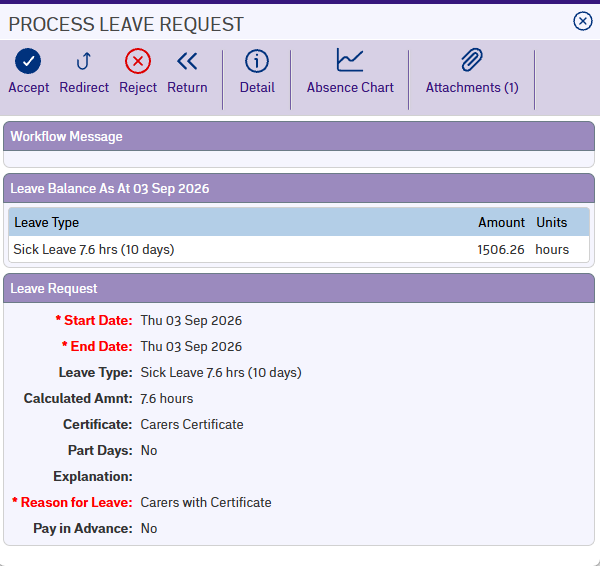
When you open a request with Edit, three additional buttons at the top of the Process Leave Request screen help you make your decision before you Accept, Redirect, Reject or Return it:
- Detail: shows the full request context.
- Absence Chart: see your team's absences for the same period, so you can check coverage.
- Attachments: view the certificate or evidence the employee provided.
You'll also see the Leave Balance and any Workflow Messages from previous approvers.
What's specific to sick and carer's leave
Check the Certificate choice and attachment
The employee picks Medical, Paramedical, Carer's, or None to describe their certificate. If they attached a document, review it and make sure it matches what they claimed.
Understand what was checked
The employee's Certificate choice determines which limit their request was checked against:
- Medical: checked against their leave balance.
- Paramedical, Carer's, or None: checked against the yearly cap for that certificate type.
Watch for warnings
If your organisation has set the severity of a check to Warning (instead of Error), the employee may have submitted a request that exceeds their limit. The Leave Balance on the detail screen tells you what they have left.
After you action
For what Payroll does with accepted requests, see Process a sick or carer's leave request (Payroll) for what Payroll does next. Rejected and returned requests notify the employee.
You can check the status of any request from your Actions To Do list.
Next topic |
|---|
© 2023 Fusion5. All rights reserved.