Your preferred sign-on screen
You can set the self service sign-on screen according to your organisation's preference.
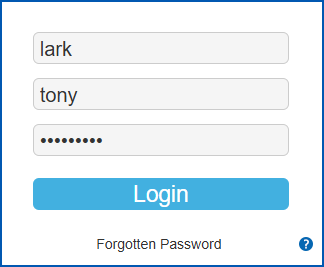
When you set the installation setting called (jsty) User sign on type to:
- form, users are prompted for their surname, given name (and password) when signing on
- empl, users are prompted for their employee code (and password) when signing on
Conventions for signing on
If the user needs to sign on with their name:
- Surname and Given Name fields are not case sensitive
- they must enter their Given Name in full
Limit SSO sessions
You can limit the number of sessions an individual is allowed when using single sign on (SSO). Limiting the number of sessions can prevent the sign on process from potentially looping.
To limit the number of a user's SSO sessions:
- Go to Administration > Configuration > All Configuration.
- At Configuration Items, expand Self Service Technical, and then expand Security.
- Click (jsiv) Simultaneous sessions allowed, and then enter the number of sessions allowed in the Float field.
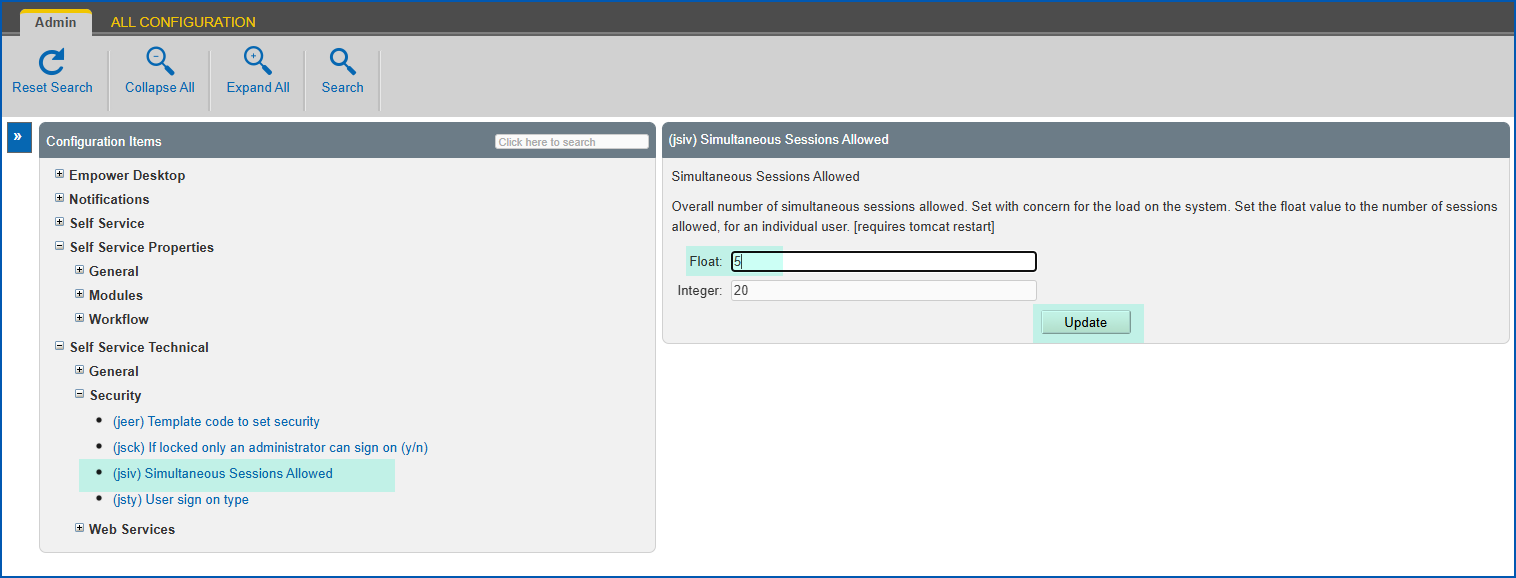
- Click Update.

|
To learn about configuring user passwords, how EmpowerHR handles forgotten passwords, and how to reset a password, see self service passwords. |
© 2023 Fusion5. All rights reserved.