Switching on two factor authentication (2FA)  provides an extra level of security. You can configure 2FA with products like Microsoft or Google Authenticator.
Two-factor authentication (2FA) is an identity and access management security method that requires two forms of identification to access resources and data.
Configure 2FA
To update the relevant template to enable 2FA:
- Go to Administration > Security > Templates.
- The Templates catalogue displays.
- At the row containing the template, click
 Actions and then select Access from the menu.
- EmpowerHR displays the Security Access for... details screen with the self service menu (tree) structure.
- Expand Self Service.
- Scroll down, expand Administration and then expand Configuration.
- Select the checkbox next to Two Factor Configuration.
- Scroll down and expand Security.
- Select the checkbox next to:
- Bypass 2FA
- Disable 2FA
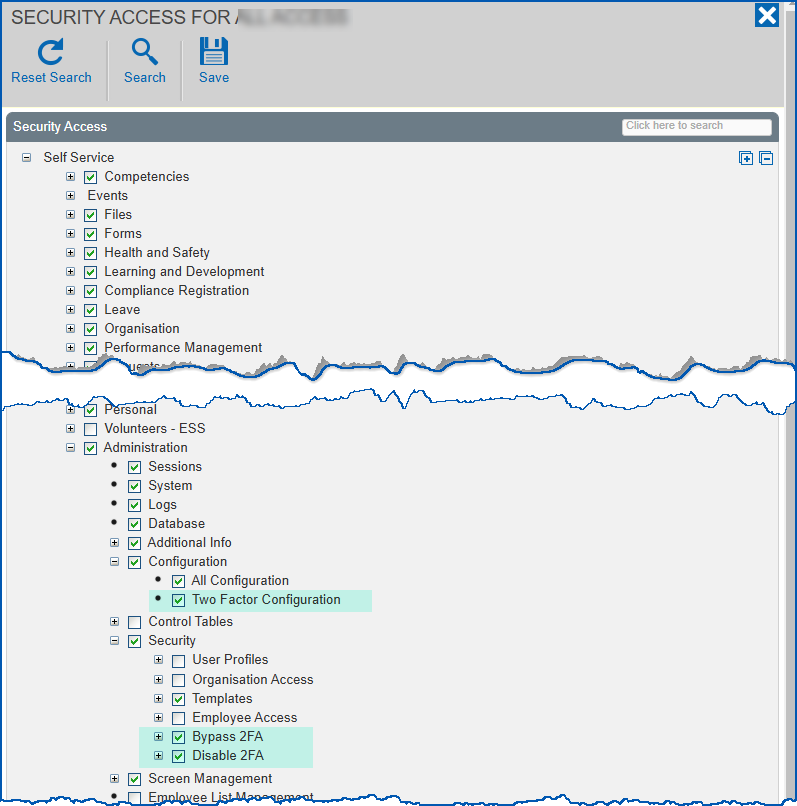
- Click Save.
Activate 2FA company-wide
Two Factor Authentication is, by default, set to Optional. This lets individual users decide whether or not to use 2FA. If your organisation's policy is for mandatory 2FA for all employees, you can change the setting to Mandatory.
To set 2FA to mandatory for your organisation:
- Go to Administration > Configuration > All Configuration.
- At Configuration Items, click expand Self Service.
- Scroll down, expand Sign On.
- Click (tfaa) Two factor authentication, set the Choice to m, and then click Update.
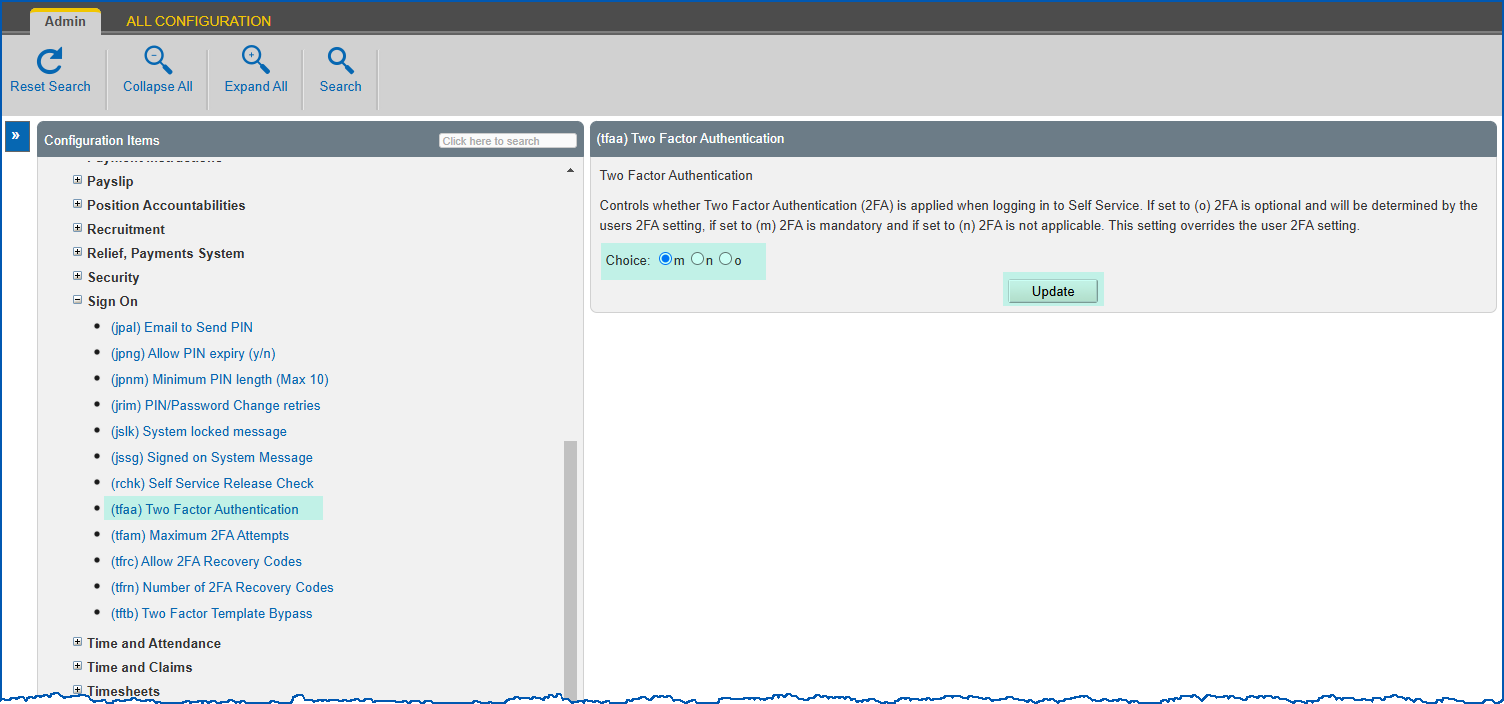
- Update any of the following additional settings, as required:
- (tfam) Maximum 2FA attempts
- (tfrc) Allow 2FA recovery codes
- (tfrn) Number of 2FA recovery codes
Bypass 2FA
You can temporarily turn off 2FA for an employee when, for example, they're without their mobile device (left at home or having repaired, etc).
To bypass 2FA for an employee:
- Go to Administration > Security > Bypass 2FA.
- The Bypass Two Factor Authentication Detail screen displays. At:
- Employee, enter the employee's name and, when a list of possible matches displays, select the correct name
- From, click Date Lookup and select the date to start the 2FA bypass
- Upto, click Date Lookup and select the date to end the 2FA bypass
- Click Save.
Bypass 2FA in self service template
You can turn off 2FA on a template when, for example, a non-employee has administration access and needs to update templates or menus in self service.
To bypass 2FA on a template:
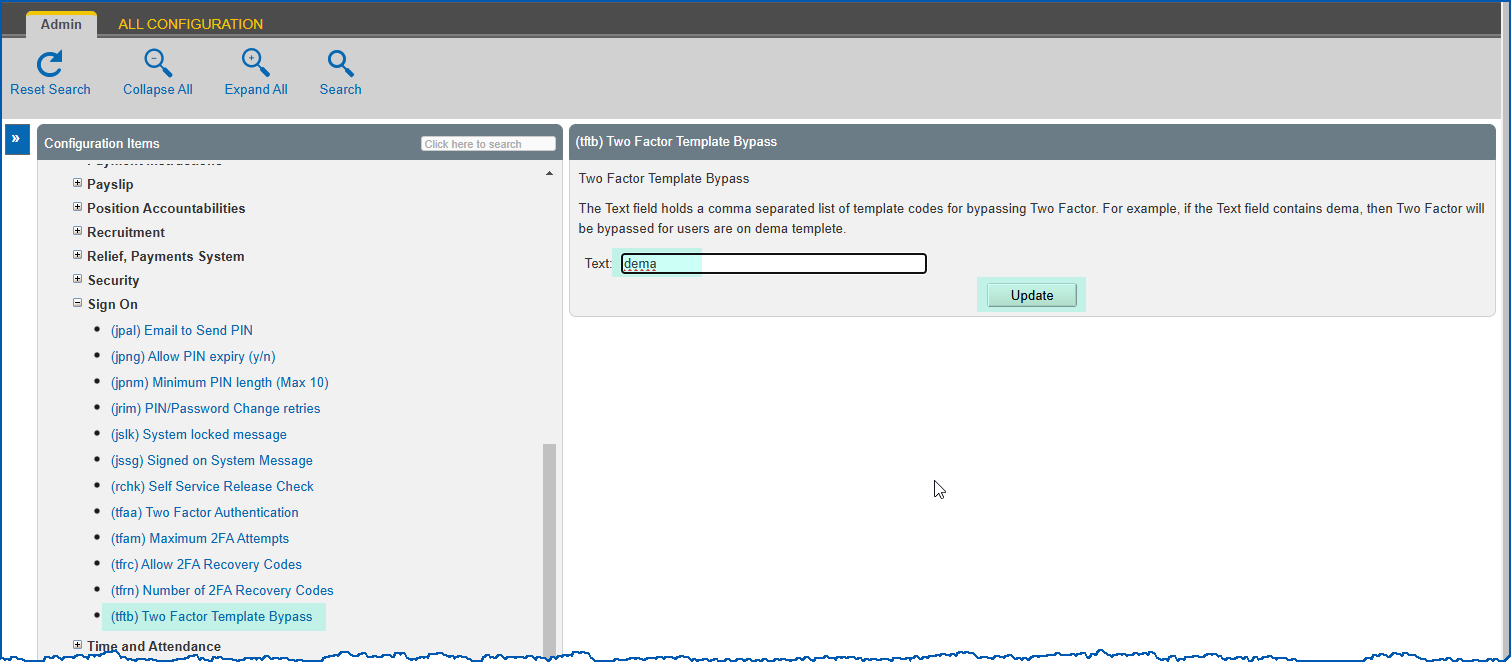
- Go to Administration > Configuration > All Configuration.
- At Configuration Items, expand Self Service.
- Scroll down, expand Sign On.
- Click (tftb) Two factor template bypass, enter the name of the template that has been assigned to the employee in Text.
- Click Update.
Disable 2FA
You can turn off 2FA for employees who have activated it where, for some reason, are unable to access self service to turn it off themselves.
To disable 2FA for an employee:
Go to Administration > Security > Disable 2FA.
The Disable 2FA screen displays.
At Search Filter, enter the employee's name and, when a list of possible matches displays, select the correct name.
At the row containing the employee, click Disable.
EmpowerHR displays the employee Two Factor Authentication screen.
Click Disable.
Change (ellipsis) colour
An ellipsis displays at the top right corner of the self service screen which, when clicked, shows a dropdown menu with options users can choose from, for example, Change Password, Two Factor Authentication.
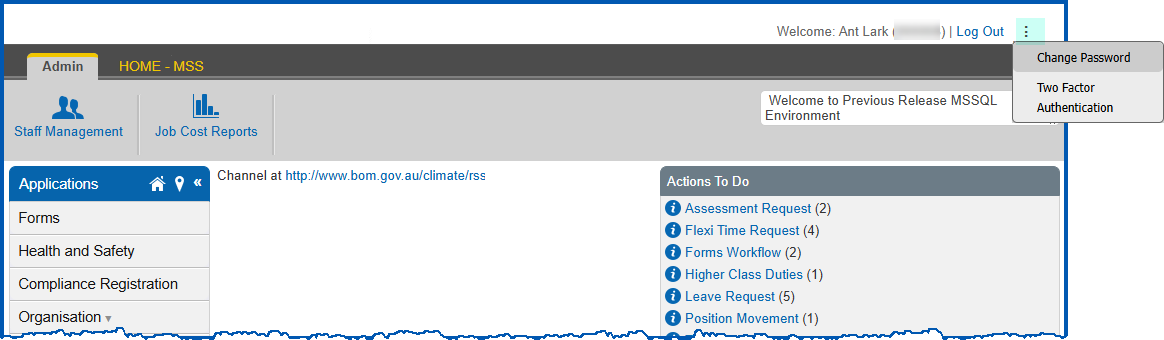
You can change the colour of the ellipsis via the CSS .
CSS = a Cascading Style Sheet, which describes how HTML elements are to be displayed on screen

|
Enter the colour value in hexadecimal RGB format, #RRGGBB. In the following instructions, we change the colour to black. |
To change the colour of the ellipsis:
- Go to the custom-page.css
- Add the following code.
.dots text
{
color:#000;
}
© 2023 Fusion5. All rights reserved.