In EmpowerHR desktop, the Password Configuration screen lets you work with all user password settings from a single screen.
See password configuration for more information about how to use the screen.
Suspend user's (self service user)
You can suspend a self service user, preventing them from accessing EmpowerHR self service. While their access is revoked, their details are retained. Even though suspended, the user still appears in the User Profiles catalogue so you can reactivate (unsuspend) them, if required.
 |
See also: suspend operator access (desktop user) |
To suspend a self service user's access:
- Go to Administration > Security > User Profiles.
- The User Profiles catalogue displays.
- At Search Filter, complete the fields according to the type of search criteria you want to apply, and then click Search to see the results.
- At the row containing the user, click Actions and then select Edit from the menu.
- At the User Profile details screen, in the Suspended field, select Yes from the dropdown menu.
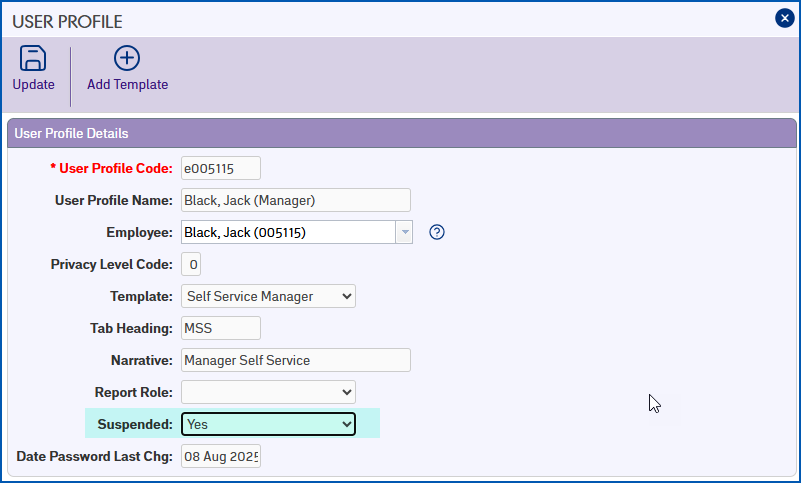
- Click Update. EmpowerHR sends the user a suspension notification email.
Unsuspend user access (self service user)
When a self service user's access is suspended, you can easily reactivate it by changing the Suspended flag to No.
|
See also: unsuspend operator access (desktop user) |
To unsuspend (reactivate) a self service user's access:
- Go to Administration > Security > User Profiles.
- The User Profiles catalogue displays.
- At Search Filter, complete the fields according to the type of search criteria you want to apply, and then click Search to see the results.
- At the row containing the user, click Actions and then select Edit from the menu.
- At the User Profile details screen, in the Suspended field, select No from the dropdown menu.
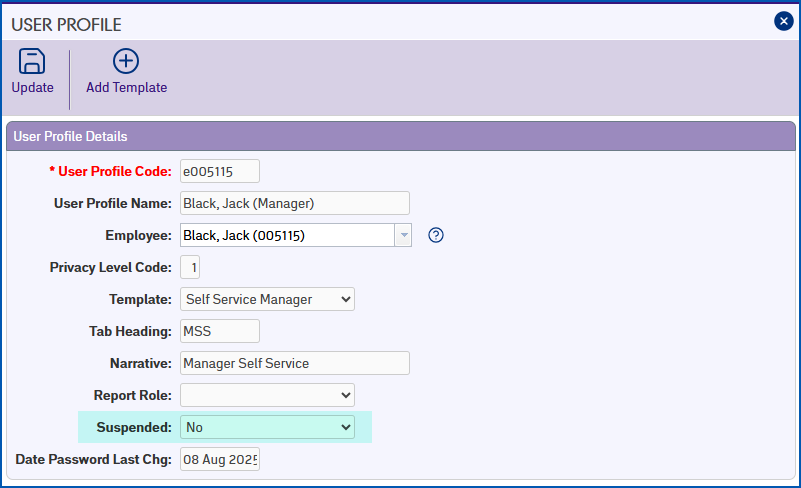
- Click Update. EmpowerHR sends the user a password reset email.
© 2023 Fusion5. All rights reserved.