Password configuration
The strength of a password is a function of length, complexity, and unpredictability. EmpowerHR's password configuration feature lets you manage all password security settings from a single screen.
When configuring your password security settings, we recommend you:
- set reasonable complexity requirements based on organisational security needs
- configure appropriate lockout periods to balance security and usability
- set token
 expiry times that allow users reasonable time to reset passwords
A reset email contains a unique security token, which is a link for the user to follow to reset their password. In password configuration options, you can set the time by which the user needs to follow the link before it automatically expires.
- regularly review and update breach response procedures
To manage password configuration:
- Go to Administration > Configuration > Password Configuration.
- At the Password Configuration Change screen, click Open.
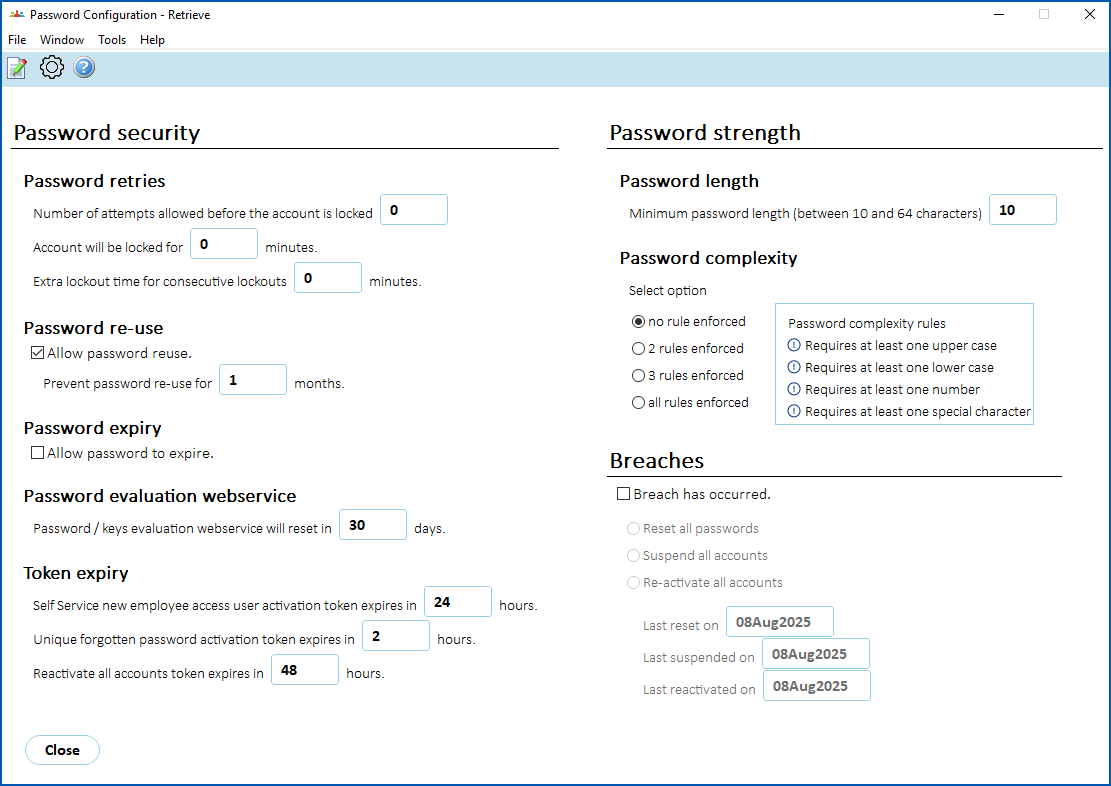
- Make changes to the settings, using the following table (Configuration options) as a guide, and then click Save.
Configuration options
| At this field... | Do this... |
|---|---|
| Password security | |
| Password retries | |
Number of attempts allowed before the account is locked | Enter the number of attempts you want to allow before locking a user's account (3-5 attempts recommended). Entering 0 allows unlimited attempts. EmpowerHR defaults to 3. |
Account will be locked for | Enter the number of minutes to lock a user's account (for example, 15-30 minutes). EmpowerHR defaults to 15 minutes. |
Extra lockout time for consecutive lockouts | Enter the number of additional minutes to set for repeat lockouts (for example, 15-60 minutes). EmpowerHR defaults to 15 minutes. Lockout escalation example...
|
| Password re-use | |
Allow password reuse | Select this checkbox if you want allow users to reuse their passwords. |
Prevent password re-use for...months | This option only displays when you select Allow password reuse. Enter the number of months you want to prevent the password from being reused (for example, 6-24 months depending on the risk level).. If you enter 0 (never allow reuse), EmpowerHR automatically de-selects the Allow password reuse checkbox. EmpowerHR defaults to 12 months. |
| Password expiry | |
Allow password to expire | Select this checkbox if you want to activate password expiry. |
Expires after...days | This option only displays when you select Allow password to expire. Enter the number of days before EmpowerHR forces a password change. A user is then required to reset their password if they try to login using an expired password (for example, 60-180 days based on policy). If you enter 0 (never expires), EmpowerHR automatically de-selects the Allow password to expire checkbox. EmpowerHR defaults to 90 days. |
| Password evaluation webservice | |
Password / keys evaluation webservice will reset in...days | EmpowerHR automatically regenerates webservice passwords/keys. Enter the number of days password evaluation resets. EmpowerHR defaults to 30 days. |
Token expiry | |
Self Service new employee access user activation token expires in...hours | Enter the number of hours allowed to elapse before a new employee's Self Service password token expires (for example, 2-48 hours). EmpowerHR defaults to 24 hours. |
Unique forgotten password activation token expires in...hours | Enter the number of hours allowed to elapse before a user's forgotten password token expires. |
Reactivate all accounts token expires in...hours | Enter the number of hours allowed to elapse before all accounts token expires. EmpowerHR defaults to 48 hours. |
| Password strength | |
| Password length | |
Minimum password length (between 10 and 64 characters) | Enter a value between 10 and 64 for the password length your organisation requires (for example, 12+ for high security). EmpowerHR defaults to 10 characters. |
| Password complexity | |
Select option: | |
no rule enforced | Select this option for basic password requirements only, or |
2 rules enforced | Select this option if you require moderate password security, or |
3 rules enforced | Select this option if you require enhanced password security, or |
all rules enforced | Select this option if you require maximum password security. |
Password complexity rules | Nothing. These are the rules for how complex passwords need to be. |
Requires at least one upper case | |
Requires at least one lower case | |
Requires at least one number | |
Requires at least one special character | |
| Breaches | |
Breach has occurred | Select this checkbox when passwords are compromised by a data breach. When you select this checkbox, the following options are enabled for you to choose from: |
Reset all passwords | Select this option to generate token emails for all users, or |
Suspend all accounts | Select this option to immediately suspend all accounts (except for the current system admin account), or |
Re-activate all accounts | Select this option to send reactivation tokens to all users. |
Last reset on | Nothing. EmpowerHR generates this date. |
Last suspended on | Nothing. EmpowerHR generates this date. |
Last reactivated on | Nothing. EmpowerHR generates this date. |
Prevent multiple password changes in a day
If you'd like to prevent users from changing their password more than once in a day, you can update the field severity level to trigger an error message and stop the user from making the change.
To update the field error validation severity (to prevent multiple password changes):
- Go to Administration > Screen Management > Field Severity Level Update.
- At the Field Severity Level Update summary screen, find and select the menu name, Change Password (syfpassw), and then click Next Level.
- At the Selection For Field Validation screen, select the field name called Change Password, and then click Next Level.
- At the Update Field Validations screen, in the Sev (severity) column, change the default setting of n (no error shown) to y (yes), an error displays and stops the user from going further with the password change.
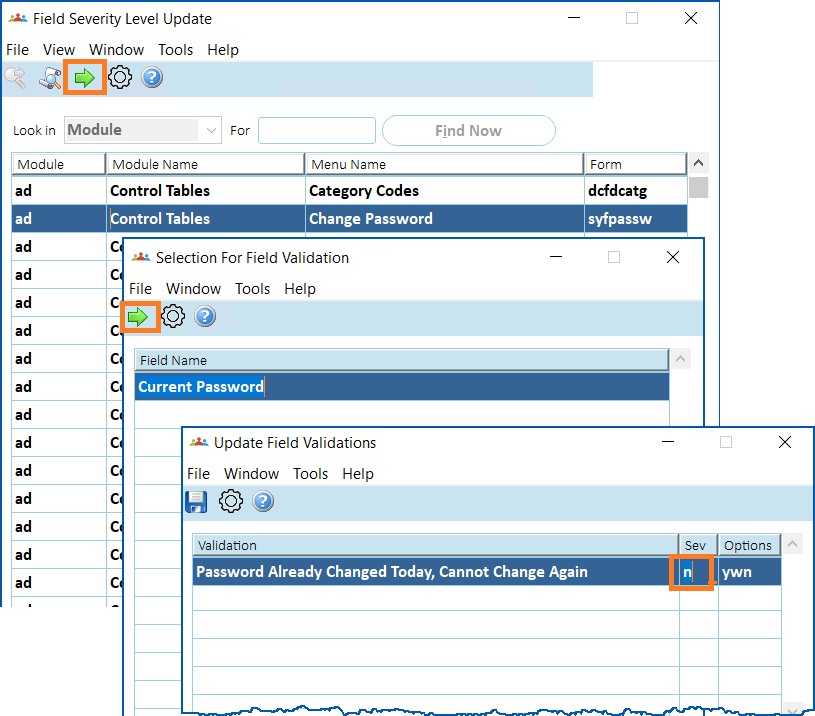
- Click Save.
Suspend operator access (desktop user)
You can suspend an operator (desktop user), preventing them from accessing EmpowerHR. While their access is revoked, their details are retained. Even though suspended, the operator code still appears in the Operator Codes / Functions summary screen.

|
See also: suspend user access (self service user) |
To suspend an operator's access (desktop user):
- Go to Administration > System Security > Operator Codes / Functions.
- At the Operator Codes / Functions summary screen, find and select the operator code (user), and then click Open.
- At the Operator Codes / Functions detail screen, in the Suspended? field, change n (no) to y (yes), and then press Tab.
- EmpowerHR removes the Reset Password checkbox.
- Click Save. EmpowerHR sends the user a suspension notification email.
Unsuspend operator access (desktop user)
When a desktop user's (operator) access is suspended, you can easily reactivate it by changing the Suspended flag to n (no).
|
|
See also: unsuspend user access (self service user) |
To unsuspend (reactivate) an operator's access (desktop user):
- Go to Administration > System Security > Operator Codes / Functions.
- At the Operator Codes / Functions summary screen, find and select the operator code (user), and then click Open.
- At the Operator Codes / Functions detail screen, in the Suspended? field, change y (yes) to n (no), and then press Tab.
- EmpowerHR displays the Reset Password checkbox, checked and in display-only status.
- Click Save. EmpowerHR sends the user a password reset email.
Respond to a breach
If your organisation identifies a security breach, you can respond quickly, stopping access to EmpowerHR until the breach is contained.
|
|
As the administrator performing the following procedure, your account is not affected (remains active so you can do the work). |
To respond to a breach:
- Go to Administration > Configuration > Password Configuration.
- At the Password Configuration Change screen, click Open.
- Select the Breach has occurred checkbox.
- Select one of the following options:
- Reset all passwords, or
- Suspend all accounts
|
If you choose to Suspend all accounts, you can select the option to Re-activate all accounts once the breach is contained and your organisation is ready to reinstate access to EmpowerHR. |
- Click Save. EmpowerHR sends an email notification to affected users.
© 2023 Fusion5. All rights reserved.