This topic applies if you use a time capture system.

|
If you use a time capture system where some employees are on Pay By Exception (PBE), you also need to set up the Procedure Data Screen to avoid overpayment. See procedure data configuration for instructions. |
Codes you need to set up for leave bookings to be paid
For EmpowerHR to record a period of absence as a booking which automatically adjusts the employee's entitlement, you must:
- create a payment code for the type of leave (if it doesn't already exist). See payment codes for instructions.
- create a leave rule. See normal leave rules for instructions.
- link the payment code to the leave rule. See the following procedure for instructions.
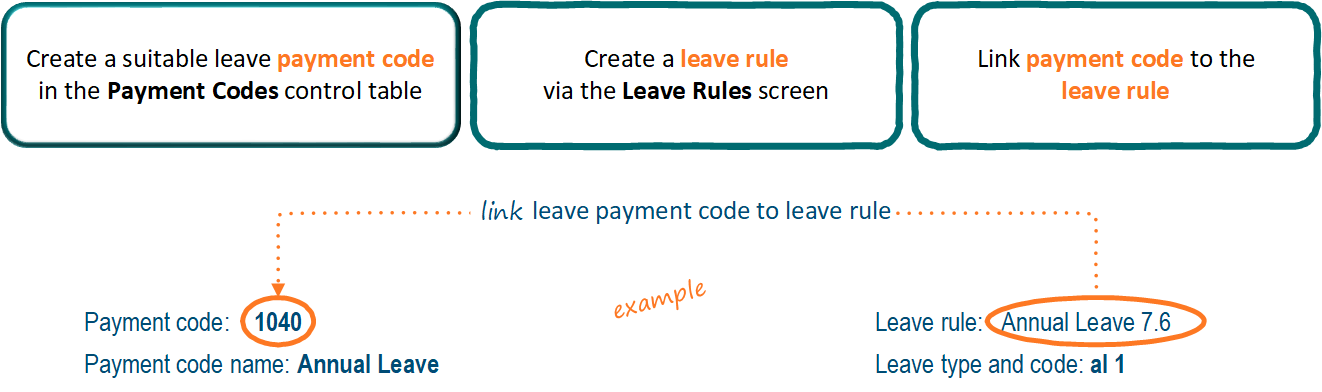
Link a payment code to a leave rule
|
|
You can link one leave payment code to one or many leave rules. |
To link a leave payment code to a leave rule:
- Go to Control Tables > Payment > Leave Booking Payment Codes.
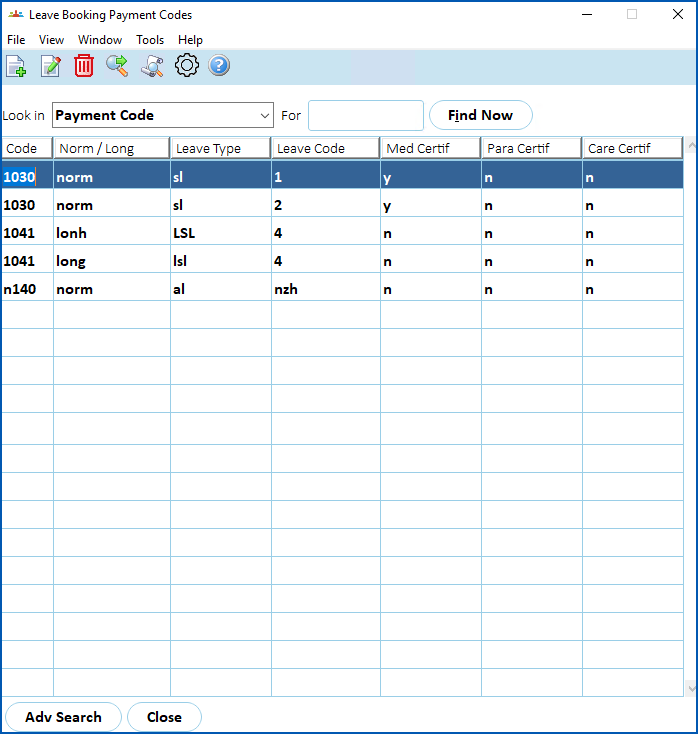
- At the Leave Booking Payment Codes summary screen, click Find Now. In the following example, times entered against payment code 1030 will generate leave records for Leave Type sl (sick leave) and Leave Codes 1 and 2.
- Click New.
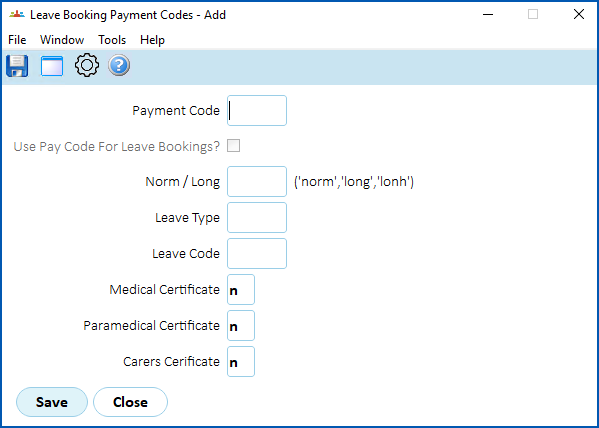
- At the Leave Booking Payment Codes detail screen, make your selections and entries in the leave booking payment code fields.
|
|
The entry you make in the Payment Code field is how you link the leave rule to the payment code. |
- Click Save.
- Repeat this procedure, starting at step 3, until you've linked the payment code to any other leave rules (if required) .
- At the Leave Booking Payment Codes summary screen, click Close, when you are finished.
© 2023 Fusion5. All rights reserved.