With multiple employments:
- normal leave applies independently for each employment
- long service leave accrues at employee level, therefore does not apply independently to each employment
Allocate leave to a new employment
You can attach relevant leave types to a new employment from that employment's start date. Leave accrual can be the same as other employments, or it can be something completely different, depending on the leave accrual that normally applies to a new employment.
To allocate leave to a new employment: 
- Go to Tasks > Employees > Employee Information > Employee Information.
- At the Employee Information summary screen, find the employee.
- Select the new employment. In the following example, this is EN 1.
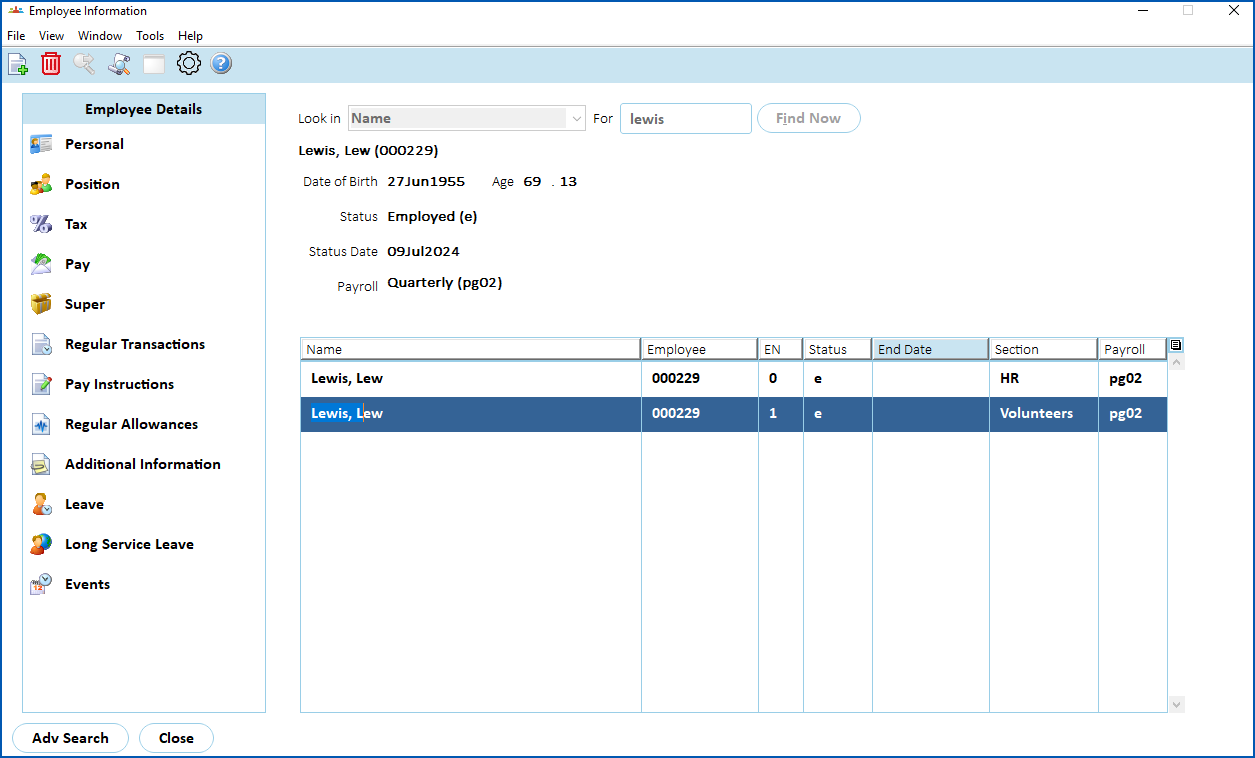
- Click Leave.
- The Allocate Employee Leave - Add screen displays.
- At the Leave Type field, click Window, find and double-click a leave type to add it to the field.
- EmpowerHR populates the Leave Code field based on the leave type you selected.
- Press Tab to navigate to the Start Date field. The Start Date and Last Accrual Date fields default from the start date of the new employment (rather than the employee's original start date).
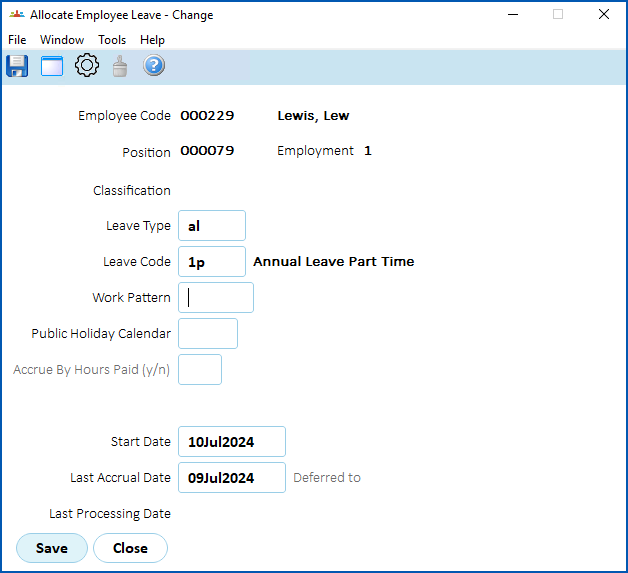
- Click Save.
- Repeat this procedure, starting at step 4, until you've allocated all the required leave.
- Once allocated, each leave type accrues separately, based on the accrual rules and each employment's FTE%
 .
FTE = Full Time Equivalent. The percentage (%) is calculated based on the employee's Hrs Per Period and Std hours on the Classification.
Book leave (multiple employments)
Each employment has its own work pattern and accruing leave types, allowing you to record the conditions for each employment independently of any other.
When you book leave for an employee with multiple employments, you need to consider whether the leave applies to one or all employments.
When you go to the Employee Leave Bookings screen and search for the employee, EmpowerHR displays all employment records for that employee. Select a row containing the employment you want to book the leave against, and then click Next Level. See make a leave booking for how to complete the booking.
Book long service leave (multiple employments)
The installation setting called LSL booking ignores pbe types (lsle) allows you to nominate the Pay By Exception (PBE) values you want EmpowerHR to ignore whenever you create a LSL booking for an employee with multiple employments. The system accepts bookings for the employment that differ from the values you enter in the installation setting. Acceptable values for the installation setting are:
- blank (ignore no-one)
- n (ignore anyone with the PBE set to n)
- s (schedule - ignore anyone with PBE set to s)
- y (ignore anyone with PBE set to y)
You can set a combination of the options, for example, ns to ignore anyone with PBE set to n, or PBE set to s.
Case study: PBE flag / lsle setting The installation setting called LSL booking ignores pbe types (lsle) is set to n Joe Ali has two employments where:
When long service leave is booked for Joe, EmpowerHR accepts the leave booking, links it to pay, and pays it against the relevant employment number - in this case, Employment 0.
|
|---|

© 2023 Fusion5. All rights reserved.