Here we show what to do to ensure you can successfully run STP reports.
Confirm installation options and menu items
| What to confirm | How |
|---|---|
Installation option: STP version |
To confirm the STP version installation option is set:
|
Menu items: payroll and update events | To confirm the payroll and update event menu items are available:
|
Menu items: reconciliation reports | To confirm the reconciliation reports menu items are available:
|
Menu item: income stream adjustment | To confirm the income stream adjustment menu item is available:
|
Confirm sending service provider (SSP) name
To confirm the name of your SSP is correct:
- Go to Administration > Agency Management > Installation Settings.
- At the Installation Settings summary screen, find and select the setting called Sending Service Provider Name (serp).
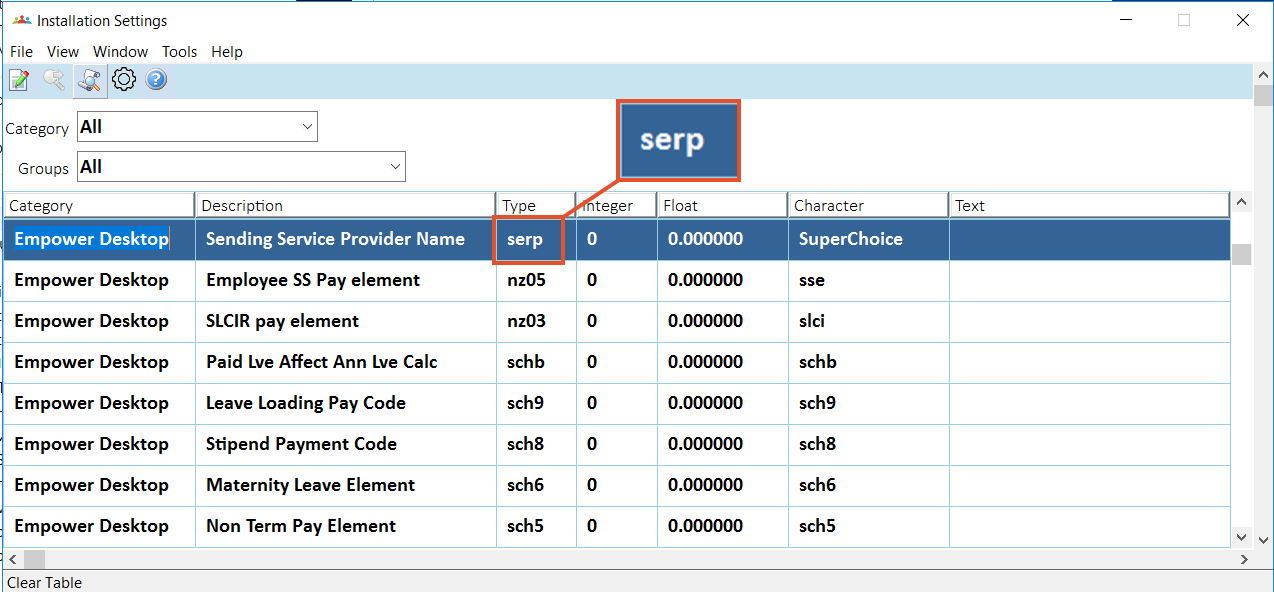
- Click Open.
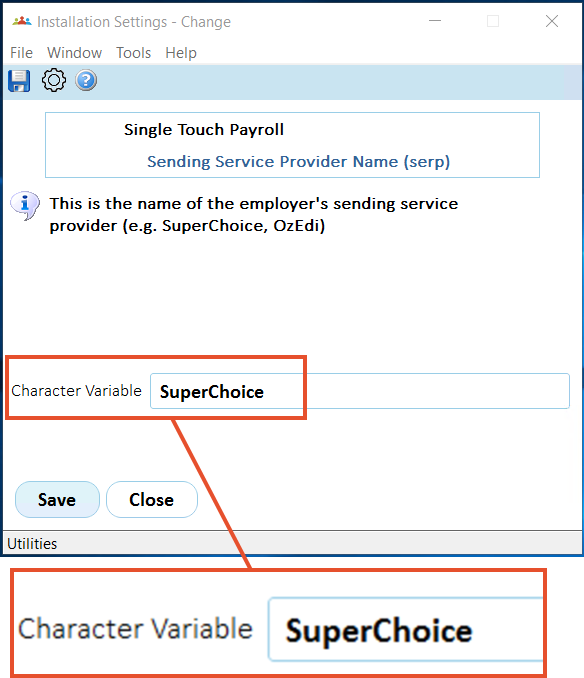
- At the Installation Settings detail screen, make sure the SSP name in the Character Variable field is correct. Otherwise, change the name, and then click Save.
Confirm supplier/payer ABN details
 |
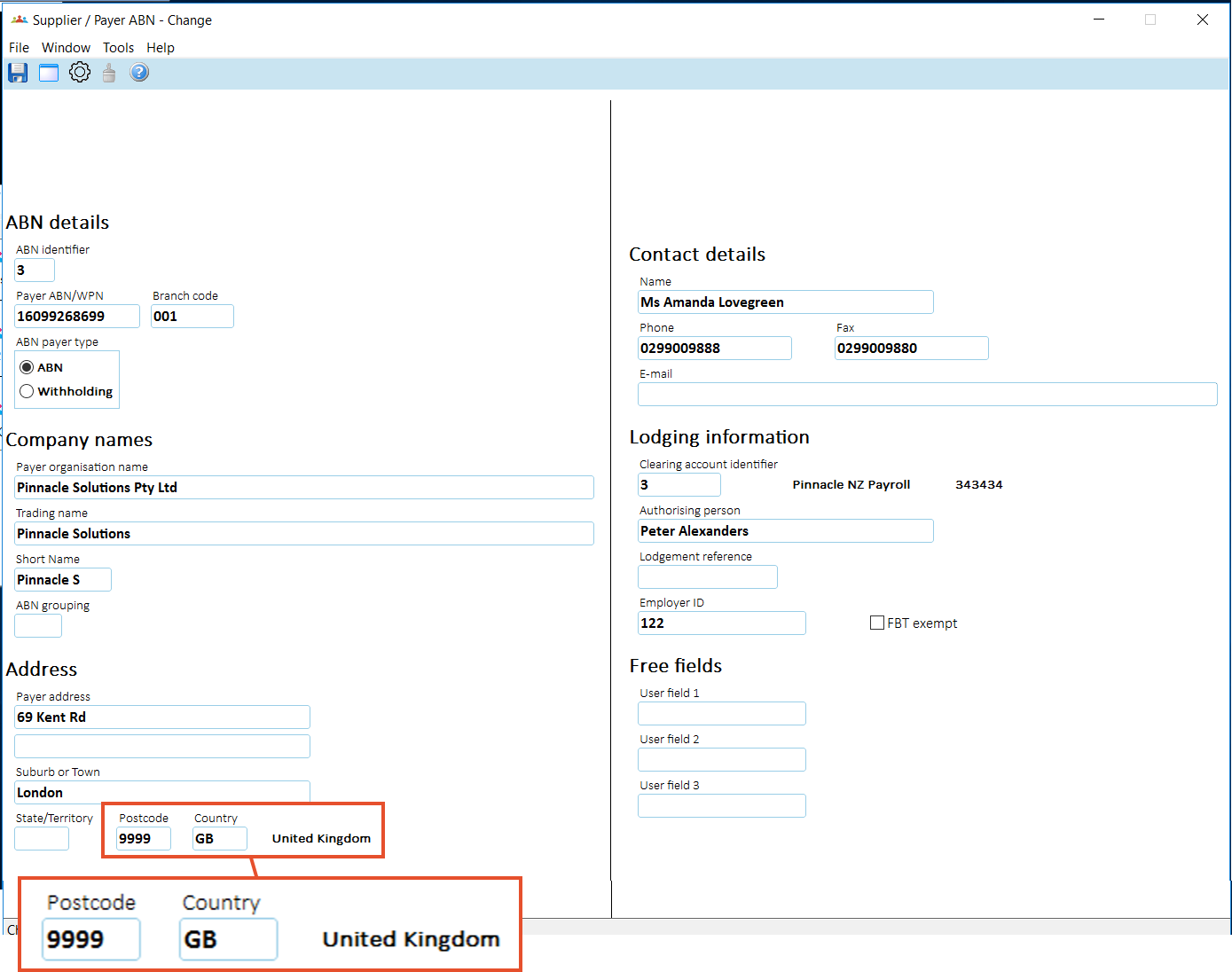
For any non-Australian supplier/payer ABN address, the Postcode field must show 9999, with the correct country in the Country field. (The Country field does not show for Australian addressees). |
To confirm supplier/payer ABN details for non-Australian addresses:
- Go to Administration > Agency Management > Supplier/Payer ABN.
- At the Supplier/Payer ABN summary screen, select a supplier/payer ABN, and then click Open.
- At the Supplier/Payer ABN detail screen, make sure the Postcode for the non-Australian address is 9999, and the Country field shows the correct country. If selections are:
- correct, go to step 8.
- incorrect, go to step 4.
- Change the postcode to 9999.
- At the Country field, click Window to view a list of countries.
- Find and double-click the country code to add it to the Country field on the Supplier/Payer ABN detail screen.
- Click Save.
- Repeat this procedure, starting at step 2, until you’re satisfied every non-Australian supplier/payer ABN address is set up correctly.
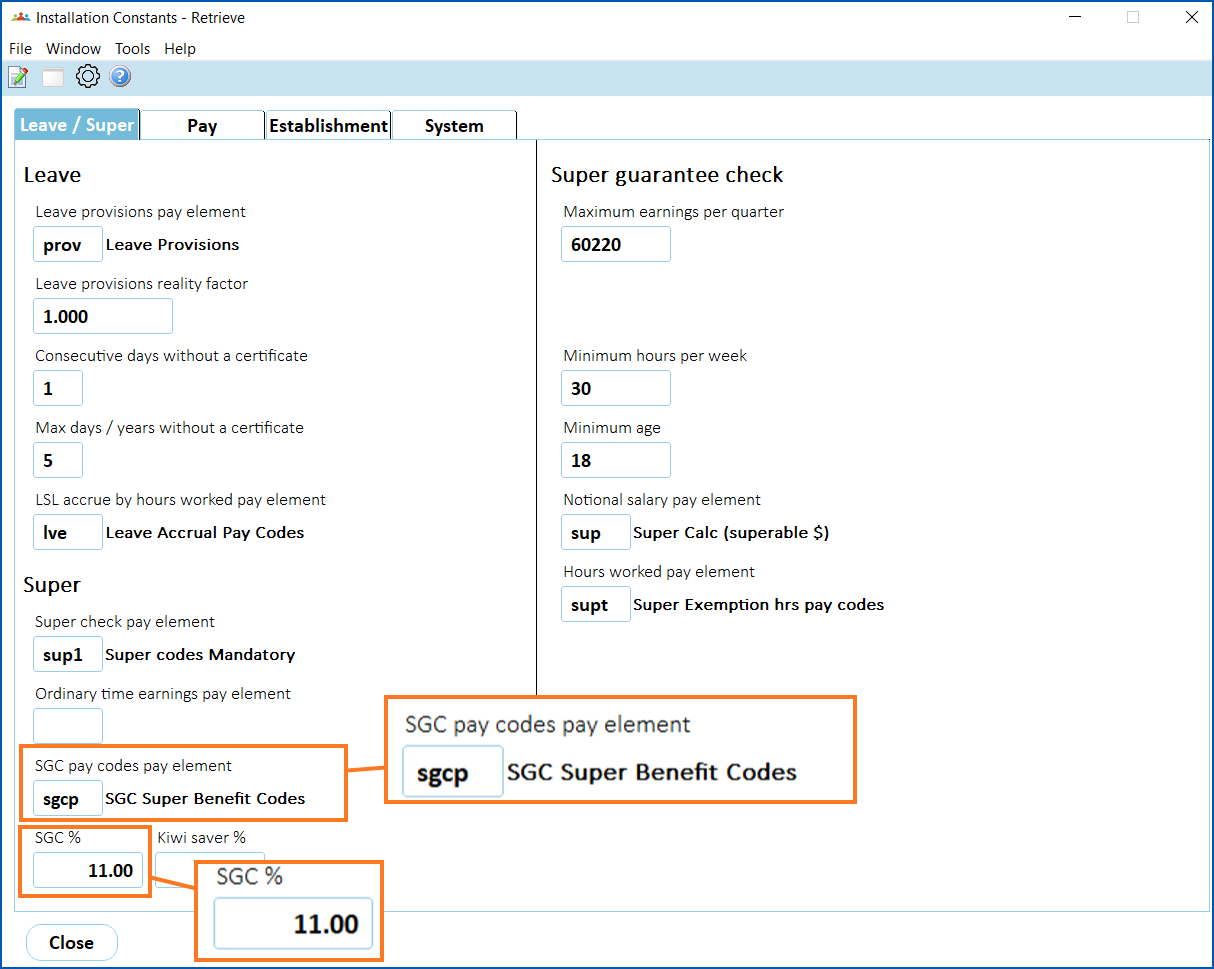
Report SGC
| Version EHR 2026 |
To report the actual SGC paid:
|
| Version EHR 2025 |
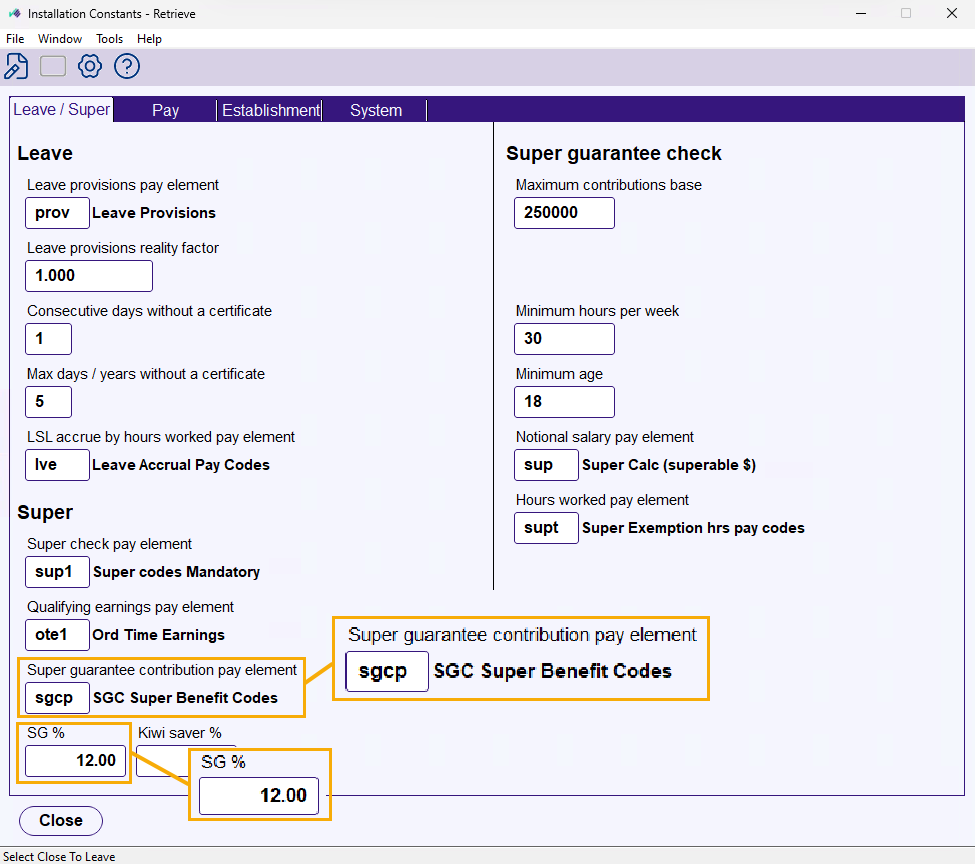
To report the actual SGC paid:
|
Check termination reason codes
Make sure the termination reason codes for your organisation all contain the right cessation types so your STP reporting is reliable.
See termination reason codes for instructions.
Check custom tax scales
If you've created your own custom tax scales, check they are set up with the correct tax treatment code.
See tax scale codes for instructions.
Set up payment codes
STP requires reporting income against a range of specific payment types so ensure your payment codes are set up correctly.
See payment codes for instructions.
© 2023 Fusion5. All rights reserved.