Before you can crossboard employees via web services, you need to perform some setup tasks.
Switch on the crossboarding web service
By default, the crossboarding web service is switched off. Use the following instructions to switch it on. Your organisation, or your organisation's third party application suppliers, will know about creating web service clients in order to use this service.
To switch on the crossboarding web service:
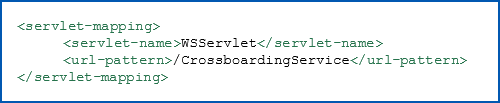
- Uncomment the crossboarding web service end point entry in the <SelfService>/WEB-INF/sun-jaxws.xml file.
- By default, the crossboarding entry is commented out.

- Remove the comment instructions surrounding the crossboarding entry.

- Uncomment the crossboarding web service tokens entry and define the username and password tokens in the <SelfService>/WEB-INF/Mawson/conf/config.xml file.
- By default, the crossboarding entry is commented out.
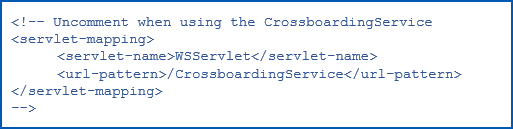
- Remove the comment instructions surrounding the crossboarding entry.
- Uncomment the crossboarding web service tokens entry and define the username and password tokens in the <SelfService>/WEB-INF/Mawson/conf/config.xml file.
- By default, the crossboarding entry is commented out.

- Remove the comment instructions surrounding the crossboarding entry and set the username and password tokens.
 |
The password token must be encrypted using the Encode Service Password.bat executable. |

- After making your changes, restart the Java servlet container (for example, Tomcat).
Schema and WSDL files
Schema
After you switch on the crossboarding web service, you can obtain the schema  using the URL:
The schema describes the static structure of the complex data types being exchanged. It describes the types, their fields, any restriction on those fields (like max length), and so on.
It's a description of data types and static properties of the service - it's about data.
- <EmpowerSelfServiceUrl>/CrossboardingService?xsd=1
Replace EmpowerSelfServiceUrl with your EmpowerHR Self Service URL, for example, www.fusion5.com.au/CrossboardingService?xsd=1
WDSL
After you switch on the crossboarding web service, you can obtain the WSDL using the URL:
The schema describes the static structure of the complex data types being exchanged. It describes the types, their fields, any restriction on those fields (like max length), and so on.
It's a description of data types and static properties of the service - it's about data.
- <EmpowerSelfServiceUrl>/CrossboardingService?wsdl
Replace EmpowerSelfServiceUrl with your EmpowerHR Self Service URL, for example, www.fusion5.com.au/CrossboardingService?wsd
Set installation settings 
Movement code
The movement code is defined in the installation setting called define ns (new starter) movement code, operator code (obns), where:
- Character Variable contains the movement reason code your organisation uses
- Text Variable contains the operator code capable of loading any new employee and their employment details
|
The operator must have a privacy level to load the data for any employee and access to functions normally used to enter new employee data in the EmpowerHR desktop. |
API
The installation setting called API employee update no value (cemv) lets you update employee personal details via the API . In using this installation setting, you can set a special character to use in the xml request for the fields you want the system to ignore.
API = An application programming interface is a way for two or more computer programs or components to communicate with each other.
Set installation options
The installation option called allow crossboarding movements uploaded via a spreadsheet or API automatically (ocro) lets you choose to either automatically create crossboarding movements as they are uploaded, or require manual approval before creating movements.
See crossboard position movements for more information about the ocro option.
© 2023 Fusion5. All rights reserved.