To make sure employee details and contributions are captured correctly and output to the interface files, you need to set up the super funds and relevant payment codes.
Gold State Fund members' fund details are output to the DES  file. All other members' fund details are output to the SAFF file.
DES = Data Exchange Standards
SAFF = SuperStream Alternative File Format

|
You can flag a fund to exclude it from the interface by setting User Field 3 on the superannuation fund code to n. |
| Superannuation Fund Code | Fund | Do this... |
|---|---|---|
| GSS | Gold State Defined Benefit | |
| GESBSUP | Accumulation | Enter GESB in the User Field 6 field |
| WSS | West State Super Accumulation | Enter GESB in the User Field 6 field |
| GCHOICE | GESB Choice | Enter GESB in the User Field 6 field |
|
|
Some fields on the Superannuation Funds detail screen are user-definable. If you want to use the available super interface files, then screen paint the user-definable field labels, for example, User Field 2, 3 etc (as shown in the following table). To change the user-definable field labels:
|
Create or update a super fund code
When you set up a super fund code, you attach the payment codes to the fund.
To create or update a superannuation fund code:
- Go to Control Tables > Superannuation > Superannuation Funds.
- EmpowerHR displays the Superannuation Funds summary screen showing any existing super funds in the system.
- Click:
- New to create a new super fund code, or
- Open to update an existing super fund code
- At the Superannuation Funds detail screen, complete or change the fields (on the left-hand side of the screen) using the following table as a guide.
| At this field... | Do this... |
|---|---|
Super Fund Code | Enter a valid code (maximum 8 characters). |
Abbreviation | Enter an abbreviated description (maximum 10 characters). |
Description | Enter a description (maximum 30 characters). |
Empl Super Fund Screen? | Enter y if Regular Transactions associated with the super fund are generated automatically on the Employee Super Fund History screen. Otherwise, leave this field blank. |
To Period Multiplier | EmpowerHR uses this amount on the Employee Super Fund History screen to calculate the Super Salary per Pay Period from the Super Salary per year. |
Phone Number | This is a client-specified field (maximum 15 characters). If you are using a super interface file, use this field for the SMSF SMSF = Self Managed Super Fund |
USI | This is a client-specified field, User Field 2 (maximum 10 characters). If you are using a super interface file, use this field for the SPIN SPIN = Super Product Identifier Number USI = Unique Super Identifier |
Clearing House | This is a client-specified field, User Field 3 (maximum 10 characters). If you are using a super interface file, use this field as a y/n indicator for clearing house, where entering n excludes the fund from the output file. |
ABN | This is a client-specified field (maximum 100 characters). If you are using a super interface file, use this field for the ABN ABN = Australian Business Number |
ESA (SMSF) | Nothing. This is the Electronic Service Address for the SMSF included in standard interface files. |
Defined Benefits Flag | This is a client-specified field, User Field 5 (maximum 15 characters). Set this field to y if the Super Fund is a Defined Benefit Fund. The SAFFE SAFFE = SuperStream Alternative File Format Extended |
GESB SAFF | This is a client-specified field, User Field 6 (maximum 15 characters). Enter:
|
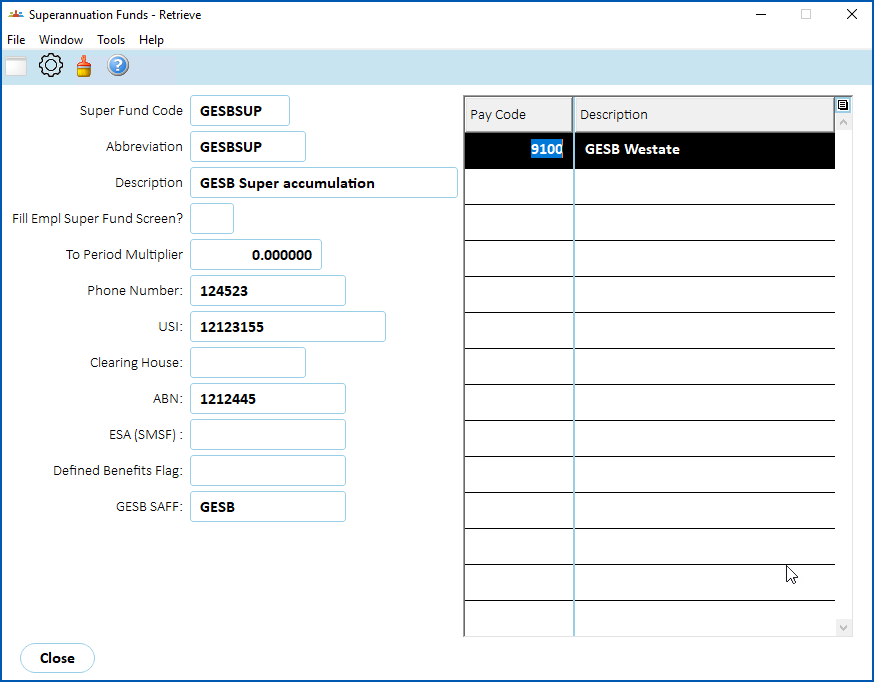
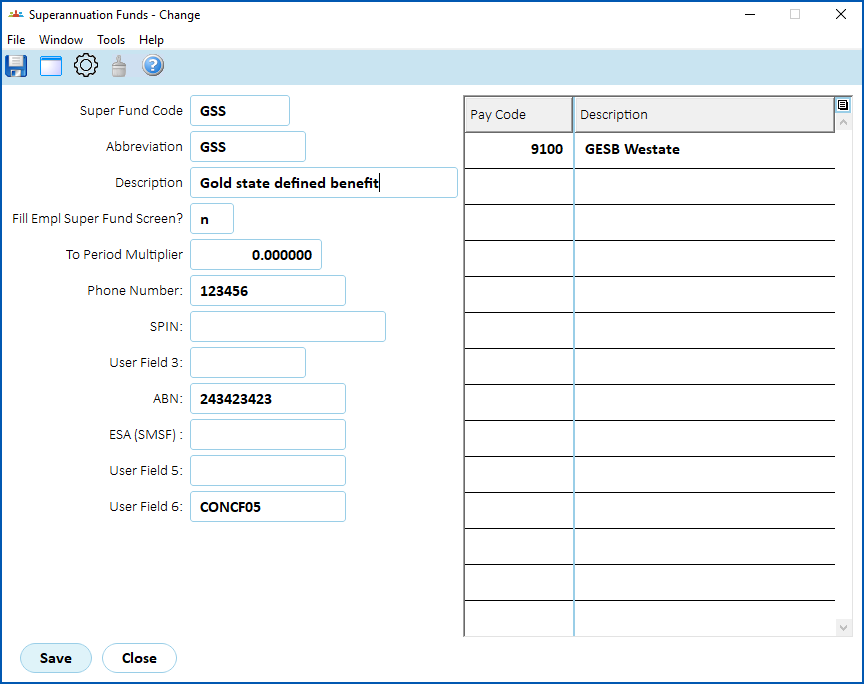 .
- Click Save. Now, use the following steps to attach payment codes to the super fund.
Attach payment codes to the super fund
To attach a payment code to the super fund:
- At the Superannuation Funds summary screen, click Payment Codes.
- EmpowerHR displays the Payment Codes summary screen.
- Click:
- New to attach a new payment code to the super fund, or
- Open to update an existing payment code attached to the super fund
- At the Payment Codes detail screen, complete the fields using the following table as a guide.
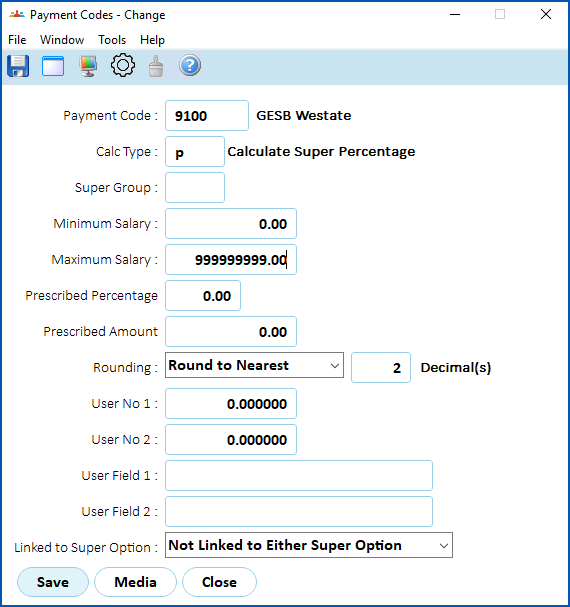
| At this field... | Do this... |
|---|---|
Payment Code | Enter the payment code, if you know it. Otherwise, click Window, find and double-click the payment code to add it to the field. |
Calc Type | Leave this field blank if there is no calculation. Otherwise, enter one of the following: p = Calculate Contribution Percent. This option uses the:
a = Calculate Support Amount. This option applies:
ab = Calculate Amount from Contribution B (Employee Super Fund History screen) pb = Calculate Percentage from Contribution B (Employee Super Fund History screen) ac = Calculate Amount from Contribution C (Employee Super Fund History screen) pc = Calculate Percentage Contribution C (Employee Super Fund History screen) a8 = Calculate Super Amount (PSS Member contribution) a9 = ComSuper CSS Member Contribution |
Super Group | Leave this field blank if your organisation doesn't use super groups, or Enter the super group code, if you know it. Otherwise, click Window, find and double-click the super group code to add it to the field. |
Minimum Salary | Enter an amount with decimal places. The default amount is 0 (zero) and the amount you enter must not be less than 0 (zero). You use Minimum Salary and Maximum Salary fields to apply the default rule to a range of super salaries. |
Maximum Salary | Enter an amount with decimal places. The default amount is 999999999.00 and the amount you enter must not be less than the Minimum Salary. |
Prescribed Percent | Enter an amount between 0 and 99.99 |
Prescribed Amount | Enter an amount with decimal places. The amount must not be less than 0 (zero). |
Rounding (decimals) | Select one of the following rounding options from the dropdown list:
|
User No 1 User No 2 | These are client-specified fields. Each entry must be a number and may have decimal places. |
User Field 1 User Field 2 | These are client-specified fields. |
Linked to Super Option | Select one of the following from the dropdown list:
|
- Click Save.
© 2023 Fusion5. All rights reserved.