Screen painting is available on any EmpowerHR screen showing the Screen Painting option. This feature allows you to customise how fields display for your organisation.
Depending on the type of field, you can:
- change the field name
- change the window name (where the field relies on a control table)
- grey the field so users can't access it, but can still see it
- make the field invisible so it no longer appears on the screen
How to use screen painting
To paint fields on a screen:
- Go to the screen where the fields are located, and click Screen Painting. A list of fields you can paint is displayed.
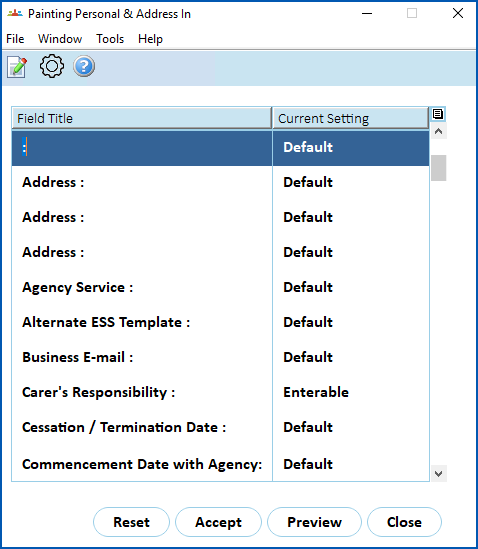
- Select the field you want to paint, and then click Open.
- The details display, depending on the type of field. The following examples show details for the Private E-mail and Your sexual orientation fields.
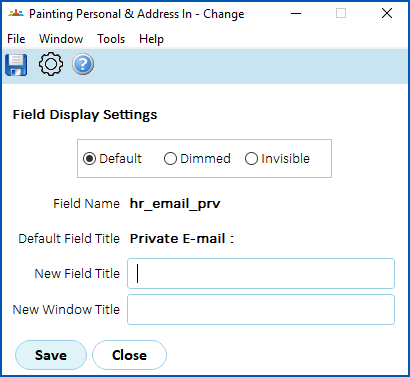
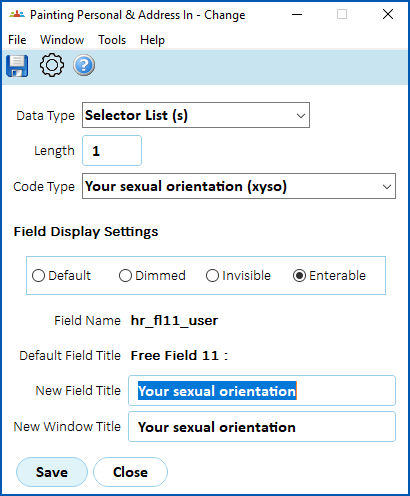
- Make your changes, using the following table as a guide.
 | Some options are only available when the field is not considered critical to maintaining system integrity. |
| In this field... | Do this... |
|---|---|
New Field Title | Change the name of the field, if required. |
New Window Title | Change the name of the window title, if required. |
Default | To revert to the system's default setting for the field, click the Default option. |
Dimmed | To dim (grey out) the field so users can't enter data but can still see the field, click the Dimmed option. |
Invisible | To make the field disappear from the screen, click the Invisible option. Only use the Invisible option if the field really is irrelevant to your organisation. |
Enterable | To allow users to enter data in the field, click the Enterable option. |
- Click Save, and then click Preview so you can view the effect on the screen before committing to the changes.
- If you are:
- satisfied with the changes, click Accept, and then click Close. The changes take effect and will appear in every user's view of the screen.
- not satisfied with the changes, click Close. The changes are discarded.
|
|
The Reset button resets all settings to the default, including all previous changes made. |
© 2023 Fusion5. All rights reserved.