This topic shows how to set up employees who are teachers.
See also:
Set auto increments based on 204 days (or nominated days in ph calendar)
To attach teachers to the auto increment by days feature, you need to modify some transaction rules.
To modify transaction rules by field:
- Go to Administration > Screen Management > Transaction Rules > Rules By Field.
- At the Rules By Field summary screen, click Find Now to see a list of existing rules.
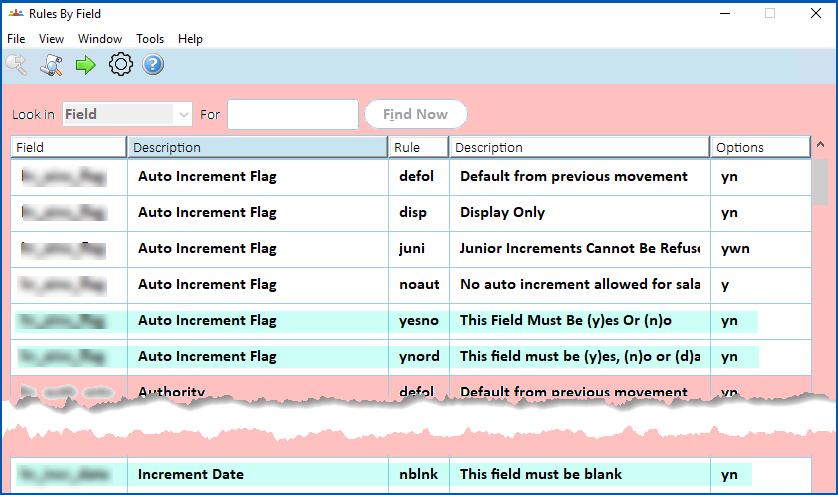
Here is a list of the changes to make.
| Field | Rule | Do this... |
|---|---|---|
| Auto Increment Flag | ynord | Switch on the rule for appropriate types of movement |
| Auto Increment Flag | yesno | Switch off the rule for types of movement where the ynord rule applies |
| Increment Date | nblnk | Switch on the rule for the types of movement where the ynord rule applies |
- Select a rule.
- Click Next Level. The Field Options screen displays.
- Make the changes, and then click Save.
- Repeat this procedure, starting at step 3, until you have changed the other rules.
Set up salaried employees (teacher)
To set up a teacher (salaried employee):
- Go to Tasks > Employees > Employee Information > Employee Information.
- Find the teacher whose record you want to work on.
- Go to the Pay Information screen on the teacher's employee record.
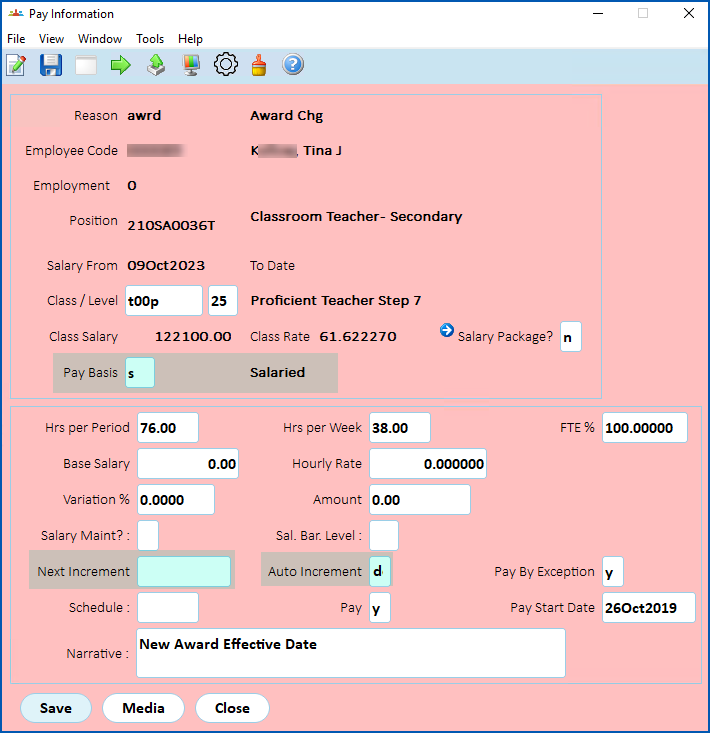
- Check the following information:
- Pay Basis field is set to s (salaried)
- Next Increment date field is blank
- Auto Increment flag is set to d
- if the teacher is a part-time employee, the Variation % field contains a negative amount (which is the difference between 100 % and the FTE %.) This pays the salary reduced by the variation percentage.
 |
Make sure all averaged employees have the Pay Basis field set to s (salaried) and a negative amount in the Variation % field, which are required for school formula functionality. |
- Click Save.
Set up pay in advance (Christmas pay  )
Christmas pay = payments made over the December/January school holiday pay periods. When an averaged employee has a variation during the school year, the amount of Christmas pay is determined by calculating a Formula 1 (weeks) or Formula 2 (salaried) total Formula Amount. This amount is then disbursed by paying the Standard Pay amount each fortnight.
Where no variation has occurred, the averaged employee is paid their normal fortnightly salary.
In the last pay (flagged as Christmas Leave Pay/Leave Loading Period on the Tax Year), teachers receive their 4 weeks of Leave Loading in addition to Ordinary Pay. Each fortnight after that, they receive the Stand Down Pay they're entitled to.
To set up pay in advance (Christmas pay):
- Go to Tasks > Employees > Employee Information > Employee Information.
- Find the teacher whose record you want to work on.
- Go to the Tax Information screen on the teacher's employee record.
- Click the Payroll tab.
- Where the teacher requests their Christmas Stand Down pay in advance, check the School Christmas Leave in Advance field is set to a.
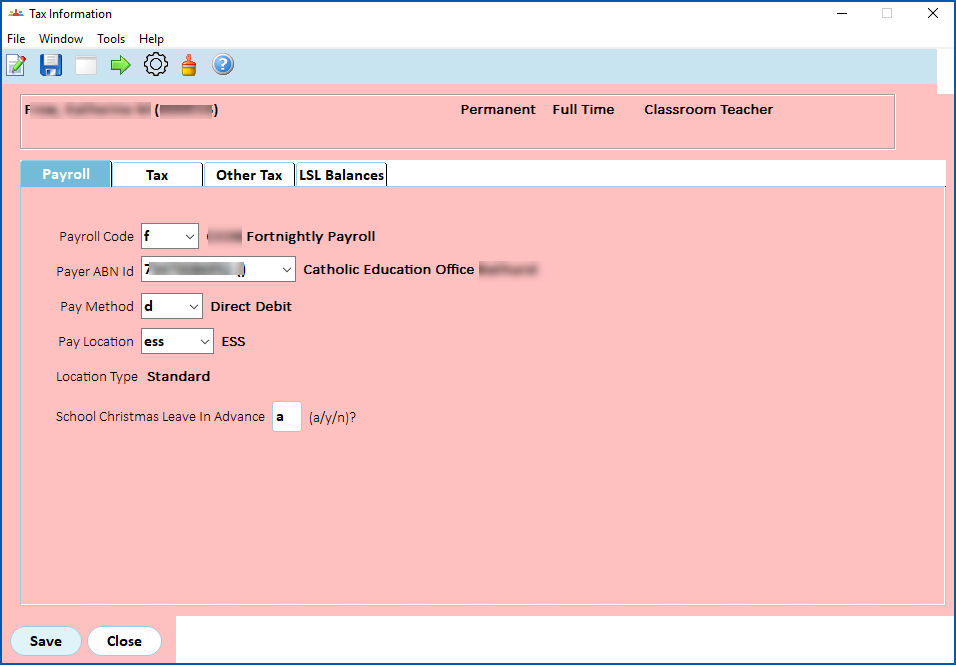
- Click Save.
|
You must set the installation option called pay all formula pay before start of term (fall) to y for pay in advance to work for Formula employees. If set to n, any remaining Formula payment due in the pay period that commences at the start of Term 1 is not paid in advance. |
Review an employee's next increment
For any employee flagged with an increment type of d (days worked), you can review the details about their next increment.
To review an employee's next increment:
- Go to Tasks > School > Increment & YTD.
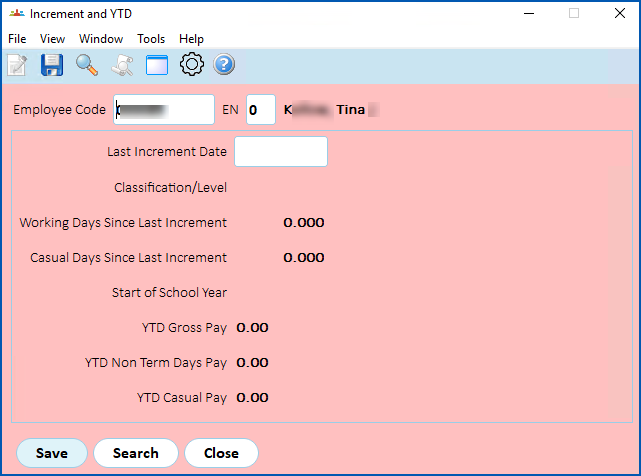
- Update the last increment date if the increment is manually handled instead of automatically performed by EmpowerHR.
- Click Save.
© 2023 Fusion5. All rights reserved.