Here are the interfaces to superannuation funds available in EmpowerHR for Catholic schools. EmpowerHR generates a fortnightly file to interface member contributions.
| Super fund | Located in EmpowerHR at... |
|---|---|
Australian Catholic Superannuation & Retirement Fund | Background Jobs > Payroll Processing > Interfaces > ACSRF Super Interface |
National Catholic Super Fund | Background Jobs > Payroll Processing > Interfaces > National Catholic Super Interface |
Non Govt Schools Fund | Background Jobs > Payroll Processing > Interfaces > National Catholic Super I |

|
Superstream-compliant SAFF and SAFFE Super File interfaces are also available at Background Jobs > Payroll Processing > Interfaces. For more information about these options, see the EHR Superannuation Manual, available by logging an iHelp request. |
Set up super control codes
For each interface, make sure the super fund control (with the associated payment codes) is set up. Use the following control codes:
- Australian Catholic Superannuation & Retirement Fund - SCSS
- National Catholic Super Fund - PBH
- Non Govt Schools Fund - NGS
To set up a super fund control code, including associated payment codes:
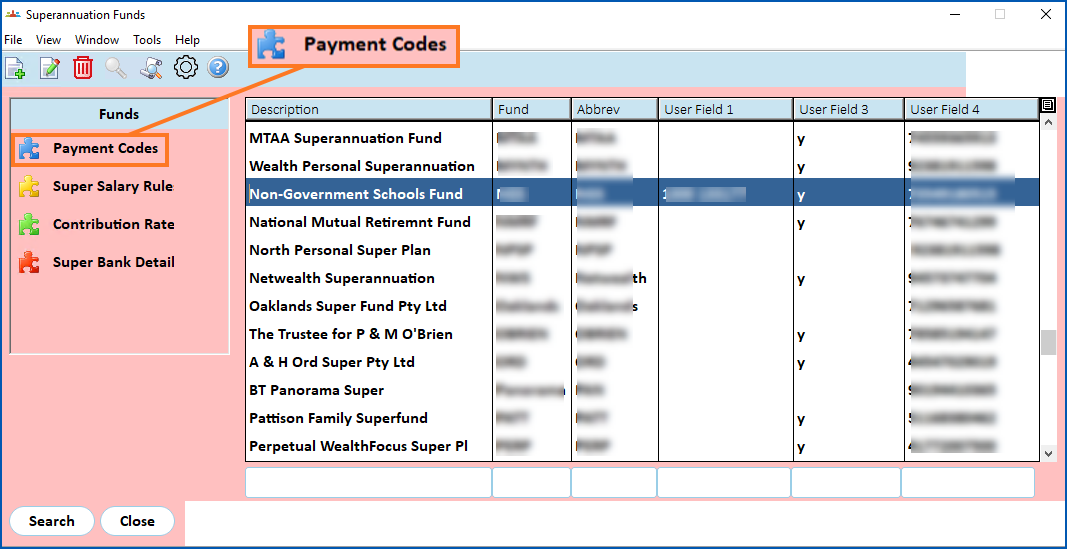
- Go to Control Tables > Superannuation > Superannuation Funds.
- At the Superannuation Funds summary screen, select the fund.
- Click Payment Codes.
- EmpowerHR lists the payment codes associated with the super fund.
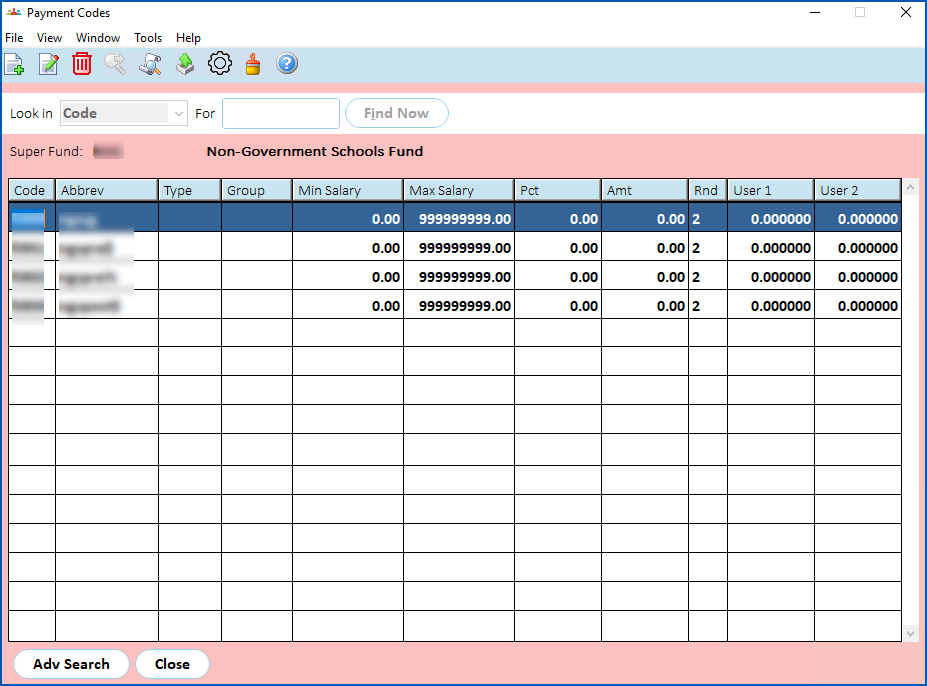
- At the Payment Codes summary screen, click:
- New to add a payment code, or
- Open to open an existing code to make changes
|
You must make sure payment codes processed by super funds are defined with a special type, for example:
|
- At the Payment Codes detail screen, make your entries.
|
The only field required for Catholic schools interfaces is the payment code. EmpowerHR uses the other fields, such as Calc Type, Super Group, etc, for different client functions. |
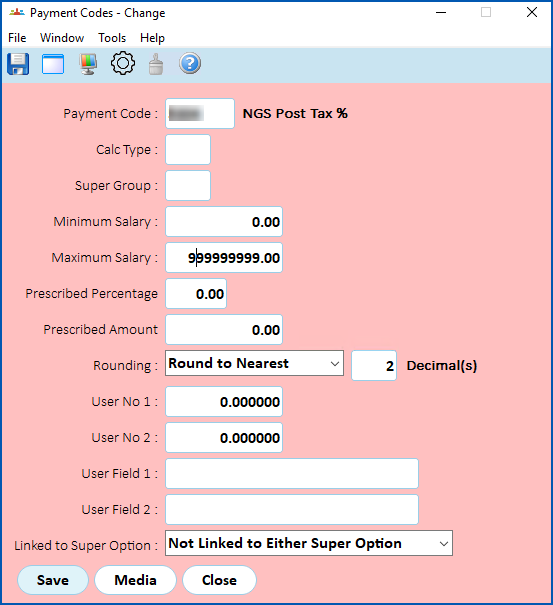
- Click Save.
Attach employees to super funds
Attach employees to the super funds that apply to them.
To attach an employee to a super fund:
- Go to Tasks > Employees > Employee Information > Super Fund Details.
- At the Super Fund Details summary screen:
- select an option from the Look in dropdown list, for example, Employee
- enter the search criteria in the For field, for example, an employee code, and then click Find Now
- The results are displayed.
- At the Payment Codes summary screen, click:
- New to attach a super fund, or
- Open to open an existing attached super fund to make changes
- At the Payment Codes detail screen, make your entries.
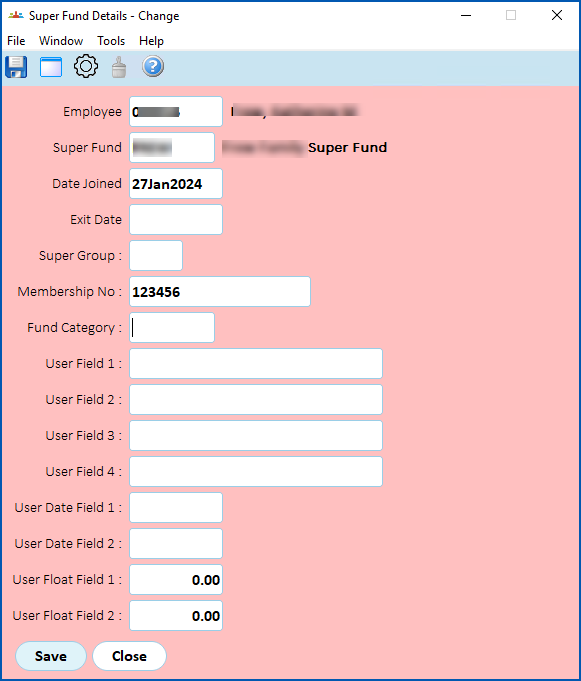
- Click Save.
Leave elements in installation settings
The following leave elements are defined in the installation settings for reporting to the ACSRF  superannuation fund:
ACSRF = Australian Catholic Superannuation & Retirement Fund
- Maternity Leave Element (sch6)
- Study Leave Element (sc13)
© 2023 Fusion5. All rights reserved.