If you are implementing EmpowerHR for the first time, or taking on a new school (a range of employee not yet on the system), here we show how to add the employment records in bulk.
What file do I need to prepare?
You need to create a tab-delimited (.txt) file containing the required data.
 | Remember to exclude column headings from the files. |
Here's the format to use. An asterisk (*) shows which data is mandatory.
| Column > | A* | B* | C | D | E | F | G | H |
| Employee Code | Employee Number | Increment Data At Take-On | Classification Code At Take-On | Classification Level At Take-On | Date of Take-On | Working Days At Take-On | Casual Days At Take-On | |
| Characters > | 10 | 2 | 8 | 2 | 8 | 8 | ||
Format: ddmmyy ddMmmyy ddmmccyy ddMmmccyy | Format: ddmmyy ddMmmyy ddmmccyy ddMmmccyy |
| While columns C to H are not mandatory, we recommend at least one of these columns contains data. If they are all blank, the data will not upload into the school take-on table. |
Upload school increment data in bulk
To upload school increment data in bulk: 
- Go to Tasks > School > School Bulk Take-On.
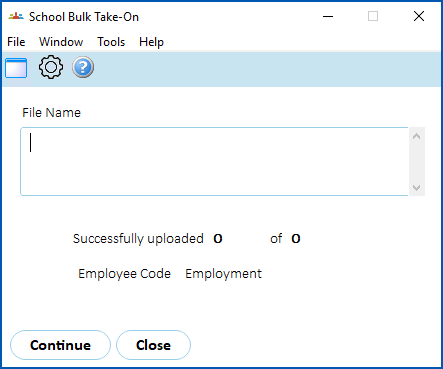
- Click Window and select the .txt file.
- Click Continue to process the data.
- To check for any errors once the bulk upload job is finished, go to Tasks > School > School Bulk Take-On Error Enq.
© 2023 Fusion5. All rights reserved.