Casual relief staff are people willing to consider casual vacancies. They:
- must be employees, that is, their biographical, contact, and remuneration information must be captured in the Employee Information screen in the desktop
- are distinguished from other employees by using the Casual Relief Staff screen
- are not limited to people employed as casuals. Part-time and other staff can opt to be on the Casual Relief Staff list if they are available for casual work on their days off
Once you set up this data in EmpowerHR, casuals can maintain their own details via Employee Self Service.
Set up casual relief staff 
To set up casual relief staff:
- Go to Tasks > Casual Relief > Casual Relief Staff.
- At the Casual Relief Staff summary screen, click Find Now to see a list of existing records.
- Click New.
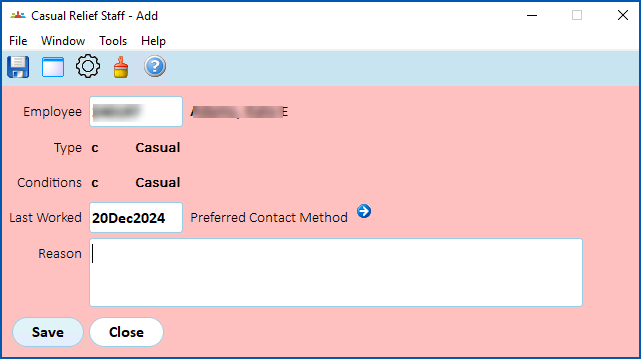
- At the Casual Relief Staff (add) detail screen, in the Employee field, click Window, find and double-click the employee code to add it to the field.
- Press Tab. EmpowerHR displays the Type and Condition.
For:
- a new starter, enter the day of their interview as the date Last Worked
- a part-timer employed in another capacity, leave the date Last Worked blank as it is not relevant
 |
Typically, employees activate their own preferred contact methods via ESS. Alternatively, you can do this via the desktop, using the following steps. |
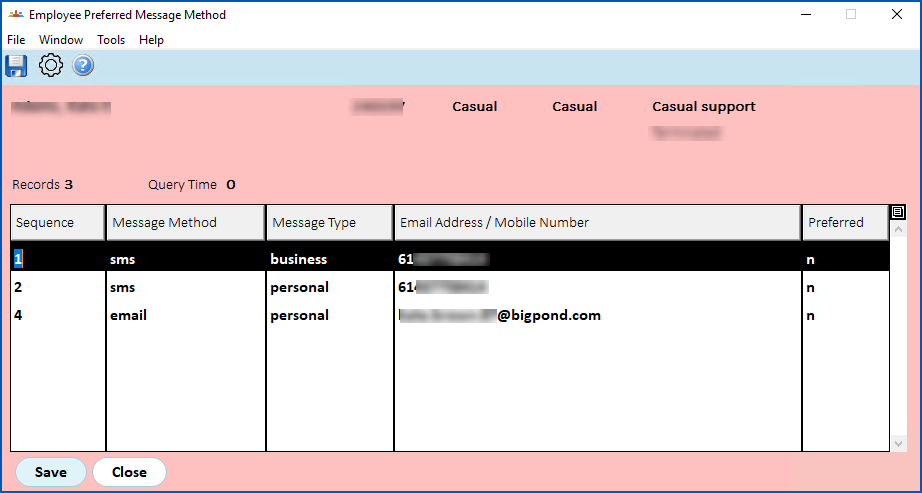
- To view and/or activate the employee's preferred contact methods, click Preferred Contact Method.
- EmpowerHR displays the Employee Preferred Message Method screen.
- In the Preferred column, enter y in the row containing the method you want to activate. You can activate more than one method.
|
Typically, employees manage their own contact information via ESS. If you find email or mobile details haven't been provided, ask the employee to add the information (via Personal Details in ESS). Alternatively, you can add the information at the Employee Information screen via the desktop. |
- Click Save.
- Click Close to return to the Casual Relief Staff (add) detail screen.
- At the Casual Relief Staff (add) detail screen, enter a Reason. For example, why you are adding (or changing) the record, or why you need to remove the employee from the Casual Relief List.
- Click Save.
|
If you want to see a history of changes to the record, at the Casual Relief Staff summary screen, select the row containing the relevant record, click Window, and then click History. |
Change casual relief staff availability
At times, you may need to change a casual relief staff member's availability. For example, for a casual who:
- has not worked for twelve months, you might choose to make them unavailable for further work until they have been reviewed and re-interviewed
- is not registered to work in a division (state), you might choose to block them from relief work at a particular section (school) in that division, etc
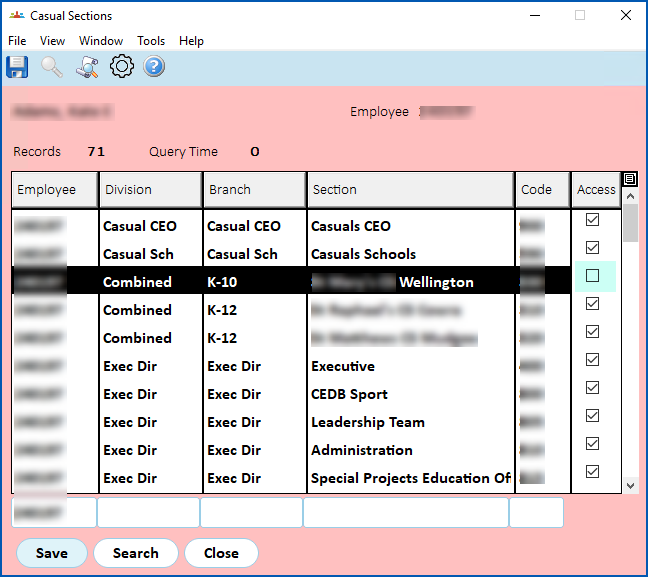
Blocking a casual relief staff member's access to a section (school) prevents their name from appearing on the broadcast message  screen at the school.
Broadcast messages are used to contact eligible casuals about a vacancy. For more information, see fill casual relief vacancies.
To change casual relief staff availability:
- Go to Tasks > Casual Relief > Casual Relief Staff.
- At the Causal Relief Staff summary screen, click Find Now to see a list of existing records.
- Select the row containing the casual relief staff record you want to change, and then click Next Level.
- EmpowerHR displays the Casual Sections screen.
- At the Casual Sections screen, clear the Access checkbox on the relevant row to block access to that section.
- Click Save.
© 2023 Fusion5. All rights reserved.