EmpowerHR offers you two ways to fill a vacancy:
- send an automated broadcast message (using email and SMS) to multiple casual staff
- directly assign a casual staff member to the vacancy
EmpowerHR also lets you remove a casual assigned to a vacancy should they change their mind or you no longer need the vacancy.
Option 1 - broadcast message
To start the recruitment process by sending a broadcast message:
- Go to Casual Relief > Casual Vacancies > Casual Vacancies.
- At the Casual Vacancies screen, search for the casual vacancy you want to fill.
- Click Actions and then select Broadcast Message from the menu.
- EmpowerHR displays the Broadcast Message screen listing casual staff who prefer to work at the school and are available during the vacancy period.
 | If the list of casuals is too short, click Widen Search to include staff who are willing to occasionally work at the school. To return to the original list, click Tighten Search. |
- In the Escalation column, click the escalation option for each casual in the list. This allows you to determine the order in which the casuals receive the message about the vacancy. The options are:
 Receive Initial Message
Receive Next Message
Receive Last Message
No Message Sent
| Where you see a telephone icon displayed, this means the casual has chosen not to be notified by email or SMS, and you need to use another way to contact them. |
Here's an example of a broadcast message with selected escalation options.
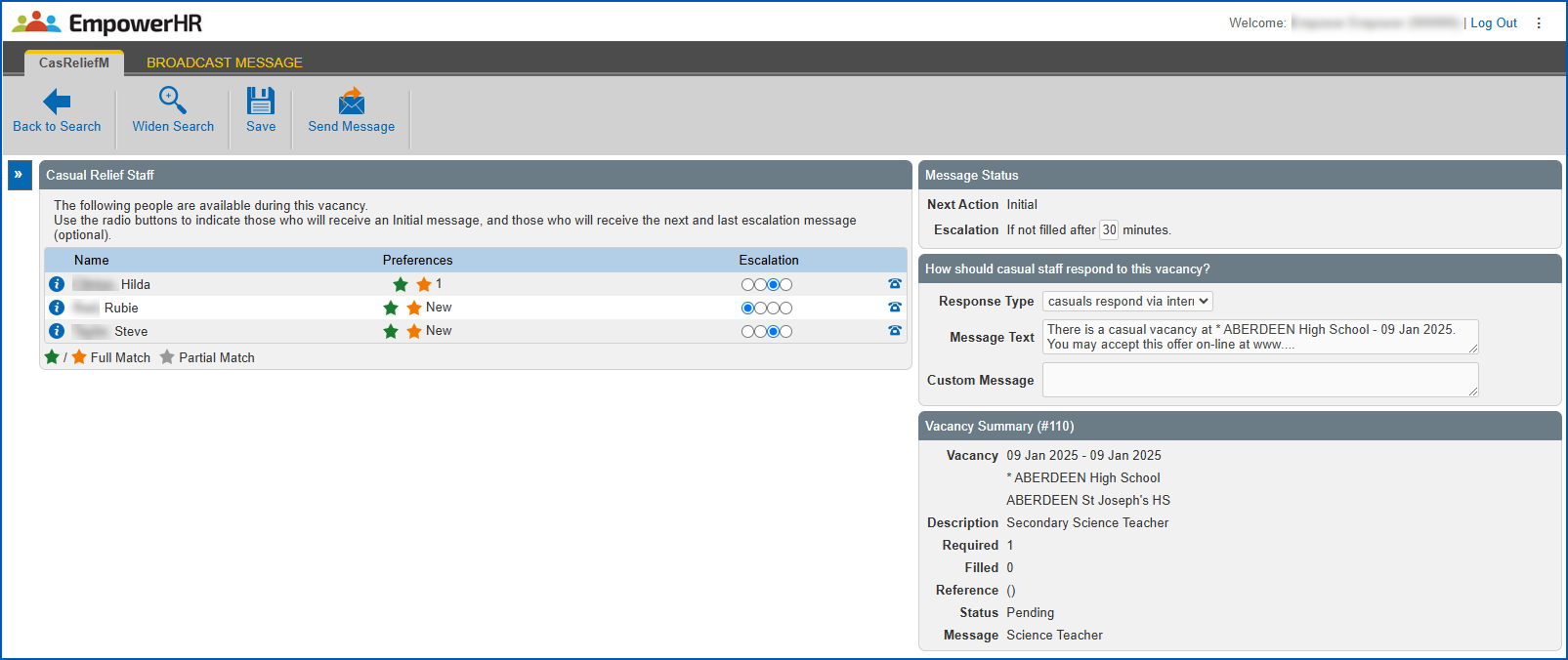
In this example, the chosen options mean:
- Rubie receives an initial message.
- If Rubie does not accept the offer, Hilda and Steve receive a notification.
- At Message Status, in Escalation, you can leave the default escalation period, or change it by entering a different number of minutes. If the vacancy is not filled after the period is reached, EmpowerHR automatically escalates the message to the next stage.
- At How should casual staff respond to this vacancy?, in:
- Response Type, choose an option from the dropdown list:
- casuals respond via internet (the first casual to accept wins the assignment), or
- casuals contact me directly (so you control assigning the work)
- Message Text, make sure the directions are clear
- Custom Message, enter an additional message if you wish
- Response Type, choose an option from the dropdown list:
- Click Save.
- When you're ready to start broadcasting, click Send Message. EmpowerHR:
- displays Recruiting has begun at the top of the Casual Vacancies screen
- immediately notifies the casuals who are flagged with the Initial Message escalation option
- changes the vacancy Status to Recruiting on the Casual Vacancies screen
|
|
If you want to change the details of the vacancy after you have started broadcasting, you can - provided no-one has yet accepted the assignment. Click Stop, make the necessary changes to the vacancy details, and then click Send Message to start broadcasting again. |
Option 2 - direct assignment
To directly assign a casual to a vacancy:
- Go to Casual Relief > Casual Vacancies > Casual Vacancies.
- At the Casual Vacancies screen, search for the casual vacancy you want to fill.
- Click Actions and then select Assignments from the menu.
- EmpowerHR displays the Assignments screen.
- If the vacancy status is:
- Filled, EmpowerHR lists the staff who have accepted the assignment. No further action is required.
- Pending, click Assign Staff. EmpowerHR displays the Assign Staff screen.
- Enter part of the person's name and click Search. EmpowerHR lists staff who meet the search criteria.
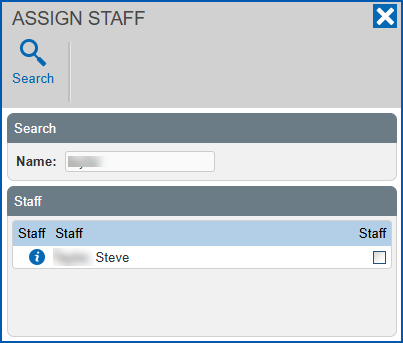
- Click the checkbox next to the name of the person you want to assign. EmpowerHR:
- assigns the person to the vacancy
- updates their availability so they are not available for other assignments in the same period
- changes the vacancy Status on the Casual Vacancies screen
Unassign a casual from a vacancy
You may need to remove a casual from a vacancy they are assigned to if, for example, they change their mind.
To unassign a casual from a vacancy:
- Go to Casual Relief > Casual Vacancies > Casual Vacancies.
- At the Casual Vacancies screen, search for the casual vacancy you want to unassign the casual from.
- Click
 Actions and then select Assignments from the menu.
- EmpowerHR displays the Assignments screen.
- At the row showing the assigned casual, click Actions and then select Unassign... from the menu.
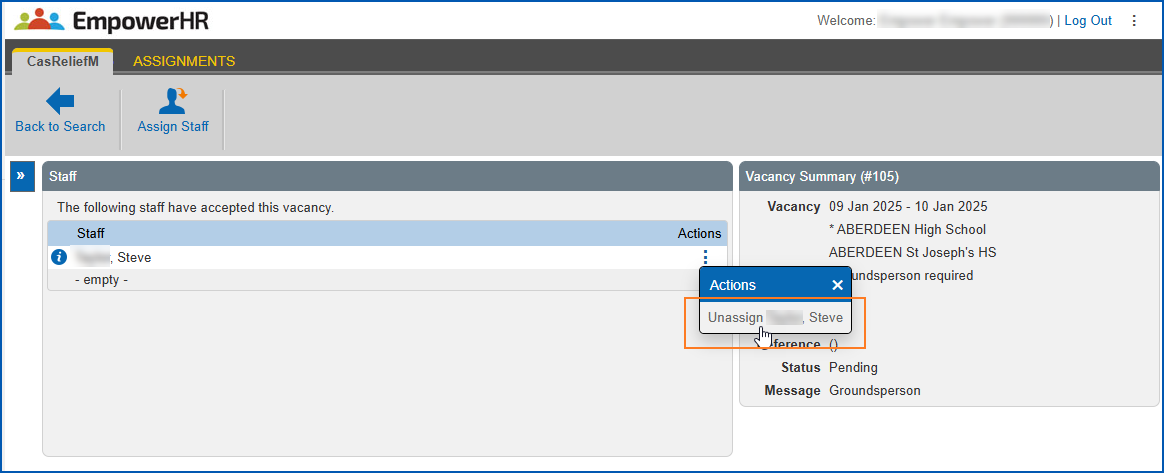
- EmpowerHR displays the Unassign Staff screen.
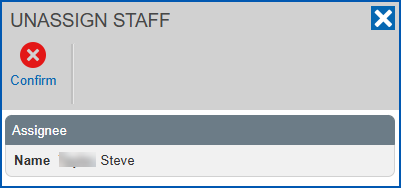
- Click Confirm.
- EmpowerHR removes the casual from the vacancy assignment and they no longer appear on the Assignments screen.
Review messages and responses
To review messages sent to staff and responses EmpowerHR has received:
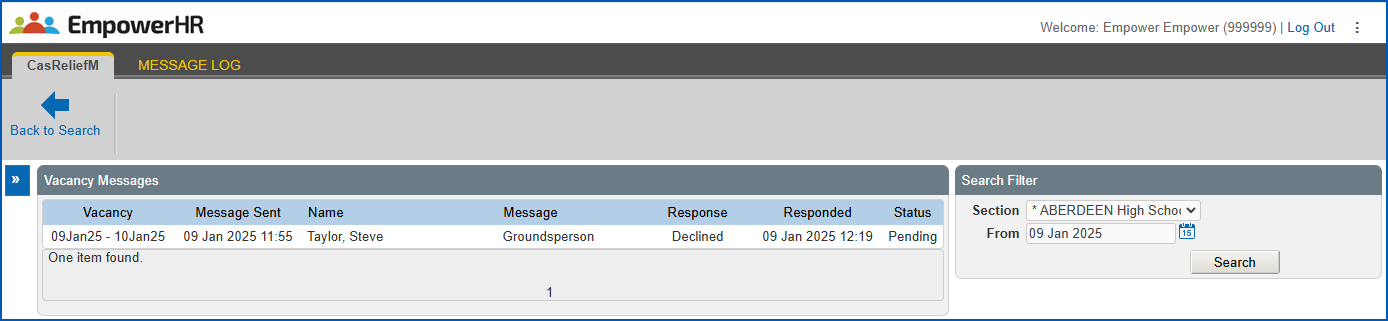
- Go to Casual Relief > Casual Vacancies > Message Log.
- At the Message Log screen, search on the Section (school) and From (date) you want to review.
- EmpowerHR displays the messages sent and responses received on and after the date you selected.
© 2023 Fusion5. All rights reserved.