At the end of a vacancy period, the casual who completed the assignment checks and then submits a Claim for Casual Relief Work so they can be paid for the hours worked.
A Claim for Casual Relief Work alert appears in your Actions To Do box ready for you to action.
 |
The casual can submit a claim without a cost centre code. Depending on the field error severity  settings in your school, you may be required to enter a cost centre code before you can accept the claim. The approval manager must enter a cost centre code if the field error severity is set to Error for the following fields:
For more information, see set up cost centre selection and display |
To action a claim for payment:
- At the Actions To Do box, click the Claim for Casual Relief Work alert.
- EmpowerHR displays the Casual Relief Claims Actions To Do list.
- To view and check the claim details, at the claim row, click Actions and then select Edit from the menu..
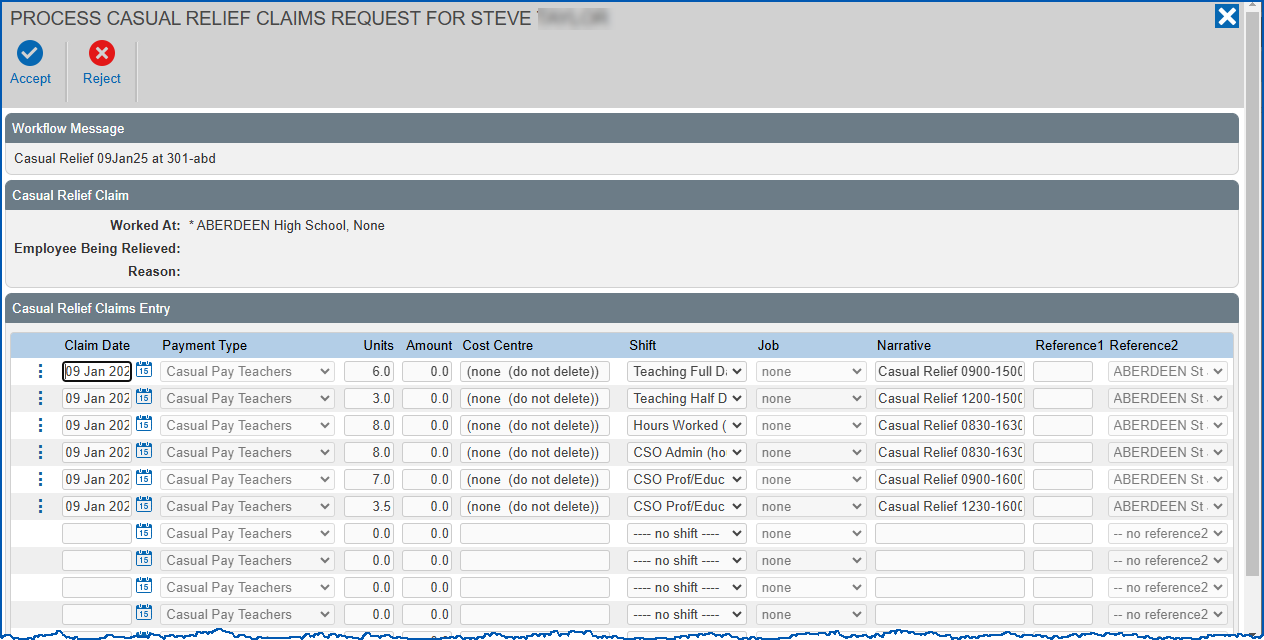
- In Cost Centre, select the cost centre code from the dropdown list.
- In Reference1, if the field is blank, enter the employee code of the employee who was relieved by the casual.
|
|
If EmpowerHR automatically created the vacancy from a leave request, the relieved employee's employee code displays in the Reference1 field by default. |
- Take one of the following actions:
- Click Reject. The claim is rejected and no payment is made.
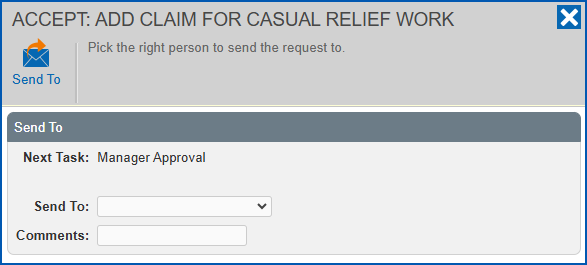
- Click Accept. Depending on the number of approval tasks in the workflow, EmpowerHR may direct you to submit the claim to the next approver in the approval sequence by displaying the Accept: Add Claim for Casual Relief Work screen. Select the next approval manager from the Send To dropdown list, add Comments if you wish, and then click Send To to submit the claim for approval.
© 2023 Fusion5. All rights reserved.