Flexi time workflows
Workflows automate the flexi timesheet and flexi leave request process and procedures.
To learn how to set them up for your organisation, see design workflow.
Define workflow elements
Once workflows are set up, to make requests in ESS  , you need to set up a workflow element for what is to be requested.
ESS = Employee Self Service
To define a workflow element:
- Go to Administration > Workflow > Workflow Elements.
- At the Workflow Elements summary screen, click Find Now to see a list of existing elements.
- Click New.
- At the Workflow Elements detail screen, in the Workflow ID field, click Window, find and double-click a workflow ID to add it to the field.
- Press Tab. The Flexi Code field displays.
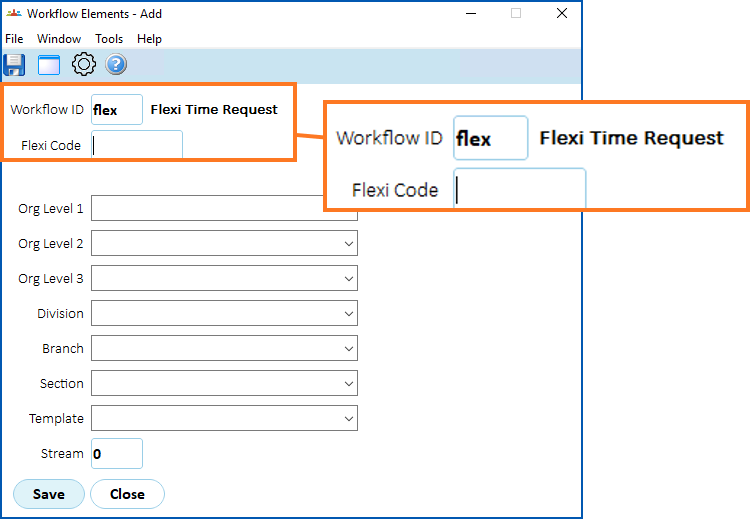
- At the Flexi Code field, click (lookup window), find and double-click a flexi code to add it to the field.
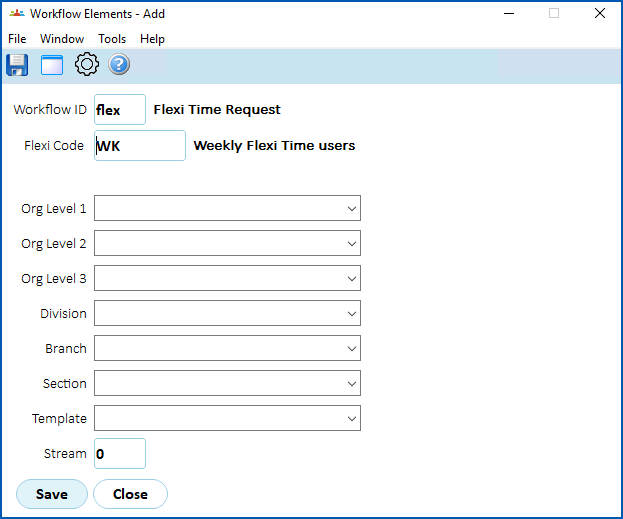
- Decide if you need to make selections in the Org Level / Template fields.
 |
Workflows can be restricted to organisational levels of the company (Org Level 1 etc), or by selecting a user Template. Alternatively, you can leave these fields blank |
- If the workflow has multiple streams, enter the stream number in the Stream field (for example 1), or else leave the default of 0.
- Click Save.
- Repeat this procedure, starting at step 3, until you've added all the workflow elements you need.
© 2023 Fusion5. All rights reserved.