Calendars and settlement periods rely on flexi time codes.
Once flexi time codes are set up for your organisation, you can then assign positions to those codes.

|
Typically, your administrator sets up flexi time codes. |
Assign a position to a flexi time code
To assign a position to a flexi time code:
- Go to Flexi Time > Administration > Assign Positions to Flexi Code.
- At the Positions catalogue, go to the Search Filter and at:
- Position, select a position from the dropdown list (as shown in the following example)
- Section, select one or more sections, if you want to narrow your search to parts of your organisation
- Location, select one or more locations, if you want to narrow your search by location
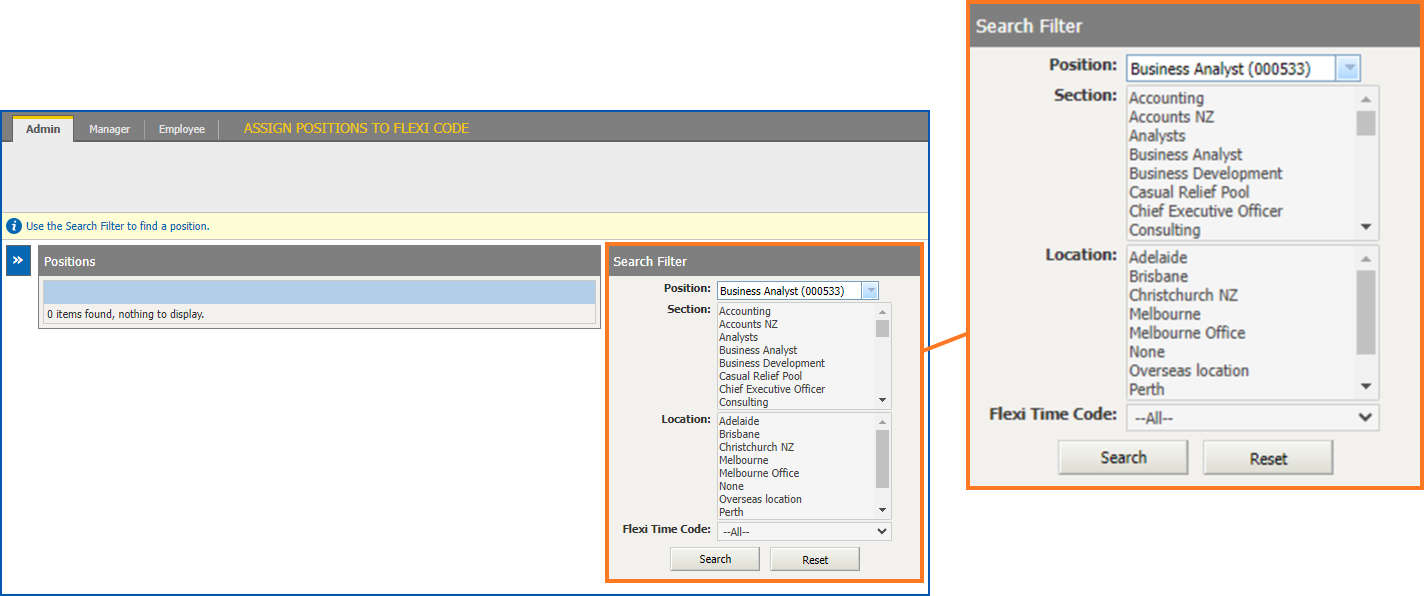
- Click Search. A list of positions that match your search selections is displayed.
- At the row showing the position you want to assign to a flexi time code, click Actions and then select Edit from the menu.

- At Position Flexi Time Code, select a flexi time code from the dropdown list.
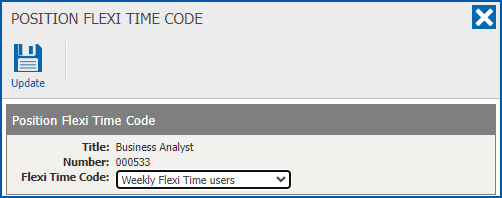
- Click Update.
- Repeat this procedure, starting at step 2, until you're satisfied all the positions have been assigned.
|
|
When you want to do a new search, click the Reset button. |
Change or remove a flexi time code assigned to a position
To change or remove a flexi time code assigned to a position:
- Go to Flexi Time > Administration > Assign Positions to Flexi Code.
- At the Positions catalogue, go to the Search Filter. You can search on:
- Position by selecting a position from the dropdown list, or
- Flexi Time Codes by selecting a code from the dropdown list if you want to find all positions assigned to that code
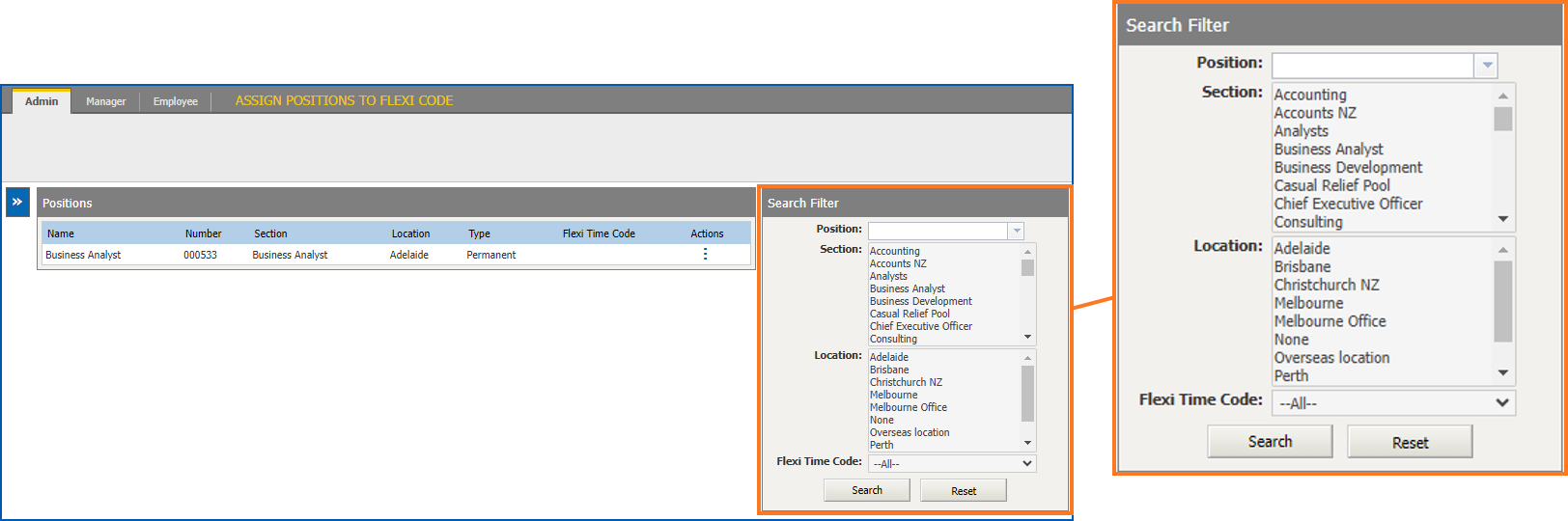
- Click Search. A list of any positions that match your search selections is displayed.
- Click the Actions
 (ellipsis) displayed next to the position you want to change or remove a flexi time code assigned to it, and then select Edit.
- At Position Flexi Time Code, select:
- a different flexi time code from the dropdown list, or
- None from the dropdown list if you want to remove the assigned flexi time code altogether
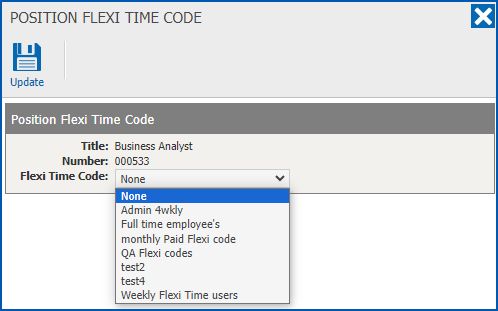
- Click Update.
© 2023 Fusion5. All rights reserved.