Why do you need to set up public holiday calendars?
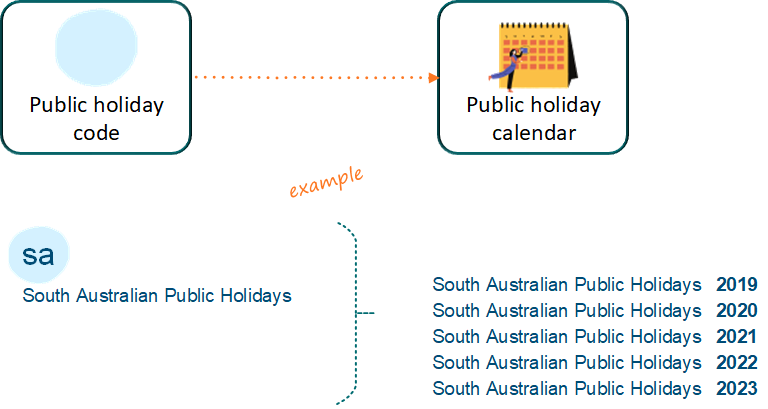
Public holiday codes help you define public holidays and create a public holiday calendar for each year.
 |
You can create public holiday codes and calendars to cater for different jurisdictions (states, territories, etc) |
Leave bookings and public holidays
EmpowerHR considers public holidays when determining how many days in a leave booking count for leave. Generally, when an employee:
- books paid normal leave, public holidays as defined in the calendar are not counted for leave and are treated as normal pay
- books LWOP
 , public holidays are not paid
LWOP - Leave Without Pay
- books LSL , public holidays as defined in the calendar are paid in addition to LSL
LSL = long service leave
Normal leave and public holidays
Case study: public holidays during leave Greg works full-time and is taking annual leave in the last weeks of January. The Australia Day public holiday falls during Greg's leave period.
Greg's colleague, Dave, has decided to take leave without pay (LWOP) during the same period in January.
|
LWOP and public holidays
You can, if required, choose to pay employees for public holidays that fall within a LWOP period - for example, during a forced shutdown over Christmas/New Year. Simply set the installation option called Allow payment of public holidays during LWOP (pubw) to y (yes).
LSL and public holidays
Many jurisdictions include an extra day of leave for a public holiday during LSL. If your state/territory does not include public holidays in LSL, then you can ignore public holidays from any LSL booking by doing the following:
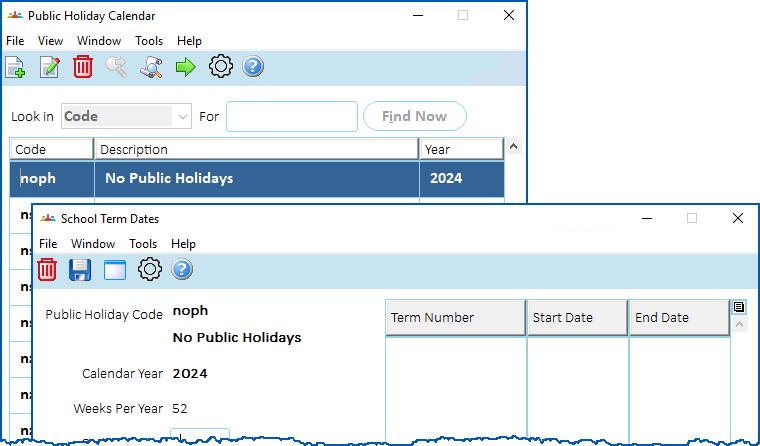
- Create a blank public holiday calendar calling it, for example, noph.
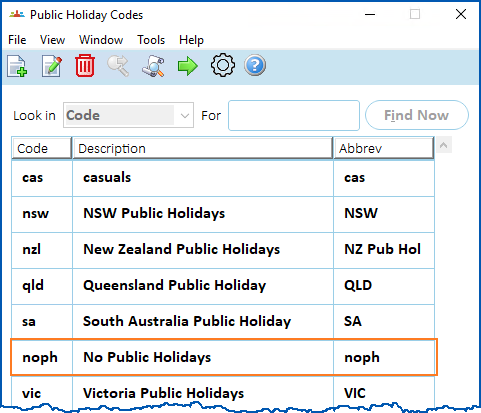
- Do not add any dates to the year detail screens, so that EmpowerHR doesn't use any days as public holidays when the LSL is booked.
- When you set up the LSL rule, simply add the noph calendar to the Public Holiday Calendar field.

Create a public holiday code 
To create a public holiday code:
Go to Control Tables > Calendars > Public Holiday Codes.
At the Public Holiday Codes summary screen, click Find Now to list all the existing codes.
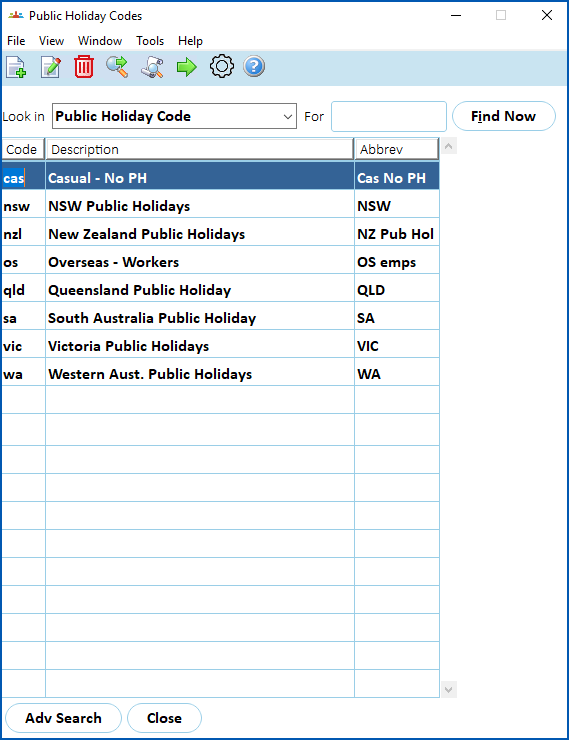
- Click New. The Public Holiday Codes detail screen displays.
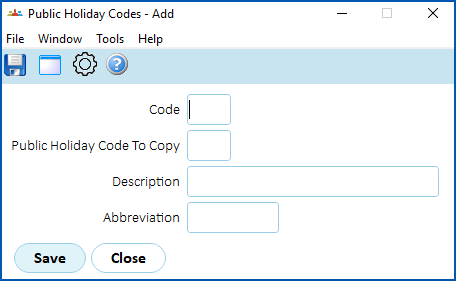
- At the Public Holiday Codes detail screen, make your selections and entries using the following table as a guide.
| At this field... | Do this... |
|---|---|
| Code | Enter a public holiday code (up to 4 characters). |
Public Holiday Code to Copy | If you:
|
| Description | Enter a description of the public holiday code (up to 30 characters). |
| Abbreviation | Enter an abbreviation for the public holiday code (up to 10 characters). |
- Click Save. The Public Holiday Calendar screen displays.
- Click Close. The Public Holiday Codes screen displays with the new code listed.
Create a public holiday calendar
To create a public holiday calendar:
Go to Control Tables > Calendars > Public Holiday Codes.
At the Public Holiday Codes summary screen, click Find Now to list all the existing codes.
- Select a code, and then click Next Level. The Public Holiday Calendar screen displays.
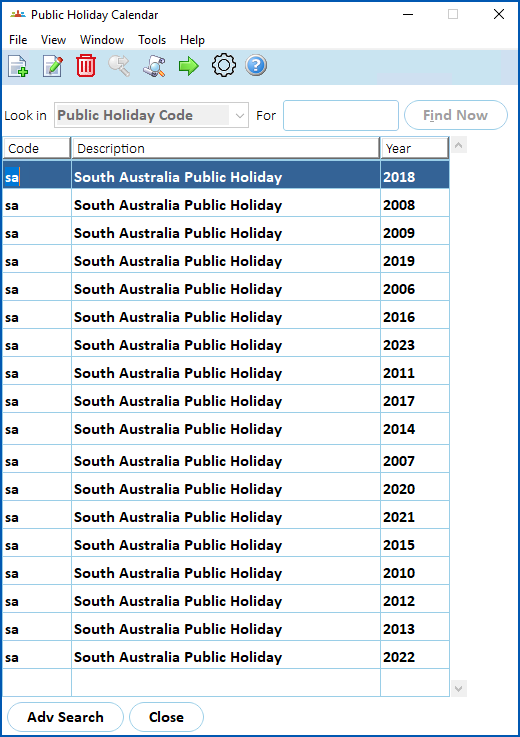
- Click New. The Public Holiday Dates detail screen displays.
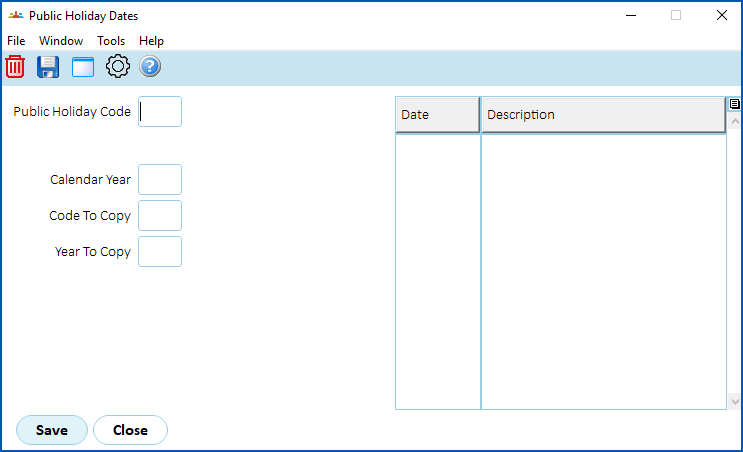
- At the Public Holiday Dates detail screen, make your selections and entries using the following table as a guide.
| At this field... | Do this... |
|---|---|
| Public Holiday Code | Enter a public holiday code, for example, sa |
| Calendar Year | Enter the year of the calendar you're creating, for example, 2024 |
Code to Copy | If you want to:
|
Year to Copy | Enter the year to copy, for example, 2023, and then press Tab. EmpowerHR copies the public holidays from the Calendar Year you selected (for example, 2023) to the Calendar Year you are creating (for example, 2024). |
Check the dates and update any that differ, for example, typically Easter public holidays don't fall on the same dates each year. To update any dates, simply type over the date in the Date column.
- Click Save. The Public Holiday Calendar screen displays with the new calendar listed.
© 2023 Fusion5. All rights reserved.