In this topic, we show how to set up long service leave rules in EmpowerHR. Rules allow you to apply LSL standards.
 |
LSL-related information provided by Fusion5 does not constitute legal or other professional advice. |
Jurisdiction
Entitlements and standards for long service leave in Australia vary depending on the state or territory or, in some, cases, where employees fall under federal legislation. This influences how you set up the rules for LSL in EmpowerHR.
As an employer, you need to comply with the long service leave entitlements in the jurisdiction in which your organisation operates. If you operate across multiple states or territories, you need to have different long service leave standards, based on where the employees is employed. To find out about long service leave entitlements, contact your local long service leave agency.
|
Pre-modern awards State and territory long service leave laws don't apply when there are long service leave entitlements in a federal pre-modern award pre-modern awards = a term used by the Fair Work Ombudsman to refer to awards that existed before 1 January 2010 To find long service leave entitlements in a federal pre-modern award, go to the Fair Work Commission's find an award website and then call the Commission. |

Tips for setting up LSL rules
Here are some tips to help with setting up your LSL rules.
Consider grouping jurisdictions
You may decide to set up rules which group together those jurisdictions with the same accrual rate. For example, you might set up a rule for each of the following groups:
- NSW/QLD/TAS/WA
- SA/NT
- VIC/ACT
Full-time/part-time, paid/unpaid
You may decide to accrue LSL for part time/casual employees as paid and unpaid balances. The combination of the balances when added up are equivalent to a full-time balance.
You would do the following:
- First, create an unpaid leave type and code (which you need for accruing the unpaid portion of the leave).
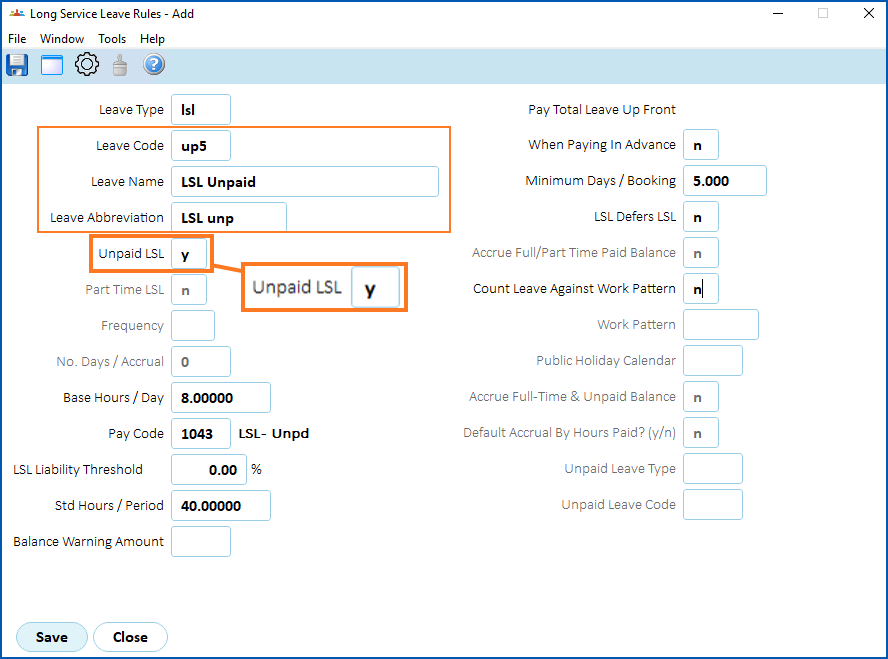
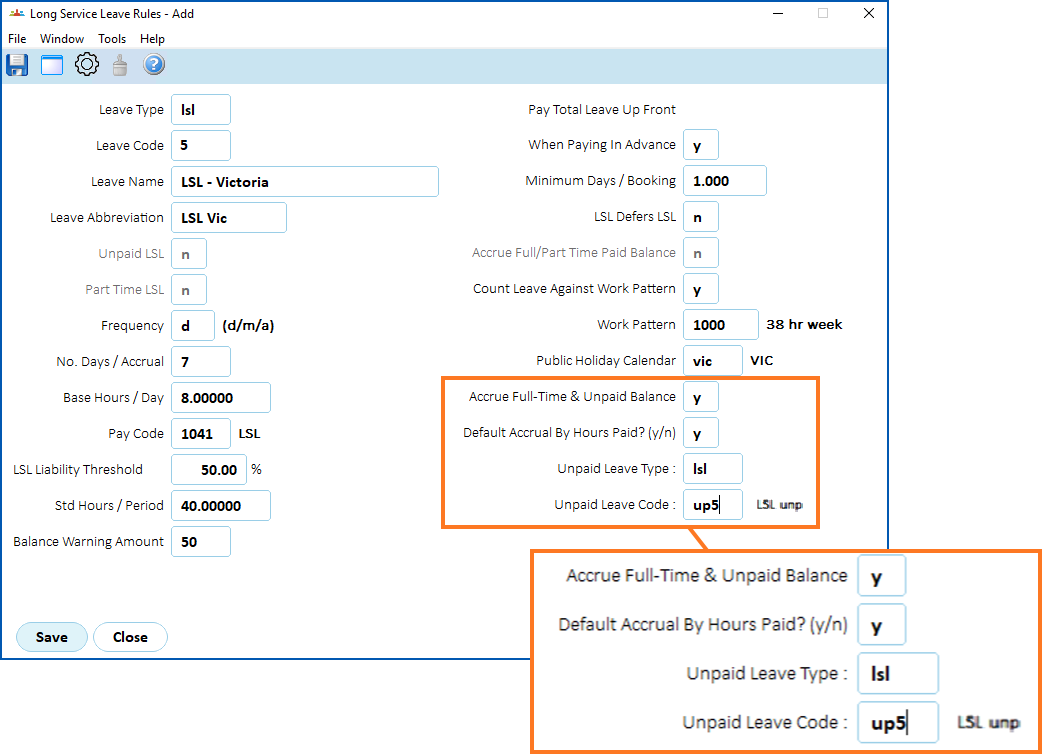
- Then, on the paid LSL rule, set the Accrue Full Time/ Part Time Paid Balance flag to y (yes).
- You can choose to accrue by hours worked or not.
- Enter the unpaid leave type and code (the rule you first set up) to accrue the unpaid portion of the leave.
Set up LSL rules (days/weeks) 
To set up an LSL rule (days/weeks):
- Go to Tasks > Leave > Leave Accruals and Rules > Long Service Leave Rules.
- The Long Service Leave Rules summary screen displays, listing all current LSL rules (days/weeks).
- Click New.
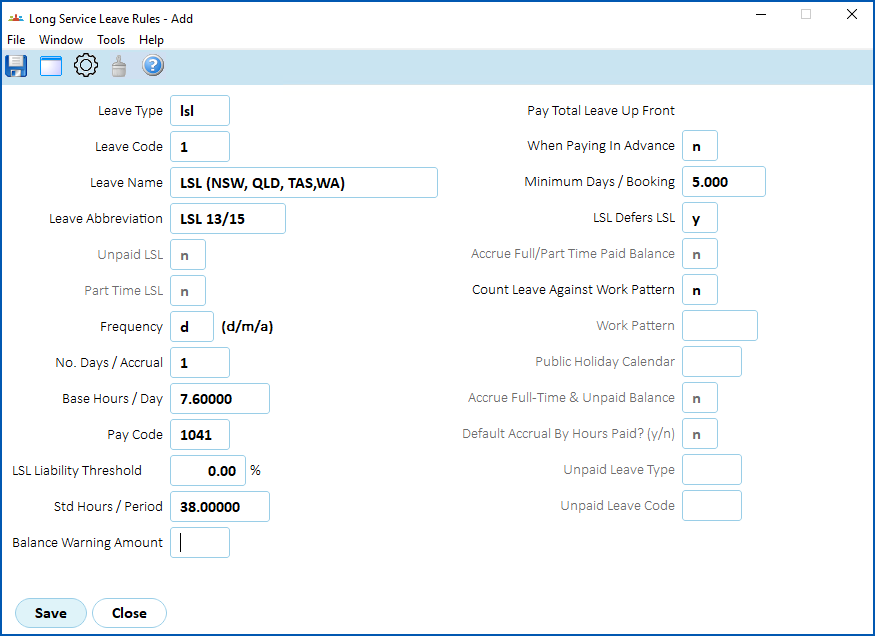
- At the Long Service Leave Rules (add) detail screen, make your selections and entries in the long service leave rules (days/weeks) fields.
- Click Save.
- The Long Service Leave Sequence screen displays.
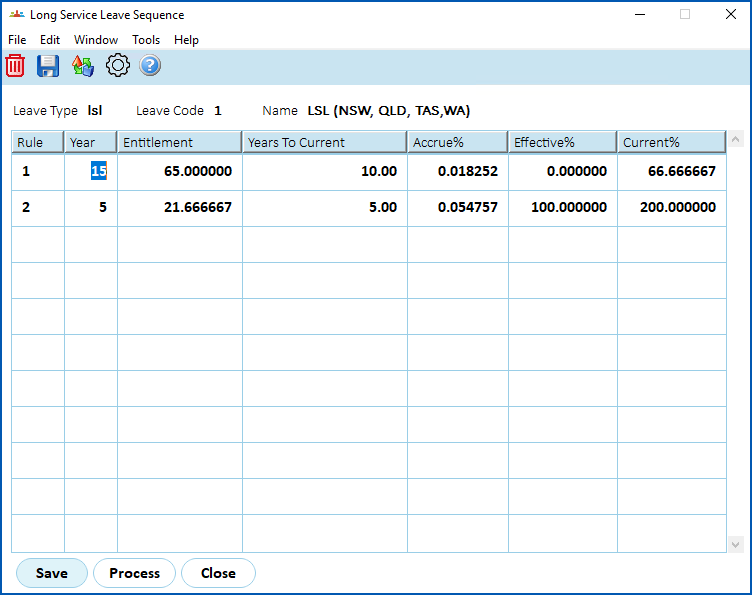
- At the Long Service Leave Sequence screen, make your selections and entries using the following table as a guide.
|
Unlike normal leave rules, you do not set up LSL rules as ongoing accruals but rather as a series of one-off accruals based on a service period equalling 100% of the LSL accrual. |
| In this field... | Do this... |
|---|---|
| Rule | Nothing. EmpowerHR generates a number for the sequence of the accrual rule. |
| Year | Enter the number of years before an employee is eligible to receive their full LSL entitlement. |
| Entitlement | Enter the number of days accrued for the full LSL entitlement. |
| Years to Current | Enter the number of years of service an employee must work before they can book LSL. |
| Accrue% | Nothing. EmpowerHR makes this calculation. It is the percentage full-time accrued each accrual period. |
| Effective% | Nothing. EmpowerHR makes this calculation. It is the total percentage of leave accrued when the leave becomes effective, For example, 100% when one full service period is completed, etc. |
| Current% | Nothing. EmpowerHR makes this calculation. When the total amount of LSL accrued exceeds this percentage, then LSL can be booked. |
- Click Process.
Set up LSL rules (hours)
To set up an LSL rule (hours):
- Go to Tasks > Leave > Leave Accruals and Rules > LS Leave Hours Rules.
- The LS Leave Hours Rules summary screen displays, listing all current LSL rules (hours).
- Click New.
- At the LS Leave Hours Rules (add) detail screen, make your selections and entries in the LS leave rules (hours) fields.
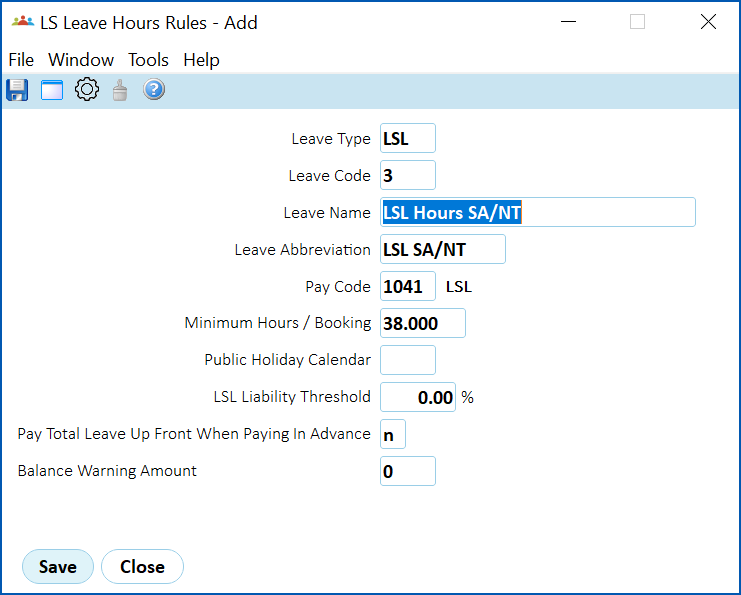
- Click Save.
- The LS Leave Hours Sequence screen displays.
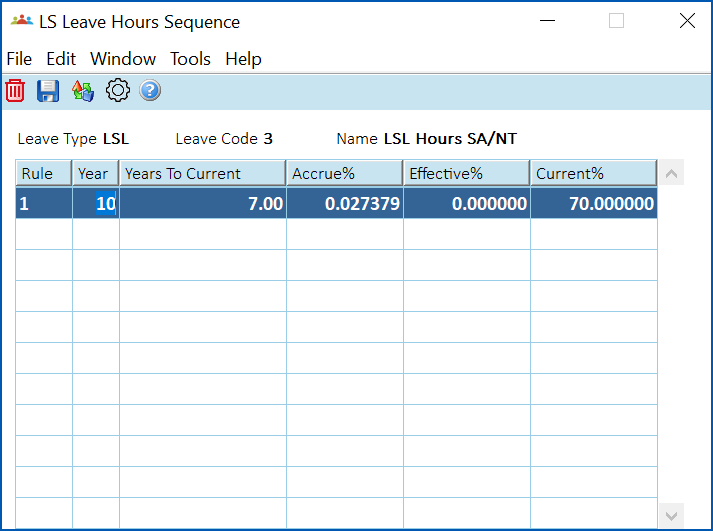
- At the LS Leave Hours Sequence screen, make your selections and entries using the following table as a guide.
| In this field... | Do this... |
|---|---|
| Rule | Nothing. EmpowerHR generates a number for the sequence of the accrual rule. |
| Year | Enter the number of years before an employee is eligible to receive their full LSL entitlement. |
| Years to Current | Enter the number of years of service an employee must work before they can book LSL. |
| Accrue% | Nothing. EmpowerHR makes this calculation. It is the percentage full-time accrued each accrual period. |
| Effective% | Nothing. EmpowerHR makes this calculation. It is the total percentage of leave accrued when the leave becomes effective, For example, 100% when one full service period is completed, etc. |
| Current% | Nothing. EmpowerHR makes this calculation. When the total amount of LSL accrued exceeds this percentage, then LSL can be booked. |
- Click Process.
© 2023 Fusion5. All rights reserved.