In this topic, you'll learn how to:
- run leave accruals
- reset leave accruals
Run leave accruals
You can run (calculate) leave accruals:
- at any date
- for one employee
- for all employees
- by specific leave types
- by all leave types
To run (calculate) leave accruals:
- Go to either of the following locations:
- Tasks > Leave Accruals and Rules > Calculate Accruals.
- Background Jobs > Leave > Calculate Accruals (legjaccl)
- At Calculate Accruals, enter a date in the Accrue UpTo Date field, and complete any other fields.

We recommend you:
- don't leave the screen blank (make no entries). If you do, EmpowerHR will run every accrual for every employee up to the current date.
- don't enter a future date as the Accrue Upto Date. You should enter a past date instead. Entering a future date will generate a warning as it can affect other functionality such as termination leave calculations.
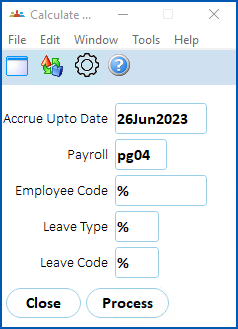
- Click Edit and then select Process.
- When EmpowerHR finishes, Processing Successful displays at the bottom of the Calculate Accruals screen.
- Click Close.
Reset leave accruals

|
This procedure applies for both leave and long service leave accruals. |
If leave accruals show incorrectly, you can reset them to zero. EmpowerHR cancels all system-generated accruals for a selected employee and resets the last accrual date.
A few things to consider first...
| One at a time | You can only reset leave/LSL accruals for one employee and one leave type at a time. |
| Last accrual date reset |
The last accrual date resets to the day before the employee's actual start date regardless of the leave start date. Check the date on the employee record (at the allocate employee leave screen) and, if necessary, change it. |
| Minor error | If you find a leave accrual error is only minor, it's probably easier to manually correct the error rather than resetting the accruals. See manually adjust or transfer employee leave balances to learn how. |
To reset leave accruals to zero:
- Go to Tasks > Leave > Leave Accruals and Rules > Reset Leave Accruals.
- At Reset Leave Accruals screen:
- find the employee you want
- if required, enter a different Leave Basis (this field is automatically populated with a default value)
- enter the Leave Type (you can enter a normal or LSL leave type)
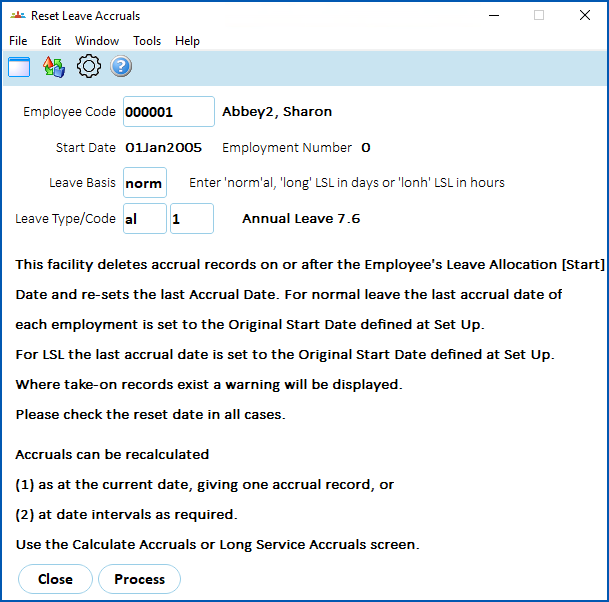
- Click Edit and then select Process. The following message displays.
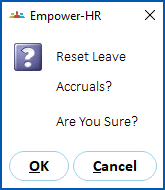
- Click OK to proceed.
- Click Close.
© 2023 Fusion5. All rights reserved.