Allocate normal/timesheet-driven leave
You can only allocate accruing leave types to an employee. EmpowerHR allows all employees to access non-accruing leave types without the need to allocate them.
To allocate normal leave/timesheet-driven (hours worked) leave to an employee:
Click Employee Information. The Employee Information screen displays.
- Find the employee you want.
Click Leave.
If the employee has:
leave allocated, the Allocate Employee Leave summary screen displays. Go to step 5.
no leave allocated yet, the Allocate Employee Leave detail screen displays. Go to step 6
- At the Allocate Employee Leave summary screen, click New.
- At the Allocate Employee Leave detail screen, make your selections and entries in the allocate employee leave fields.
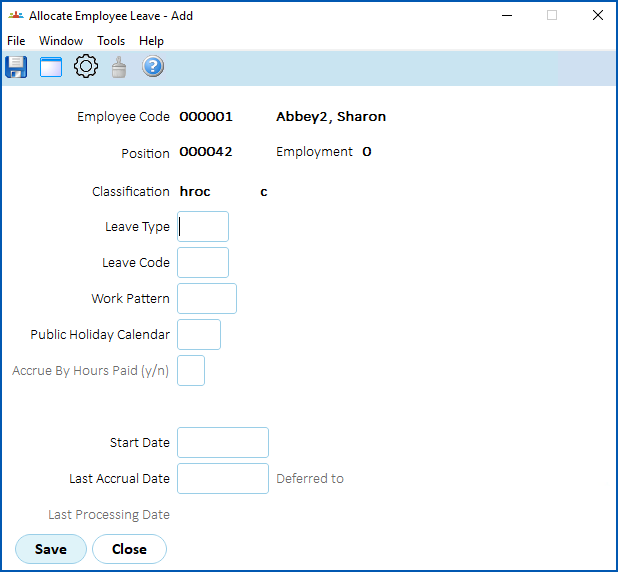
- Click Save.
- The next steps to take depend on the type of leave rule you are allocating. Use the instructions in the following table as a guide.
| If the leave rule is for... | Do this... | ||
|---|---|---|---|
Normal accruing leave | The Update Employee Leave Rules screen displays. Make changes, if required (for example, where the employee has prior service which changes the accrual anniversary date). Then click Save. or If no changes are required, click Close.
| ||
Leave accrued by hours worked (such as timesheet-driven leave with multiple sequences on the leave rule) | The Employee T/S Leave Sequence screen displays. Make changes, if required, and then click Save. or If no changes are required, click Close.
|

© 2023 Fusion5. All rights reserved.