Once you create all the section, branch, and division codes (and any Org Level 1, 2 and 3 codes you require), make sure the codes are then interconnected, creating the organisation structure.
EmpowerHR's Org Chart understands the hierarchical relationships in your organisation, and the date-effective nature of the organisation structure allows you to:
- view and report on historical organisation movements and restructures
- look at upcoming movements at a date in the future
EmpowerHR maintains a complete history of the organisation structure.
To create the organisation structure:
- Go to Control Tables > Organisation > Org Structure.
- At the Org Structure summary screen, click Find Now to display a list of existing org structure records.
- Click New.
- At the Org Structure - Add detail screen, in:
- Section, enter the section code if you know it, or click Window, find and double-click the code to add it to the field
- Date From, enter the effective date of the new relationship with your organisation structure. The date must not be later than any position, classification or employee start dates. The structure must exist at the date the employee/position/classification begins.
- Nominal FTE, enter the number of employees you are expecting to occupy this section of your organisation, if required
 |
When viewing the Org Chart in desktop, you can right-click any section and EmpowerHR displays the Nominal FTE vs Actual FTE figures. |
- Complete the following fields, as required:
- Branch Code
- Division Code
- Org Level 3 Code
- Org Level 2 Code
- Org Level 1 Code
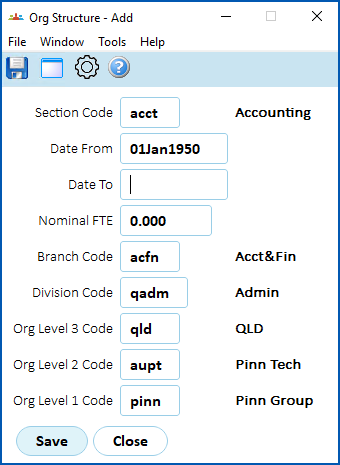
- Click Save.
- Repeat this procedure, starting at step 3, until you have completed the relationships for creating the organisation structure.
See also:
© 2023 Fusion5. All rights reserved.