EmpowerHR lets you link together up to 15 screens in a single business process. You can create an unlimited number of business processes.
When you create a business process, it is located on the Processes menu.
A user can use a business process provided the:
- account template (assigned to their operator code) allows access to the process menu item and access to all the screens used in the process
- the user has been assigned the relevant organisational access (access to organisational groups of employees)
Create a business process 
To create a business process:
- Go to Administration > Screen Management > Business Process.
- At the Business Process summary screen, click Find Now to display a list of existing processes (by menu name).
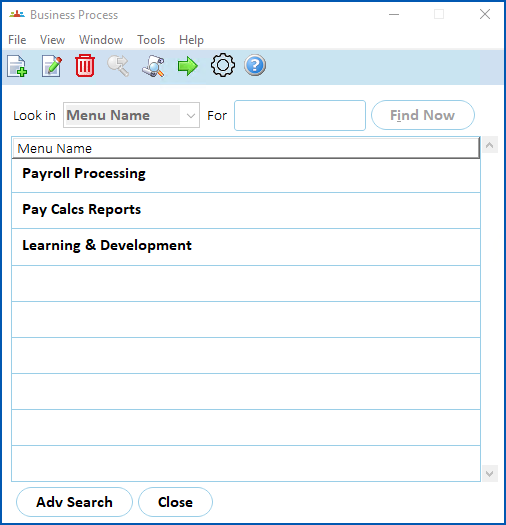
- Click New.
- At the Business Process - Add window, enter a name for the process, and then click Save.
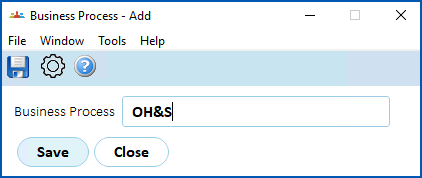
- The new process name appears in the Business Process summary screen.
- Select the process, and then click Next Level.
- The Business Process Details screen displays. Click Find Now. No screens are listed as this is a new process.
- Click New.
- At the Business Process Details - Add screen, in the:
- Menu Name field, click Window, find and double-click the screen to add it to the field. The Frame Name field is automatically populated based on your selection.
- Button Name field, type a name for the button (up to 15 characters), and then press Tab. EmpowerHR displays an example of the button beside the Button Name field.
- Sequence No field, enter the order for the screen to appear in the process. It's recommended you use multiples of 5 so, in future updates, you won't need to remove and re-add screens. You'll simply slot any new ones in between.
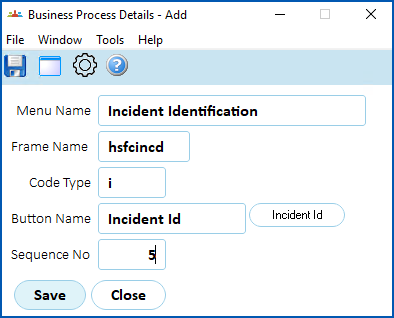
- Click Save. The Business Process Details screen displays, listing the screen you added.
- Repeat this procedure, starting from step 8, until you've added all the screens required for the process.
Update a business process
To update a business process:
- Go to Administration > Screen Management > Business Process.
- At the Business Process summary screen, click Find Now to display a list of existing processes.
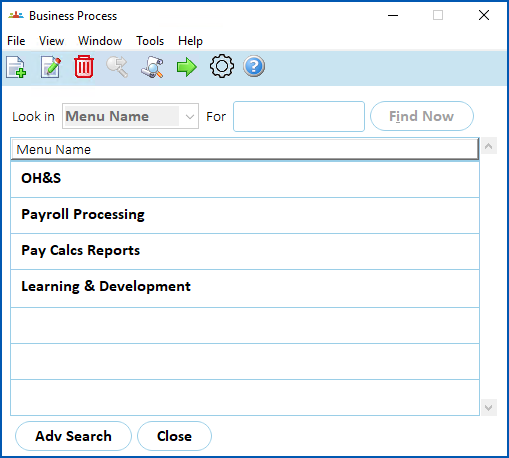
- Select the business process you want to update, and then click Next Level.
- The Business Process Details screen displays. Click Find Now to list the existing screens.
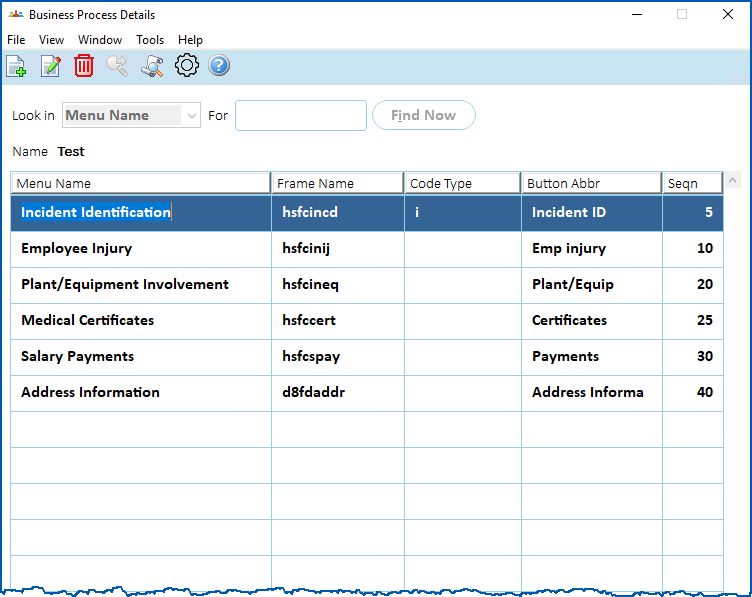
- To:
- add a new screen, click New, and then see create a business process for how to proceed (starting at step 8 in the instructions).
- update an existing screen details, select the screen, click Open.
- At the Business Process Details - Change screen, you can change either or both the:
- Button Name field. Enter a new name for the button (up to 15 characters), and then press Tab. EmpowerHR displays an example of the button beside the Button Name field.
- Sequence No field, enter the new order for the screen to appear in the process.
- Click Save.
© 2023 Fusion5. All rights reserved.