EmpowerHR's bulk take-on feature is useful when you need to add many new employees to the system instead of one at a time.
This topic shows how to use bulk take-on for most types of new employee data. If you also need to take on employee additional data that your organisation uses, see bulk upload employee additional data for instructions.
How does bulk take-on work?
You load your data files via the Bulk Take-on Initiation screen. You'll find the list of options on this screen are similar to those when manually adding an employee. When you manually add an employee, the first step is to enter personal employee information. Just so, when doing a bulk take-on, you first load your data file using Employee personal data load (option 2 on the screen).

|
The exception is if the employee positions don't yet exist in EmpowerHR. Then you would use option 1 Position data load first, and option 2 Employee personal data load next.
|
After loading your employee personal data file, you can load any or all other data (options 3-9).
Can I upload other data files at any time?
Yes. Each time you load a data file using an option on the Bulk Take-on Initiation screen, EmpowerHR loads the data into a temporary table. It's only when you run the background job, Bulk Take-on Process, that EmpowerHR loads all the data into the master file and creates the employee records. This is to allow you to load data files in your own time, without having to do it in one session.
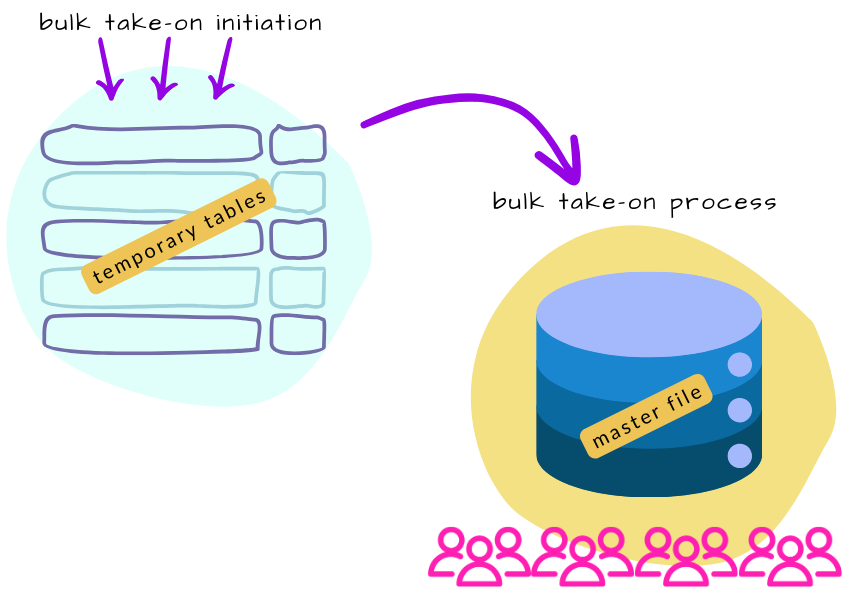
But if after you run the background job you want to upload other data at a later time, in most cases you simply use the bulk take-on initiation and bulk take-on process functions again. The exception is if your organisation uses the enhanced demographics or gender diversity feature. You cannot use bulk take-on to load this type of data after new employee records are created. To load:
- gender diversity data, you must use EmpowerHR's crossboarding feature. See crossboard gender diversity data for how.
- enhanced demographics data, let us know about your requirement by logging an iHelp request.
What data file format do I need to use?
The format depends on the type of data you are loading. For the format to use, see:
Upload new employees in bulk
To upload new employees in bulk:
- Go to Background Jobs > Bulk Data Take-On > Position/Employee Data > Bulk Take-On Initiation.
- At Bulk Take-On Initiation, select an option.
|
|
If the employee positions already exist in EmpowerHR, select option 2 to upload your employee personal data file. If the employee positions don't yet exist in EmpowerHR, select option 1 to upload your positions data file first and then repeat this procedure, selecting option 2. |
- At Load Type, select an option from the dropdown list.
- At File Name, click Open File, navigate to, and select your data file to add the pathname to the File Name field.
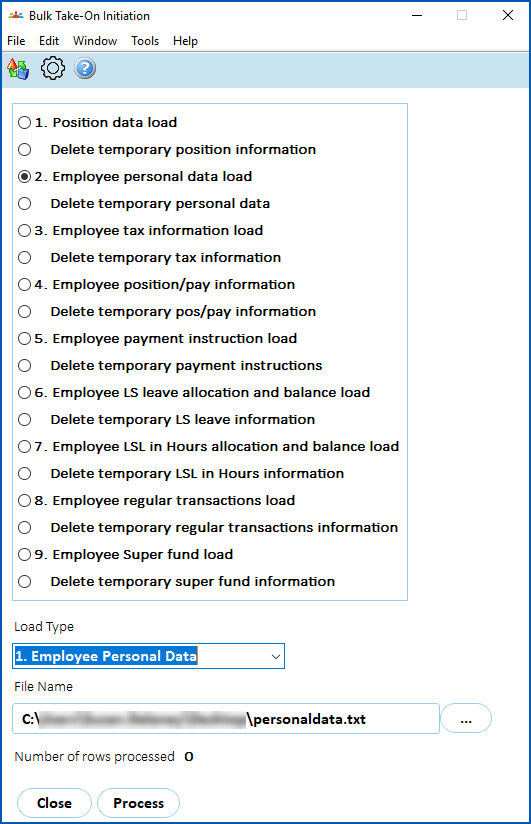
- Click Process.
|
|
When you click Process, the Number of rows processed counter displays how many records have been uploaded into temporary tables. |
- Once you have loaded your employee personal data file, repeat this procedure, starting at step 2, to upload each of your other data files, as required.
|
|
If your organisation uses either of the enhanced demographics or gender diversity features, select option 2 Employee personal data load, and then select the relevant Load Type - either Employee Demographics Data or Empl Gender Diversity Data. |
- Once you have uploaded all your data files and you're ready to create the employee records, go to Background Jobs > Position/Employee Data > Bulk Take-On Process.
- At Bulk Take-on Process (add), at the Movement Code field, click Window to view a list of movement codes.
- Select the relevant movement code, for example, New starter (n/s), and then click Extract.
- Click Save to start processing the data.
- To check the status of the job, go to Background Jobs > Requested Jobs > Requested Jobs.
Check and fix errors
- Bulk Take-On Error Enquiry - a read-only summary of errors and warnings from the load. You can review and analyse errors here, but you can't fix them on this screen.
- Bulk Take-On/Onboard Error Fix - where you correct errors. Open an employee record from this screen, fix the data, and save. EmpowerHR then loads the corrected data for that employee.
Review errors
- Go to Background Jobs > Bulk Data Take-On > Position/Employee Data > Bulk Take-On Error Enquiry.
- EmpowerHR displays a summary of errors and warnings. If the screen is blank, no errors were found.
- To analyse the details, right-click the summary table to copy it to the clipboard. You can then paste it into Excel.
Fix errors
To fix errors so EmpowerHR can finish loading the data:
- Go to Background Jobs > Bulk Data Take-On > Position/Employee Data > Bulk Take-On/Onboard Error Fix.
- EmpowerHR lists the employees with errors in the data upload.
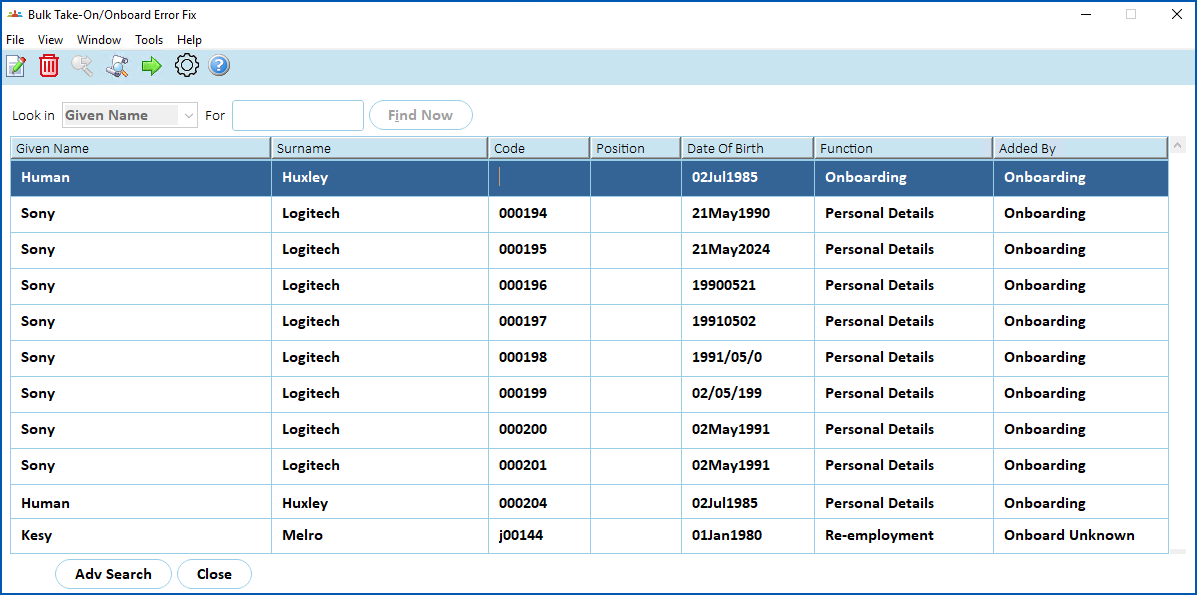
- Select a row, and then click Open.
- The Personal Details Error Correction screen displays details of the error. In the following example, on the Demographics tab, the error message shows the Date Implemented field value is invalid.
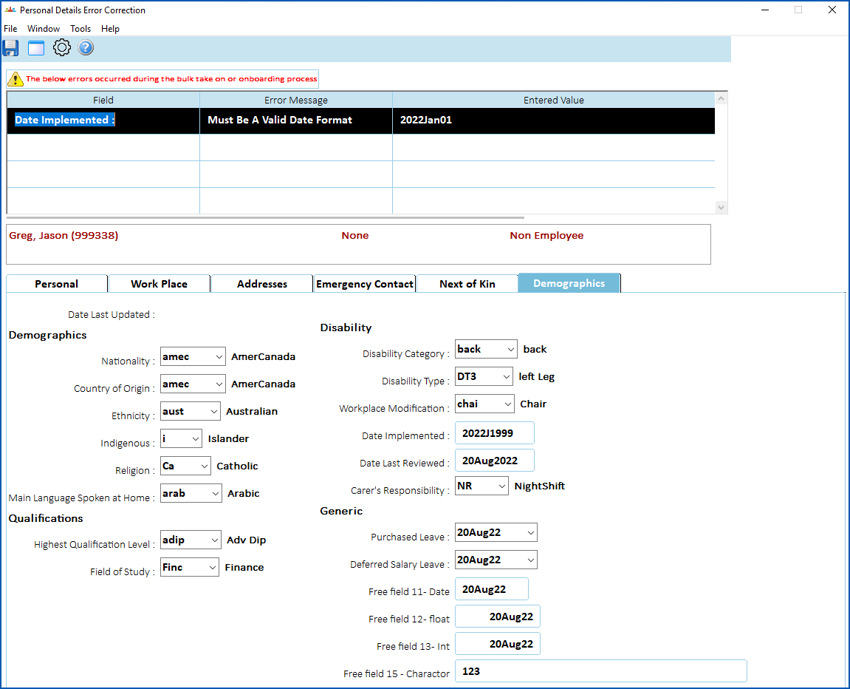
- Fix the error by entering the correct data. In this example, you would enter a valid date in the Date Implemented field.
- Click Save. EmpowerHR loads the data for the employee.
© 2023 Fusion5. All rights reserved.