If you need to update gender diversity data for existing employees, the following instructions show how to use EmpowerHR's desktop crossboarding feature.

|
See crossboard gender diversity data file format for guidance on preparing the data file. |
To crossboard (update) existing employees' gender diversity data: 
- Go to Background Jobs > Bulk Take-on > Crossboarding > Crossboarding Initiation.
- At the Crossboarding Initiation screen, make sure:
- option 1. Employee Personal data updates is selected
- Gender Diversity is the selected Load Type
- At File Name, click Open File, navigate to, and select your data file to add the pathname to the File Name field.
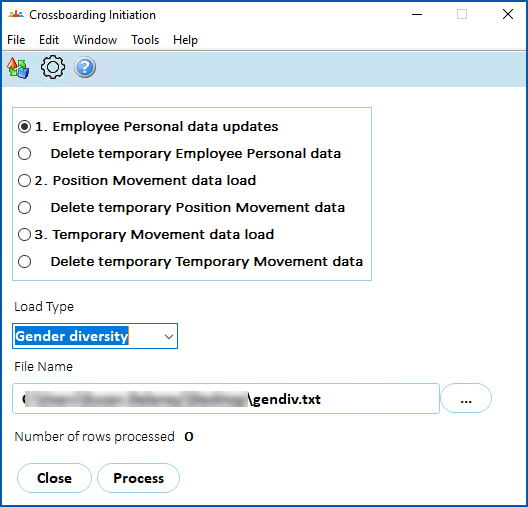
- Click Process.
|
When you click Process, the Number of rows processed counter displays how many records have been uploaded into temporary tables. |
- Go to Background Jobs > Bulk Take-on > Crossboarding > Crossboarding Process.
- At the Crossboarding Process screen, complete any required fields,
- Click Save to start processing the data.
- To check the status of the job, go to Background Jobs > Requested Jobs > Requested Jobs.
EmpowerHR displays in the Crossboard Approval/Error Fix screen, the details of any employees with errors in their crossboarded gender diversity data. From there you can correct the data. See fix crossboarding errors for more information.
© 2023 Fusion5. All rights reserved.