To add an employee's personal employee information: 
- Go to Tasks > Employees > Employee Information > Employee Information.
- At the Employee Information summary screen, click Find Now to list all existing employees.
- Click New.
- At the Employee Information detail screen, enter the employee's Surname, Given Names, and Date of Birth.
- If your organisation has:
- previously employed the person, the Employee Information summary screen displays. Select and double-click the employee. EmpowerHR adds their employee code to the Employee Code field on Employee Information detail screen. Go to step 7.
- not previously employed the person, go to step 6.
- At the Employee Code field:
- if your organisation uses EmpowerHR to automatically generate the employee code, press Tab and the field displays the new code
- otherwise, enter the employee code
- At the Start Date field, enter the employee's commencement date.
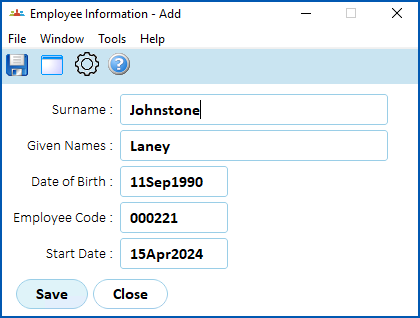
- Click Save.
- EmpowerHR creates the employee record and displays the Personal & Address Information screen, at the Personal tab.
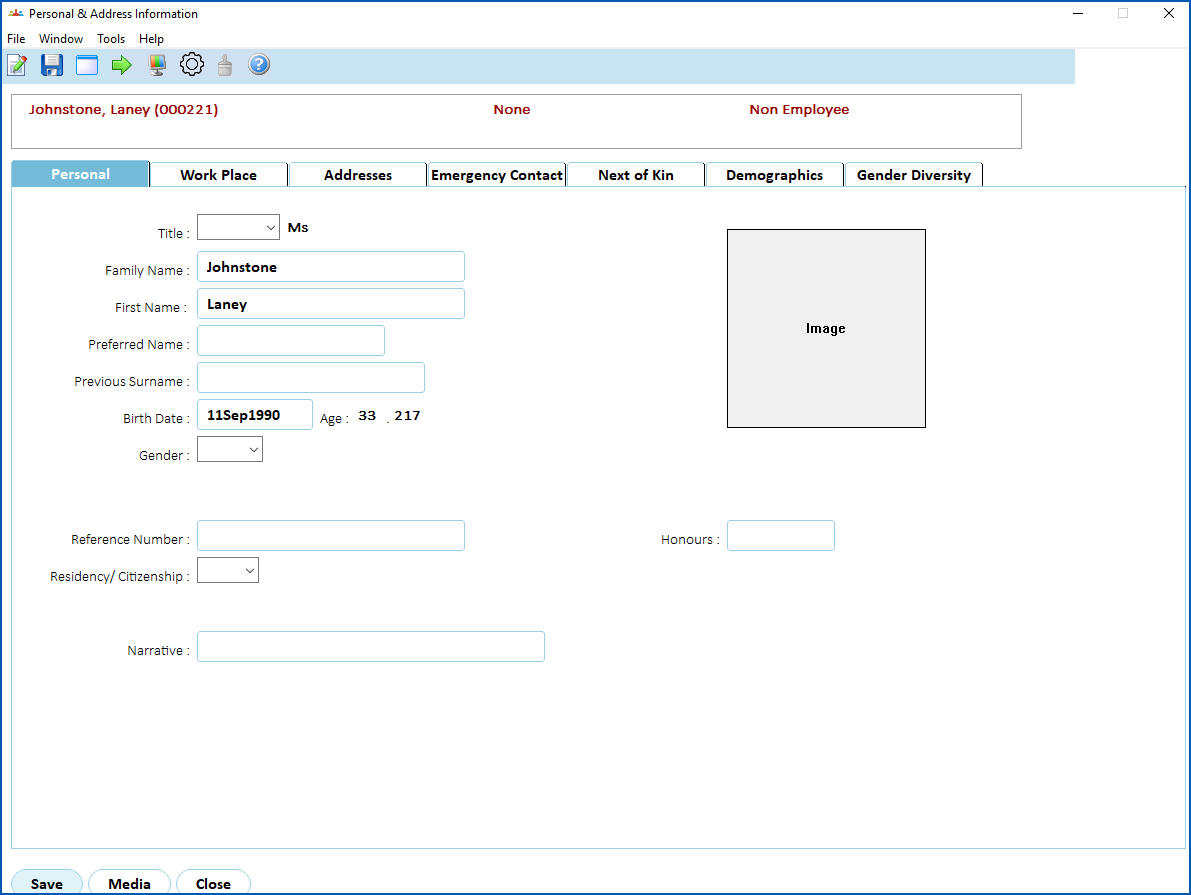
- Use the following instructions to complete each tab.
Add personal details
- At the Personal tab, complete any personal detail fields your organisation requires.
- When you've finished the personal details, click the Work Place tab.
Add workplace details
- At the Work Place tab, complete any workplace detail fields your organisation requires.
- When you've finished the workplace details, click the Addresses tab.
Add address details
- At the Addresses tab, complete any address detail fields your organisation requires.
- When you've finished the address details, click the Emergency Contact tab.
Add emergency contact details
- At the Emergency Contact tab, complete any emergency contact fields your organisation requires.
- When you've finished the emergency contact details, click the Next of Kin tab.
Add next of kin details
- At the Next of Kin tab, complete any next of kin fields your organisation requires.
- When you've finished the next of kin details, click the Demographics tab.
Add demographics details
- At the Demographics tab, complete any fields your organisation requires. At each field, you can click Window to display a list of codes to choose from, find and double-click a code to add it to the field.
 |
If EmpowerHR's demographics feature has been customised for your organisation, you may find different fields on the Demographics tab. See employee demographics information (enhanced) for more information. |
- When you've finished the demographics details, if your organisation:
- records gender diversity data, click the Gender Diversity tab. See add and update gender diversity information for what to do next.
- does not use this feature and you have finished adding personal information to all of the tabs, click Save. The Add Position Key screen displays. See add employee position information for what to do next.
© 2023 Fusion5. All rights reserved.