Can I add or update employee gender diversity information?
- If you need to add or make changes to an individual employee's gender diversity information, you can do this via the employee's record in the desktop.
- As an employee, you can add or change your own gender diversity information via the Gender Diversity tab in ESS
 .
ESS = Employee Self Service

|
The field names and behaviours described in the following instructions may vary as they are determined by how your organisation has set up the gender diversity feature. |
Add or update an employee's gender diversity information in desktop
To add or update an employee's gender diversity information in the desktop:
- Go to Tasks > Employees > Employee Information > Employee Information.
- At the Employee Information summary screen, find the employee record, select it, and then click Personal.
- On the Personal tab, select an option from the Gender dropdown list. Depending on your selection, the Additional Info Emp Description field may display. If this field displays, enter a description to provide context or more details about the option you selected.
- Go to the Gender Diversity tab, and then click Open.
- On the Gender Diversity tab, complete or change the fields by selecting an option from each dropdown list. Depending on your selection in some fields, an Additional info... field may display. If this field displays, enter a description to provide context or more details about the option you selected.
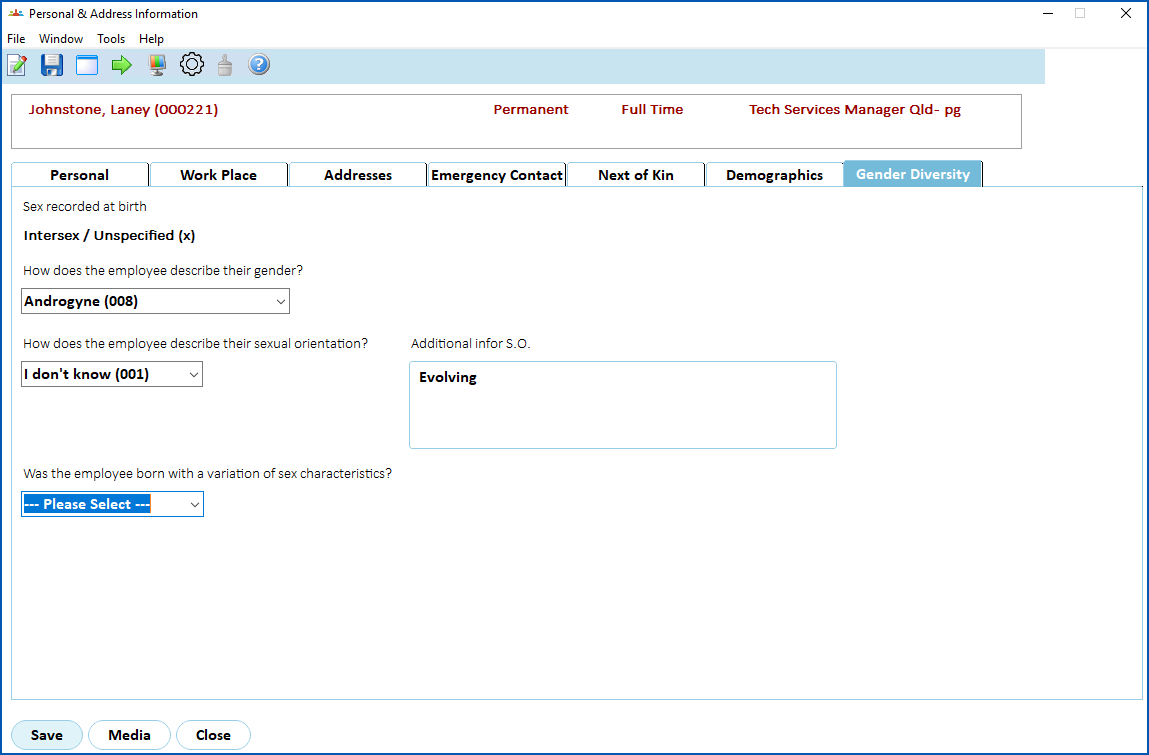
- Click Save.
Add or update your own gender diversity information in ESS
To add or update your own gender diversity information in ESS:
- Click Personal Details.
- At the Personal Details screen, on the General tab, select an option from the Gender dropdown list. Depending on your selection, the Comment field may display. If this field displays, enter a description to provide context or more details about the option you selected.
- Go to the Gender Diversity tab.
- On the Gender Diversity tab, complete or change the fields by selecting an option from each dropdown list. Depending on your selection in some fields, an additional field may display. If this field displays, enter a description to provide context or more details about the option you selected.
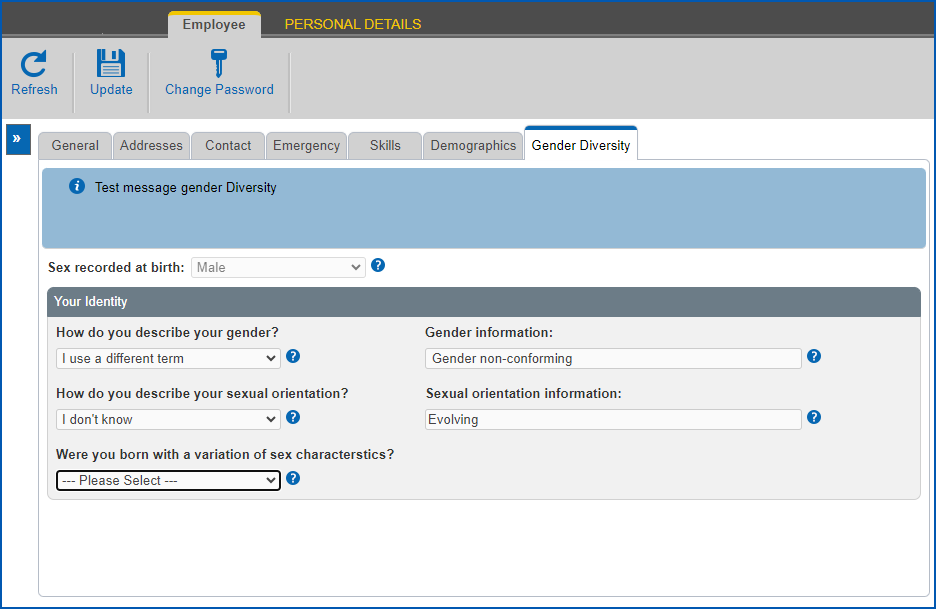
- Click Save.
© 2023 Fusion5. All rights reserved.