Action a relief, payments and absence request
You can action a relief, payments and absence request via your:
- Relief and Payments action to do list (as shown in the following instructions), or
- Relief and One-off Payments catalogue (the actions available to you are the same - accept, redirect, reject)
To action a relief, payments and absence request: 
- When you have requests to action, a Relief, Payments and Absence alert appears in your Actions To Do box.
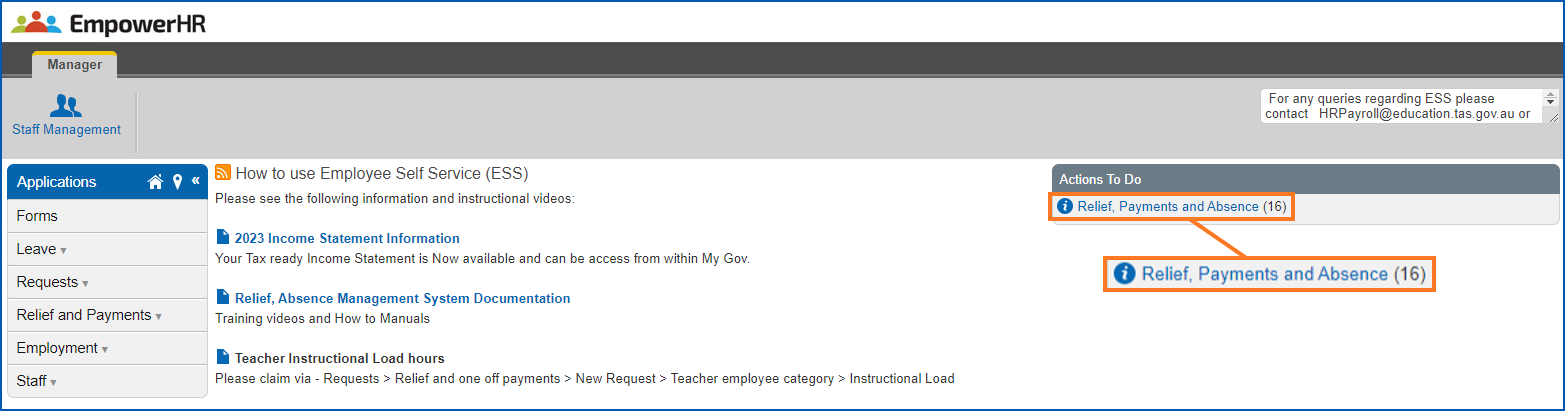
- Click the Relief, Payments and Absence alert. The Actions To Do list displays.
- At a request row, click Actions, and then select Edit from the menu.

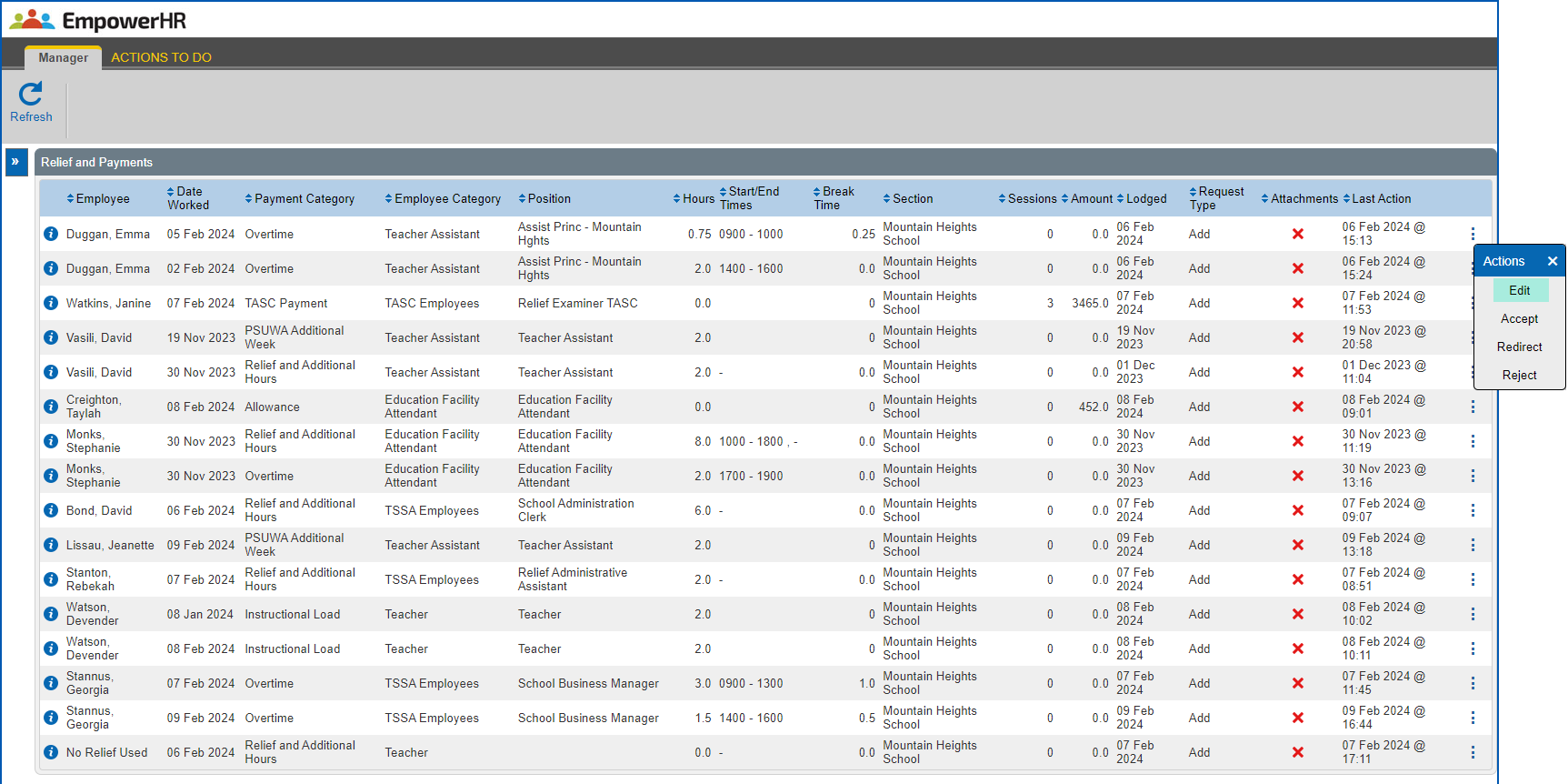
- The Process Relief and Payment Request screen displays. Some fields are common to all requests and some display according to the type of request.
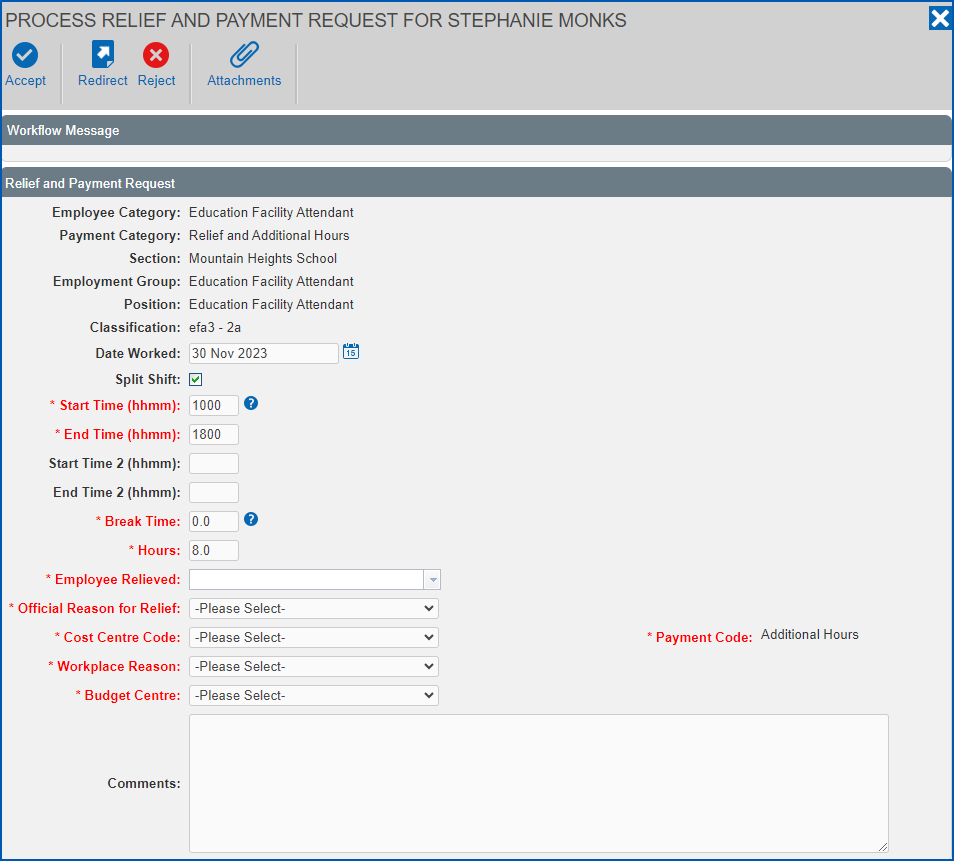
- Review the data and then complete or update it, as required. See the relevant topic if you need more information about fields on the different request types:
- If there are attachments, click Attachments, review the attached documents, and then click Confirm when you're done.
- Determine whether to accept, redirect, or reject the request, and then use the following (relevant) instructions to complete the action.
Accept the relief, payments and absence request
To accept (approve) the request:
- Click Accept.
- At the Finalise... dialogue box:
- enter Comments, if you wish
- click Confirm.
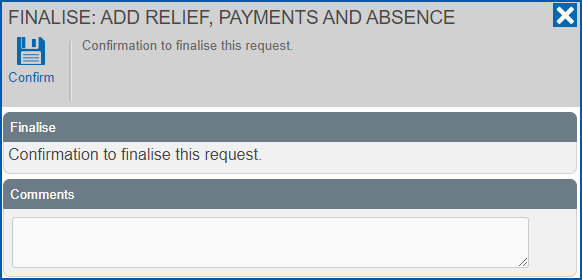
- The request is finalised and removed from your Actions To Do list.
Redirect the relief, payments and absence request
To redirect the request to another manager for their action:
- Click Redirect.
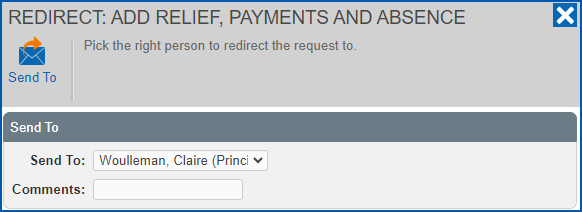
- At the Redirect... dialogue box:
- select the manager you want to redirect the request to from the Send To dropdown list
- enter Comments, if you wish
- click Send To
- The:
- request is removed from your Actions To Do list
- alert for the request is removed from your Actions To Do box and appears in the redirected manager's Actions To Do box
Reject the relief, payments and absence request
To reject the request:
- Click Reject.
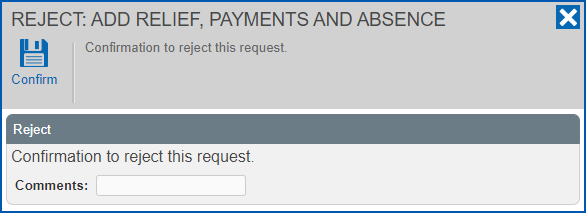
- At the Reject... dialogue box:
- enter Comments, if you wish
- click Confirm
- The:
- request is removed from your Actions To Do list
- alert for the request is removed from your Actions To Do box
- employee is notified
© 2023 Fusion5. All rights reserved.