Action a flexi timesheet request
 |
If you'd like to learn more about parts of the flexi timesheet, entries, and calculation of reconciliation amounts, see create a flexi timesheet. |
To action a flexi timesheet request:
- Sign into Manager Self Service. If you have any flexi timesheet requests to action, a Flexi Time Request alert appears in your Actions To Do box.
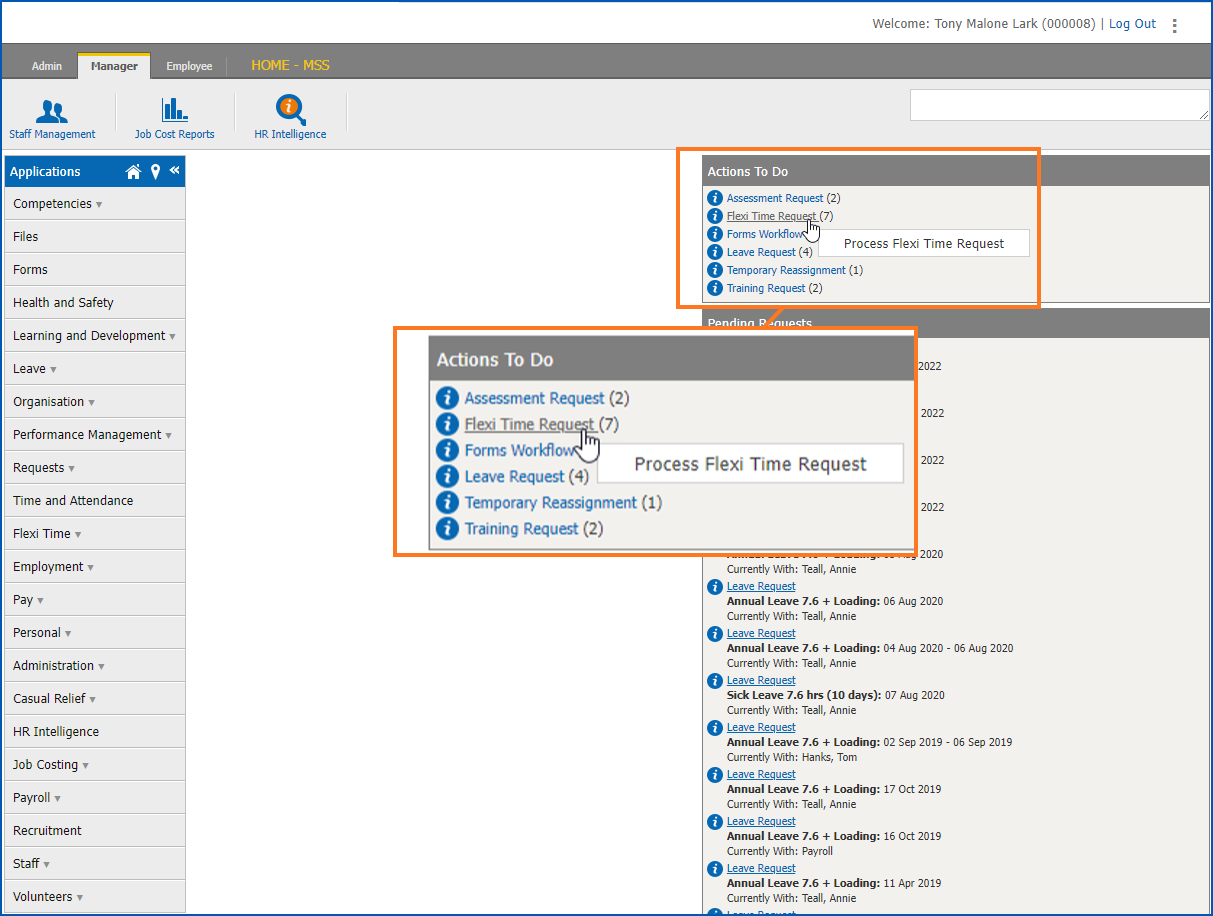
- At the Actions To Do box, click Flexi Time Request. The Flexi time Request to do list displays.
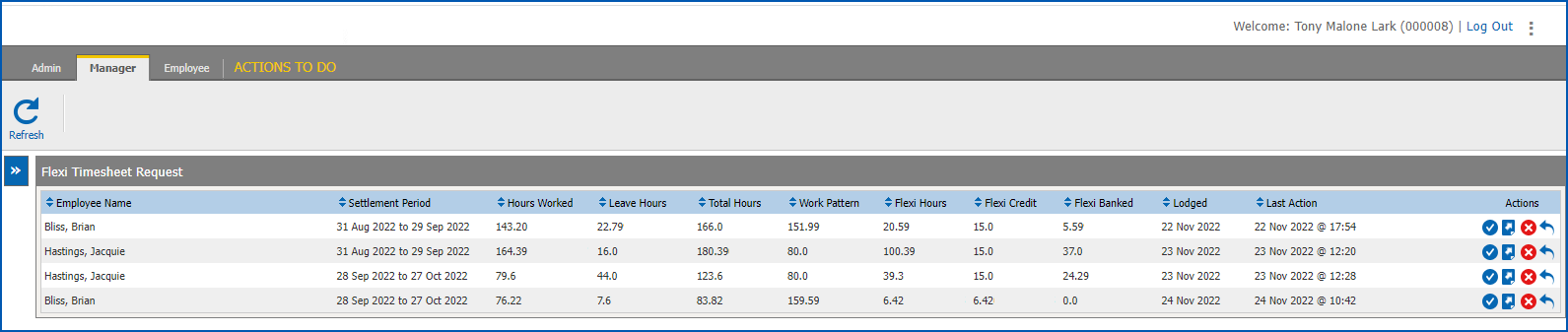
- At a flexi timesheet request row, determine whether to accept, redirect, or return the request. Use the following instructions to guide you.
Accept the flexi timesheet request
To accept the flexi timesheet request:
- Click Accept. The flexi timesheet displays.
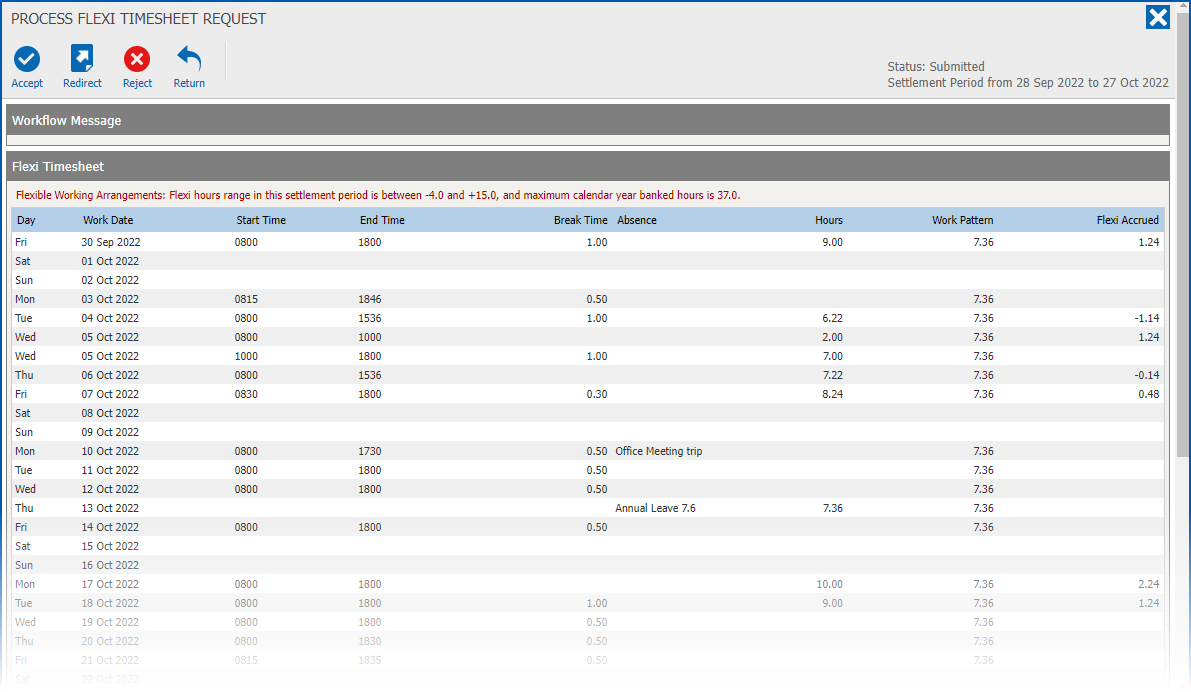
- At the flexi timesheet, view the data, and then click Accept.
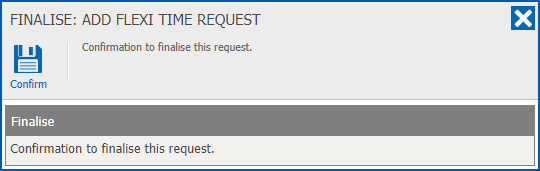
- At the Finalise... dialogue box, click Confirm.
- The:
- flexi time request is removed from your Flexi Time Request to do list
- alert for the request is removed from your Actions To Do box
Redirect the flexi timesheet request
To redirect the flexi timesheet request to another manager for their action:
- Click Redirect.
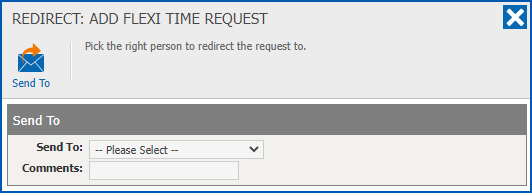
- At the Redirect... dialogue box:
- select the manager you want to redirect the request to from the Send To dropdown list
- enter Comments, if you wish
- click Send To
- The:
- flexi time request is removed from your Flexi Time Request to do list
- alert for the request is removed from your Actions To Do box
Return the flexi timesheet request
To return the flexi timesheet request to the person who submitted it:
- Click Return.
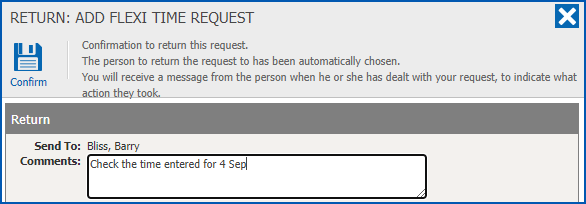
- At the Return... dialogue box:
- enter Comments, if you wish
- click Confirm
- The:
- flexi time request is removed from your Flexi Time Request to do list
- alert for the request is removed from your Actions To Do box
- flexi time request moves from the employee’s Pending Requests list back to the Saved – Not Submitted list in their flexi timesheet catalogue. The employee can then edit the timesheet and submit it again for approval.
© 2023 Fusion5. All rights reserved.