Create and submit a flexi time leave request
Like other types of leave requests, you create and submit a leave request in Employee Self Service to use your flexi credit hours or flexi banked hours.
You can choose to use either your flexi credit hours or your flexi banked hours, there’s no required order. The system still deducts the time from your flexi credit hours first, and then from your flexi banked hours.
 |
If you want to check your flexi credit and flexi banked balances, look at Timesheet Reconciliation at the bottom of your current flexi timesheet. See how are timesheet reconciliation amounts determined? for more information. |
To create and submit a flexi time leave request: 
- Click Leave Details.
- At the Leave Details catalogue, click New Request.
- At the Create New Leave Request screen, complete the fields just how you normally complete them for other types of leave requests and selecting the leave type for flexi credit or flexi banked leave.
|
|
Depending on how the system is configured in your organisation, you may also see a Reason for Leave field which allows you to select a reason from a dropdown list. |
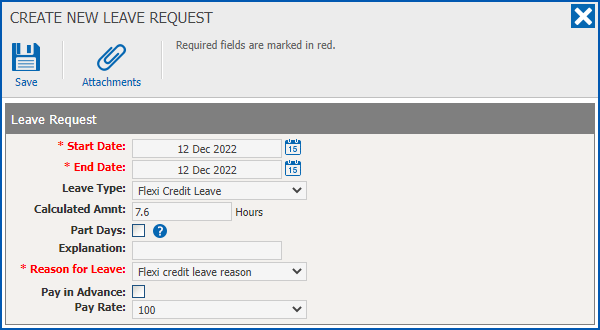
- Click Save. The Workflow :: Addressee dialogue box displays.
- At the Workflow :: Addressee dialogue box, select your manager (the approver) from the Send To dropdown list.
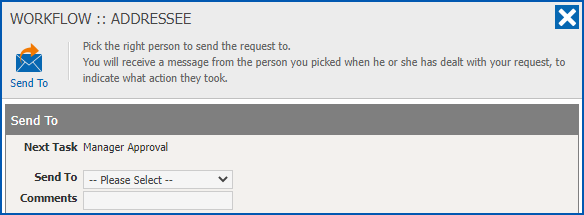
- Click Send To. Your flexi time leave request is:
- submitted to the approval workflow
- added to the Pending Requests list in your Leave Details catalogue
What happens after I submit a flexi time leave request?
When you submit a flexi time leave request, an alert is added to your manager’s Action To Do list in Manager Self Service.
Your manager chooses one of the following actions for your flexi leave request:
Accept | Your flexi time leave request is approved and moves from the Pending Requests list to the Current Bookings list in your Leave Details catalogue. |
Redirect | Your manager redirects the flexi time leave request to another manager to action. |
Reject | Your flexi time leave request is rejected and removed from the Pending Requests list in your Leave Details catalogue (and you are notified). |
Return | Your manage returns the flexi time leave request to you for follow-up. Read on to see what to do when your request is returned. |
What do I do if my flexi time leave request is returned?
You’ll find the returned flexi time leave request appears back in the Pending Requests list in your Leave Details catalogue.
To amend and re-submit your flexi time leave request:
- Click Leave Details.
- At the Leave Details catalogue, go to the Pending Requests list.
- At the row showing the returned flexi time leave request, click Actions and then select Edit from the menu.
- At the Change Leave Request screen, make any necessary amendments, and then click Submit. The Workflow :: Addressee dialogue box displays.
- At the Workflow :: Addressee dialogue box, select your manager (the approver) from the Send To dropdown list.
- Click Send To. Your flexi time leave request is again submitted to the approval workflow.
© 2023 Fusion5. All rights reserved.