Create a flexi timesheet
To create a flexi timesheet: 
- Go to Requests > Flexi Timesheet.
- At the flexi timesheet catalogue, click New Request.
- At Enter Flexi Timesheet Information, EmpowerHR displays the main work days according to your work pattern.
 |
Depending on how flexi time is set up in your organisation, weekends may not appear in your timesheet. |
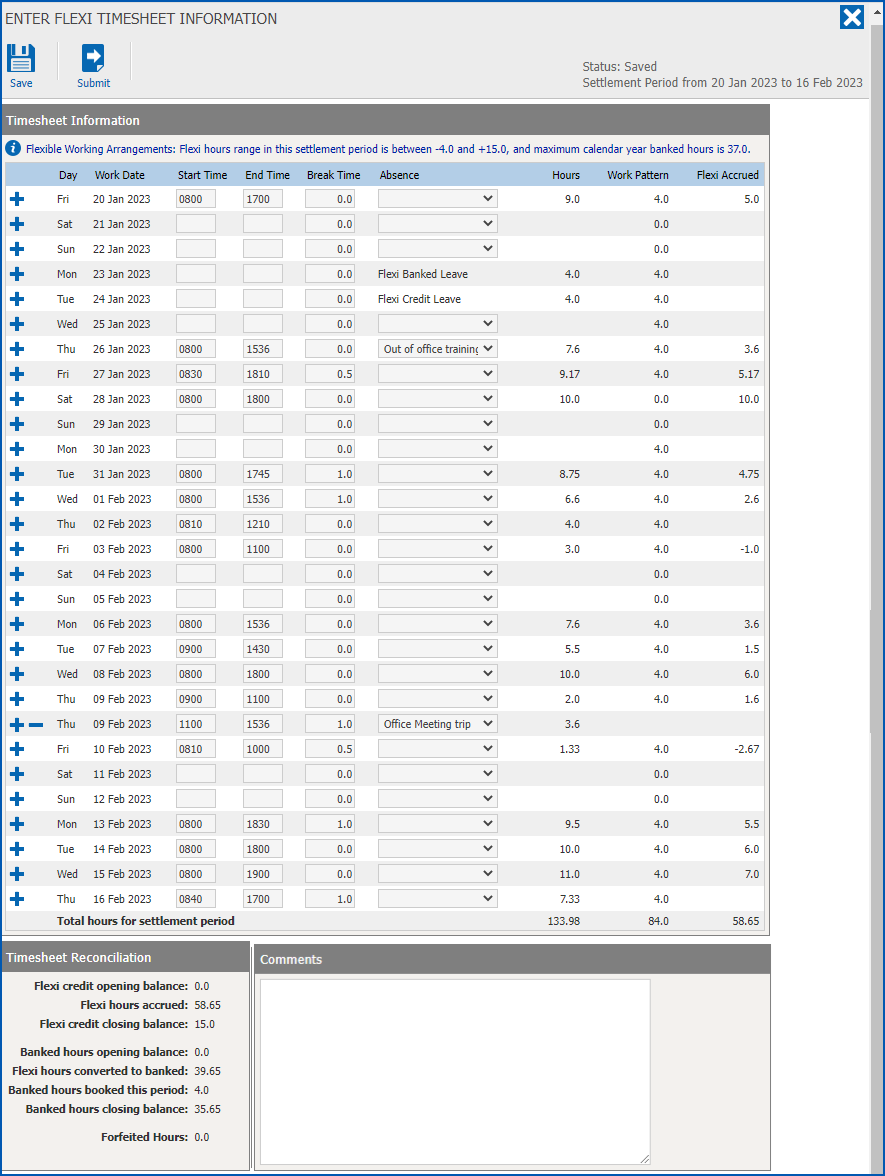
- Record your time using the following table as a guide.
| Here's an example of a flexi timesheet row... |
|---|
 |
| At this field... | Do this... |
|---|---|
Actions |
|
Day/Work Date | Nothing. When you create the timesheet, EmpowerHR sets the first work date based on the settlement period and increments each day until the end of the settlement period |
| Start Time | Enter the start time, using 24 hour format. For example, for 8.00am, enter 0800 |
| End Time | Enter the end time, using 24 hour format. For example, for 6.00pm, enter 1800 |
Absence | The Absence column allows you to record office absences, for example, client site visit or external training, etc. The column also displays information about leave bookings and public holidays. If:
|
Hours | Nothing. EmpowerHR calculates the Hours in the following way:
|
| Work Pattern | Nothing. EmpowerHR displays your designated work pattern hours |
| Flexi Accrued | Nothing. EmpowerHR calculates the difference between Hours and Work Pattern |
| Here's an example of the totals at the bottom of the timesheet entry table... |
|---|
 |
| At this field... | Do this... |
|---|---|
Total hours for the settlement period | Nothing. The system adds up the values from the following columns:
|
Comments | Depending on how flexi time is set up in your organisation, in some circumstances you may need to enter a comment before submitting your flexi timesheet. When this is the case, if you click Submit and the Comments box is empty, a message will display to let you know. |
- Click Save.
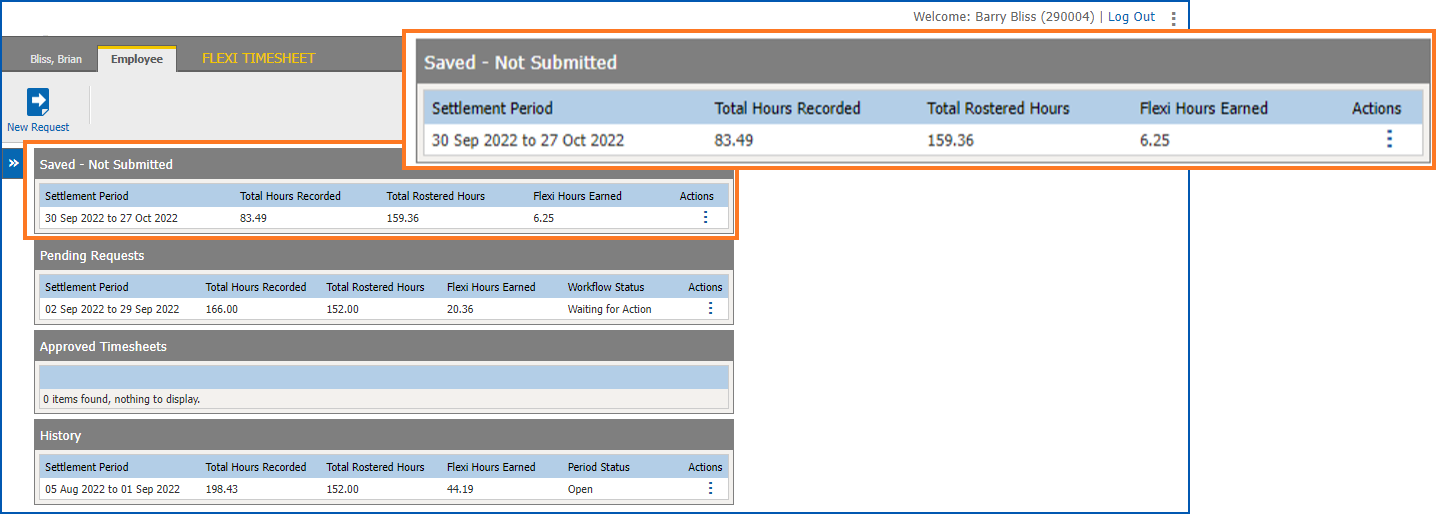
- Click Close. At the flexi timesheet catalogue, your saved flexi timesheet appears in the Saved - Not Submitted list. You can edit the timesheet as many times as you wish before submitting it for approval.
Learn more about flexi timesheets
What's displayed at the top of the flexi timesheet?

Status of your timesheet

- Open – when you first create the flexi timesheet
- Saved – you’ve saved but not yet submitted the flexi timesheet for approval
- Waiting – you’ve submitted the flexi timesheet to your manager for approval
- Accepted – your manager has approved your flexi timesheet
Settlement period (from/to)

- When you create a flexi timesheet, these dates are the next settlement period dates after your last submitted flexi timesheet.
- When you edit an existing flexi timesheet, these dates are from the saved timesheet.
Flexi hours range...

EmpowerHR fetches these details from the flexi thresholds associated with your work pattern.
What's displayed at the bottom of the flexi timesheet?
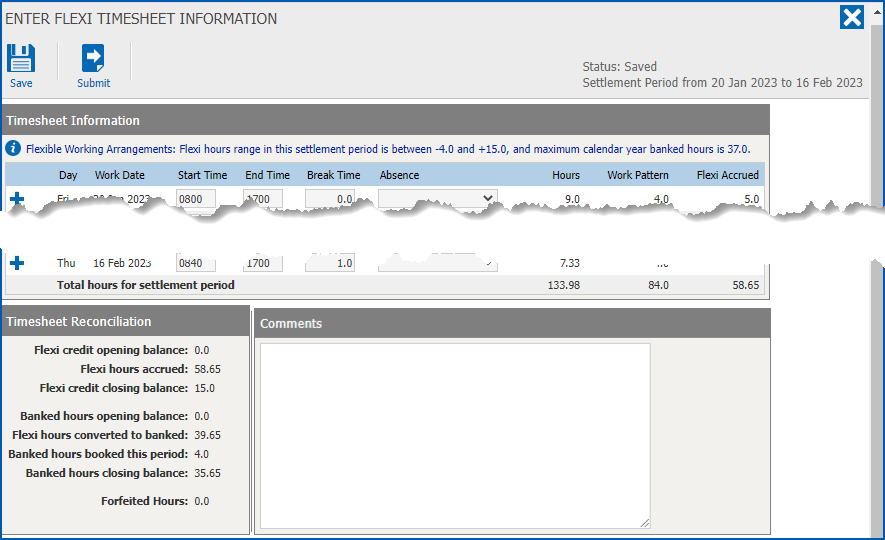
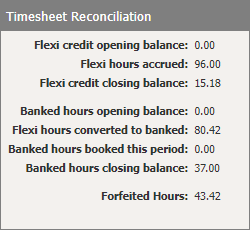
Timesheet reconciliation
EmpowerHR calculates and shows how many flexi credit hours:
- you’ve accrued
- are in your closing balance
- have been converted to banked flexi hours
- have carried forward from the previous period
- were forfeited in the settlement period
You can also see how many banked flexi hours:
- are in your opening balance
- you’ve booked this period
How are timesheet reconciliation amounts determined?
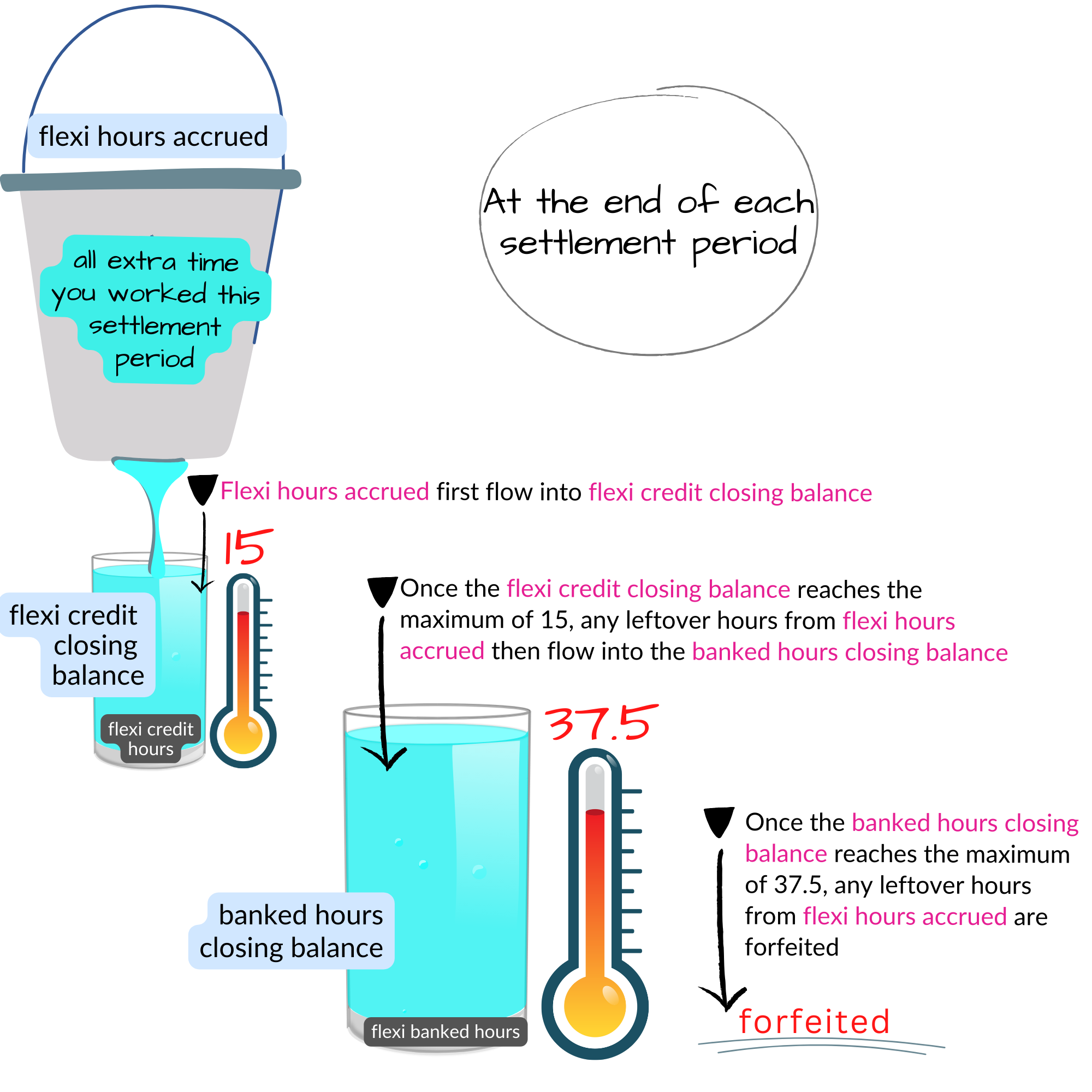
Here’s an explanation of how EmpowerHR determines Timesheet Reconciliation amounts
Why aren't my timesheet reconciliation amounts showing?
If your last timesheet is waiting approval, Timesheet Reconciliation shows a message to let you know the reconciliation amounts aren’t yet available.
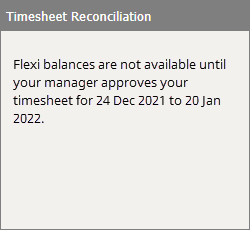
Once your last timesheet is approved, the Total Reconciliation amounts are calculated and displayed in your current timesheet. The balances are dynamic so when you make new entries into your current flexi timesheet, they change.
© 2023 Fusion5. All rights reserved.