Submit your flexi timesheet for approval
When submitting a flexi timesheet, the system checks:
- your timesheet is complete and the fields all have a valid value
- you’re submitting the timesheet in the correct date order, etc
A message will display to let you know if there’s something wrong so you can correct it and try again.
To submit a flexi timesheet: 
- Go to Requests > Flexi Timesheet.
- At the flexi timesheet catalogue, go to the Saved – Not Submitted list.
- On the row showing the flexi timesheet you want to submit, click Actions, and then select Edit from the menu.
- At the flexi timesheet, click Submit. The Workflow :: Addressee dialogue box displays.
- At the Workflow :: Addressee dialogue box, select your manager (the approver) from the Send To dropdown list.
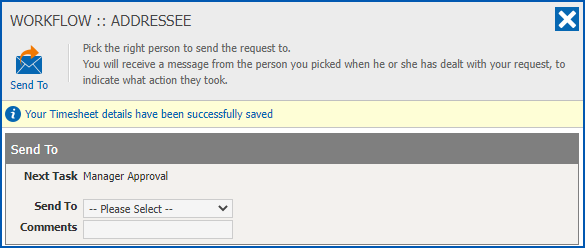
- Click Send To. Your timesheet is submitted to the approval workflow.
What happens after I submit my flexi timesheet?
When you submit your timesheet:
- an alert is added to your manager’s Action To Do list in Manager Self Service
- your timesheet moves from the Saved – Not Submitted list to the Pending Requests list in your flexi timesheet catalogue
Your manager chooses one of the following actions for your flexi timesheet request:
| Accept | Your timesheet is approved and moves from the Pending Requests list to the Approved Timesheets list in your flexi timesheet catalogue. Once the settlement period is closed, it moves from the Approved Timesheets list to the History list. |
| Redirect | Your manager redirects the timesheet request to another manager to action. |
Return | Your manager returns the timesheet to you to follow up. Read on to see what you do when your timesheet is returned. |
What do I do if my timesheet is returned?
You’ll find the returned flexi timesheet appears back in the Saved – Not Submitted list in your flexi timesheet catalogue.
To amend and re-submit your flexi timesheet:
- Go to Requests > Flexi Timesheet.
- At the flexi timesheet catalogue, go to the Saved – Not Submitted list.
- On the row showing the flexi timesheet, click Actions and then select Edit from the menu.
- At the flexi timesheet, make any necessary amendments (start/end times, breaks, absences), and then click Submit. The Workflow :: Addressee dialogue box displays.
- At the Workflow :: Addressee dialogue box, select your manager (the approver) from the Send To dropdown list.
- Click Send To. Your timesheet is again submitted to the approval workflow.
© 2023 Fusion5. All rights reserved.