Sort query results
While a query defines the initial sort order of the output, you can also sort the query results.
To sort query results:
- At the query results window, click the output table column heading for a single column sort, for example, Surname.
- If there is more than one column, right-click anywhere in the output table (or else, click Edit and then click Sort by...). EmpowerHR displays the Sort By window where you can select a multi-column sort for up to five columns.
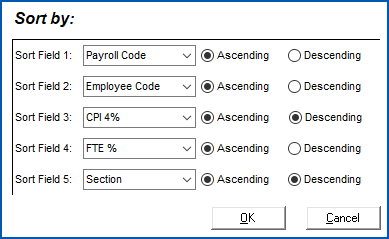
 |
EmpowerHR remembers the multi-column selections you make on the Sort By window until you make new selections or clear them. |
Search query results
To search all columns displayed in the query results table:
- Click Edit, and then click Find.
- At the Selection Popup, enter your search criteria, and then click OK.
- To see the next occurrence of the search result, click Edit, and then click Find Next.
Change field display in query results
EmpowerHR allows you to show/hide fields in the query results. For example, when you created the query, if you chose to hide a particular field from displaying, you can still choose to display it from the query results window.
To change the display of fields in the query results window:
- Click View, and then click Set Displayed Fields.
- EmpowerHR displays a list of the fields displayed in the results.
- To hide a field from the results, clear the checkbox beside the field name.
|
Clicking Set ALL fields clears/selects all fields. |
- Click OK.
Export query results
Even if when you created the query you chose the default Window for the results output, you can still export the results to other supported formats from the query results window.
To export query results to another supported format:
- At the query results window, click File, click Export, and then select the option you want from the menu.
- See the following procedures for more information about common options.
Send results as email attachment
The export option, Send Results as Mail Attachment:
- converts the query results to Microsoft Excel format
- opens your email client
- attaches the results spreadsheet to an email message, ready for you to complete and send the message
| This option only works if:
|
Export results to excel
You can name, and nominate where you want to save, the spreadsheet file when you export results to Excel.
To use Excel:
- In EmpowerHR, set the installation option called File format when loading data: y-calc, n-excel, x-xml (xloo) to y (yes).
- Before starting Query Manager, in Excel, display the Clipboard Task Pane. This allows you to copy the data you export from Query Manager into Excel.
- Go to Enquiries > Query Manager.
- Create and run a query.
- In the query results window, click File, click Export, and then select Excel from the menu.
- EmpowerHR opens and displays a new Excel file with the exported data showing in the Clipboard Task Pane, ready for you to paste into the spreadsheet.
Export results to XML format
Exporting results to XML format allows you complete control over the presentation of data, but does require your IT department to perform some work for transformation and presentation.
| Presentation of XML exports is typically controlled by an external application so Query Manager does not provide any controls for accessing the generated data file. However, Query Manager does provide a XML transformation template example called QueryManagerDefault.xsl for displaying XML output as an HTML document. |
Bulk email query results
You can use query results to populate the To address field of an email message, providing a way to create dynamic email lists based on your selection criteria.
|
The query results window doesn't need to display email addresses to make use of this option. That is, if you cleared the display field checkbox for an email address field when you created the query. |
To bulk email query results:
- Go to Enquiries > Query Manager.
- Create/select and run a query.
- In the query results window, click File, and then select Bulk E-mail from the menu.
- EmpowerHR analyses the query result fields to identify potential email address columns. If the system finds:
- a single email address column, EmpowerHR automatically launches your email client with all email addresses loaded into the To field.
- more than one email address column, EmpowerHR displays Select email address field where you select a column from the dropdown list, and then EmpowerHR launches your email client with all email addresses loaded into the To field.
© 2023 Fusion5. All rights reserved.