EmpowerHR's Individual Formula Calculation screen shows information about the calculation of Christmas formula values.
The system captures the data during the Pay Calculation process run in the Loading/Calc pay period, and only displays the record after that pay period is finalised.
To view individual formula calculation information:
- Go to Enquiries > School > Individual Formula Calculation.
- Enter:
- an individual Employee code, or
- % in the Employee code field to search for all employees, or
- a Payroll code
- Click Search.
- EmpowerHR displays:
- only formula values for the current school year
- only employees receiving an end of year formula payment
- in the Update $ column, any formula amount(s) changed via the Update Formula Values screen
- a warning if you searched for an individual employee for whom the Formula Type was manually updated
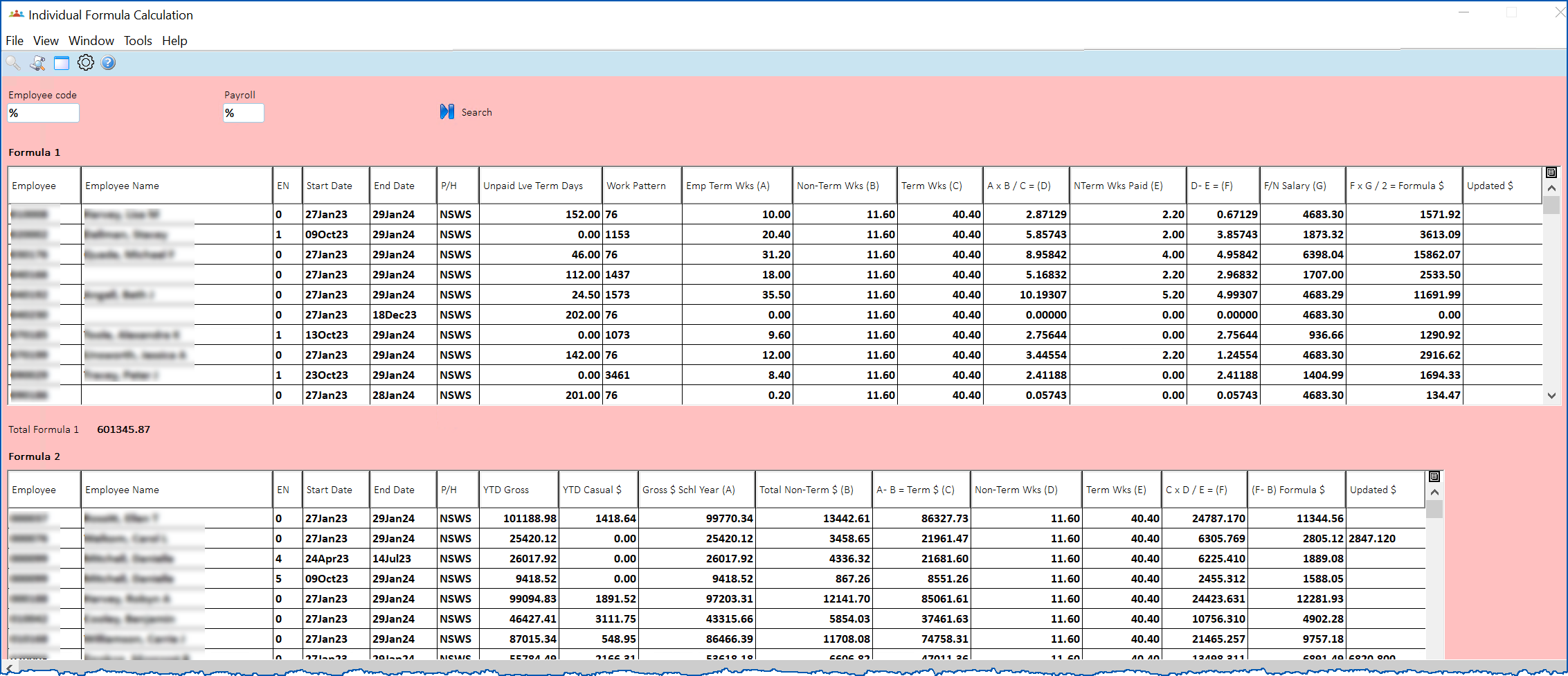
Formula 1 details
Here are all the Formula 1 columns explained:
| Column | Description |
|---|---|
Employee | Employee code |
Employee Name | Employee name |
EN | Employee number |
Start Date | If commencing during the school year, this is the start date of the employment, otherwise, it is the start of the school year. |
End Date | If ending employment during the schools year, this is the end date of the employment, otherwise, it is the last day of the school year. |
P/H | The Public Holiday code on the position screen for the employment. |
Unpaid Lve Term Days | The number of calendar term days from the unpaid leave bookings in the current school year. |
Work Pattern | The Work Pattern code on the position screen for the employment. |
Emp Term Wks (A) | The number of term weeks worked since the start of the school year (up to the end of Term 4 or the employment end date). |
Non-Term Wks (B) | The total number of non-term weeks in the year (from the P/H code). |
Term Wks (C) | Total number of term weeks in the year (from the P/H code) |
A x B / C = (D) | Result = Emp Term Weeks x Non-Term Weeks / Term weeks |
NTerm Wks Paid (E) | The number of non-term weeks worked since the start of the school year (up to the end of Term 4 or the employment end date). |
D - E = (F) | The result in weeks. |
F/N Salary (G) | Current fortnightly salary (including current regular allowances). |
F x G / 2 = Formula $ | The total formula amount. |
Updated $ | The total updated formula amount where formula records have been manually updated via the Update Formula Values screen. |
Formula 2 details
Here are all the Formula 2 columns explained:
| Column | Description |
|---|---|
Employee | Employee code |
Employee Name | Employee name |
EN | Employee number |
Start Date | If commencing during the school year, this is the start date of the employment, otherwise, it is the start of the school year. |
End Date | If ending employment during the schools year, this is the end date of the employment, otherwise, it is the last day of the school year. |
P/H | The Public Holiday code on the position screen for the employment. |
YTD Gross | The YTD Gross (including YTD Casual hours payments). |
YTD Casual $ | Total casual hours payments since the start of the school year |
Gross $ Schl Year (A) | The salary paid since the start of the school year, excluding any Casual hours' payments. |
Total Non-Term $ (B) | The salary paid in respect of non-term weeks since the start of the school year. |
A - B = Term $ (C) | The result is the salary paid in respect of Term weeks since the start of the school year. |
Non-Term Wks (D) | The total number of non-term weeks in the school year (from the P/H code). |
Terms Wks (E) | The total number of term weeks for the school year (from the P/H code). |
C x D / E = (F) | The result in dollars for Term $ x Non-Term Weeks / Term Weeks |
(F-B) Formula $ | The total formula amount. |
Updated $ | The total updated formula amount where formula records have been manually updated via the Update Formula Values screen |
© 2023 Fusion5. All rights reserved.