You can view, and where allowed, delete attachments to forms via EmpowerHR's Files screen.
View form attachments (files) in ESS
In ESS, an employee:
- can only view attachments to a position-based form where the Occupant Assoc. field on the form template is set to y and the employee occupies the position.
- can only view, not delete, attachments to a position-based form.
To view form attachments (files) in ESS:
- Click Files.
- EmpowerHR displays the Files screen listing all attachments, grouped by the type of form (and any other type of attachment submitted, such as compliance registration, requests, etc).
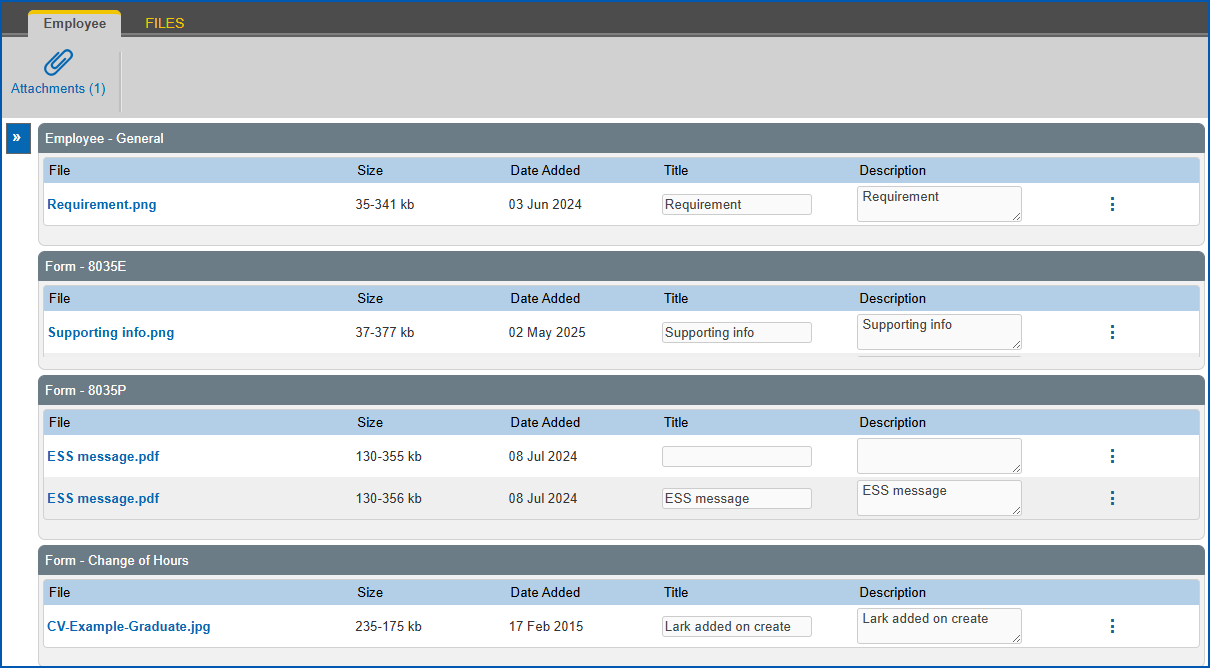
- To:
- view an attachment file, in the File column, click the filename. EmpowerHR displays the file in a new window.
- delete an attachment file, on the row containing the file, click Actions and then select Delete File from the menu. At the File Details screen, click Confirm Delete and EmpowerHR deletes the file.

|
You cannot delete a file attached to a position-based form. |
View an employee's form attachments (files) in MSS
In MSS, a manager:
- can access attachments to a position-based form where the manager has hierarchical access to the position.
- can view and also delete attachments to a position-based form (provided functional security allows deletion).
To view an employee's form attachments (files) in MSS:
- Click Staff Management
- At Staff Management, search for the employee.
- In Staff Lookup, on the row containing the employee, click Actions and then select Files from the menu.
- EmpowerHR displays the Files for... screen listing attachments submitted by the selected employee, grouped by the type of form.
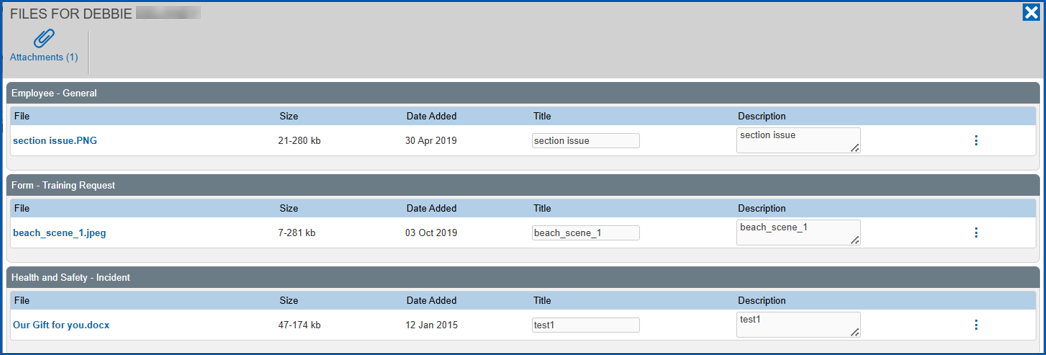
- To:
- view an attachment file, in the File column, click the filename. EmpowerHR displays the file in a new window.
- delete an attachment file, on the row containing the file, click Actions and then select Delete File from the menu. At the File Details screen, click Confirm Delete and EmpowerHR deletes the file.
© 2023 Fusion5. All rights reserved.