This feature lets employees view and edit any forms the approval manager has rejected. They can see comments the manager has added. Depending on the how the feature is configured, they can edit and re-submit the form for approval.
Configure the rejected requests feature
Display rejected forms list
EmpowerHR displays rejected forms in a separate list on the Forms screen. The Rejected Requests list is hidden by default.
To display the Rejected Requests list and allow users to edit and resubmit rejected forms:
- Go to Administration > Screen Management > Screen Painting.
- At Screen Painting, expand Self Service.
- At Forms, click Change.
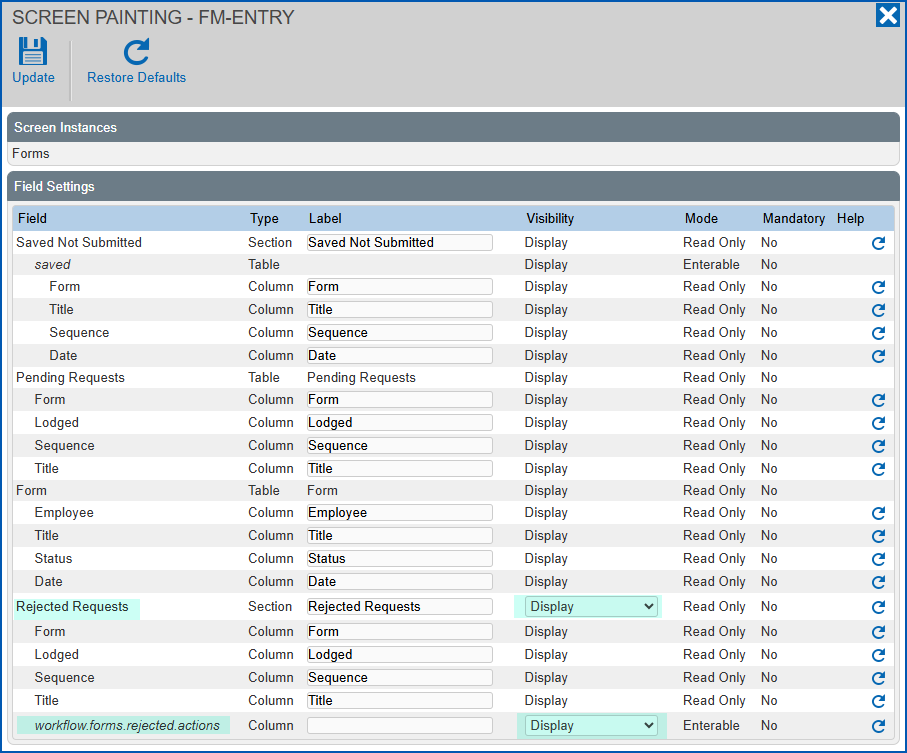
- At Screen Painting - Forms Entry, scroll down and locate the Rejected Requests section field.
- In the Visibility column, select Display from the dropdown list.

|
The workflow.forms.rejected.actions field at the bottom of the screen controls the ability to edit. By default, EmpowerHR sets this field to Display. If you prefer users to not have the option of editing and resubmitting a rejected form, select Hide from the Visibility dropdown list. |
- Click Update.
Set the display of rejected forms
To set how far back to display rejected forms:
- Go to Administration > Configuration > All Configuration.
- At All Configuration, expand Self Service, and then expand Forms.
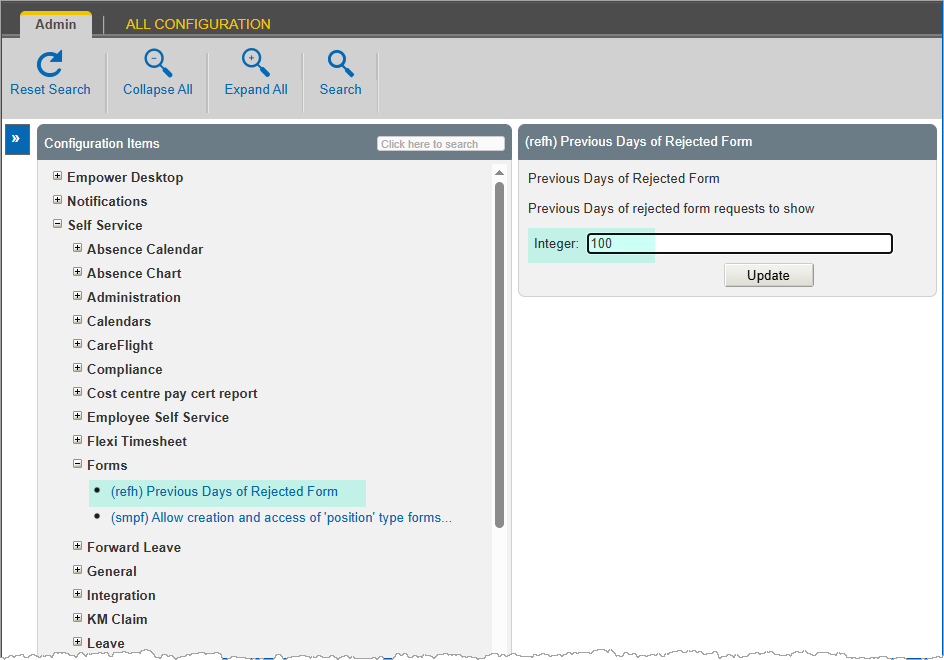
- Click (refh) previous days of rejected form.
|
|
This setting is the previous days from the creation date of rejected forms. |
- Enter the number of days in the Integer field. In the following example, rejected forms older than 100 days are excluded.
- Click Update.
View a rejected form
The approving manager may reject a form (request) and add comments as to why it is rejected.
To view a rejected form:
- Click Forms.
- At the Forms catalogue, in the Rejected Requests list, on the row containing the rejected request, click Change.
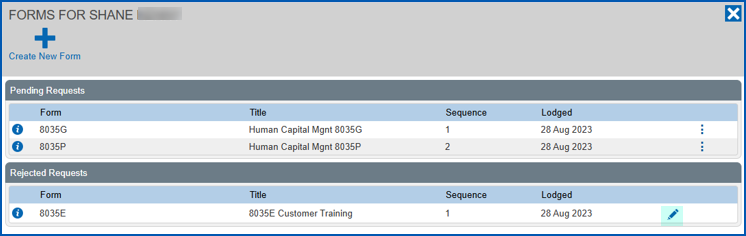
- Review the approval manager's comments.
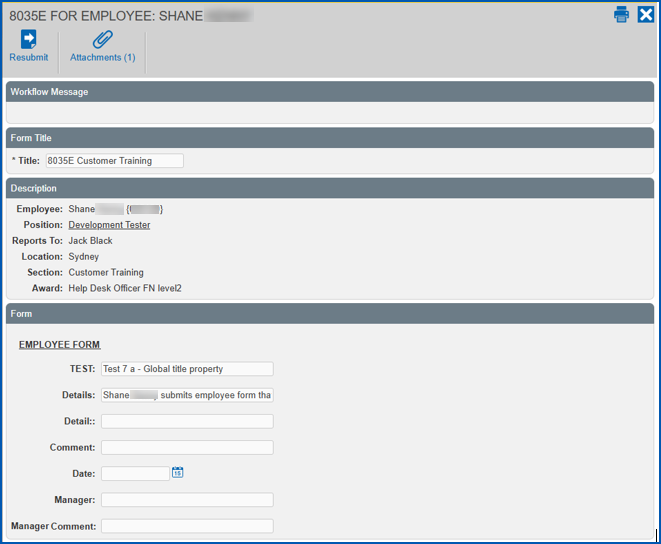
- Make any required changes, and then click Resubmit.
- The form now displays in the Pending Requests list on the Forms catalogue screen.
|
|
With forms a manager creates on behalf of their employees, EmpowerHR works in a similar way. However, while the manager can edit the rejected form, the employee can only view the form and its details from the Rejected Requests list. |
© 2023 Fusion5. All rights reserved.