The UKG integration sends two automated exports from EmpowerHR to UKG:
- The UKG Employee Details Export runs daily and contains a snapshot of employee master data.
- The UKG Leave Accrual Export runs weekly and contains each employee's leave balances by type and code.
Both jobs run automatically on schedule. You can also run either one on demand if you need to push a fresh file outside the schedule.
Before you begin
Both exports sit under Background Jobs → Interfaces. If you can't see them, your operator code doesn't have access. Talk to your administrator.
Run an export on demand
- Open Background Jobs → Interfaces.
- Double-click UKG Employee Details Export or UKG Leave Accrual Export.
- On the Parameters tab, leave Payroll set to w.
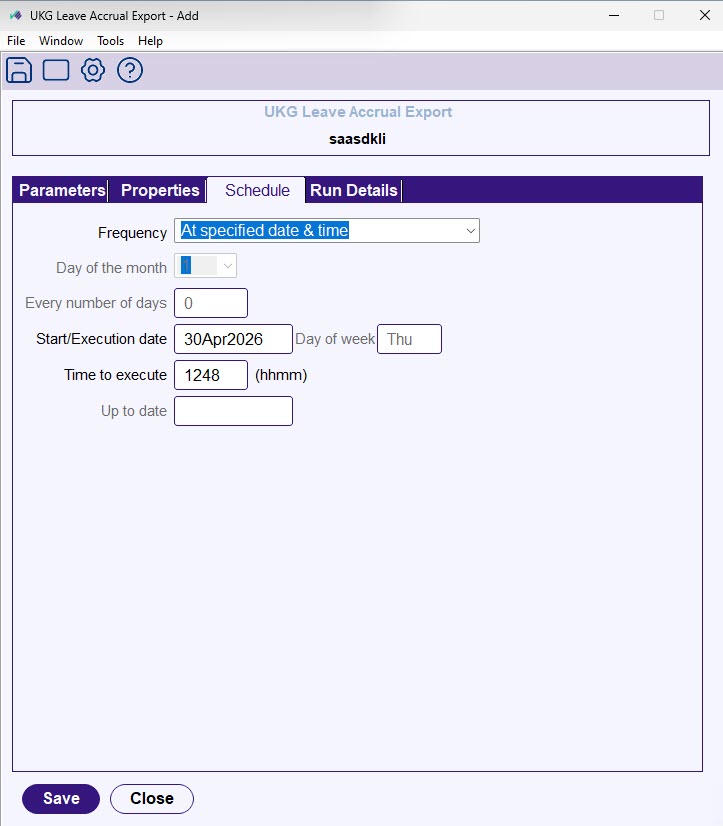
- On the Schedule tab, set Frequency to At specified date & time. Then set Start/Execution date and Time to execute to when you want the job to run.
- Click Save.
The job goes into the queue with a status of (w)aiting. EmpowerHR checks the queue every few minutes and picks up the job at the scheduled time. It builds the file, encrypts it, and sends it to UKG. The status changes to (f)inished once the run completes.

|
If a run starts before 6am, it uses the previous day's date. From 6am onwards, it uses the current day's date. To produce a run dated today, schedule it for 6am or later.
|
Schedule a recurring run
To set an additional schedule on top of the daily or weekly default, follow the steps above and choose a different Frequency:
- Choose Every x number of days for a weekly or fortnightly run, and set Every number of days to 7 or 14.
- For a monthly run on a fixed day, choose Each month on a specified date / time and set Day of the month.
- End of month runs the job on the last day of every month.
Set Up to date to end-bound the schedule. Leave it blank to keep running indefinitely.
Monitor a run
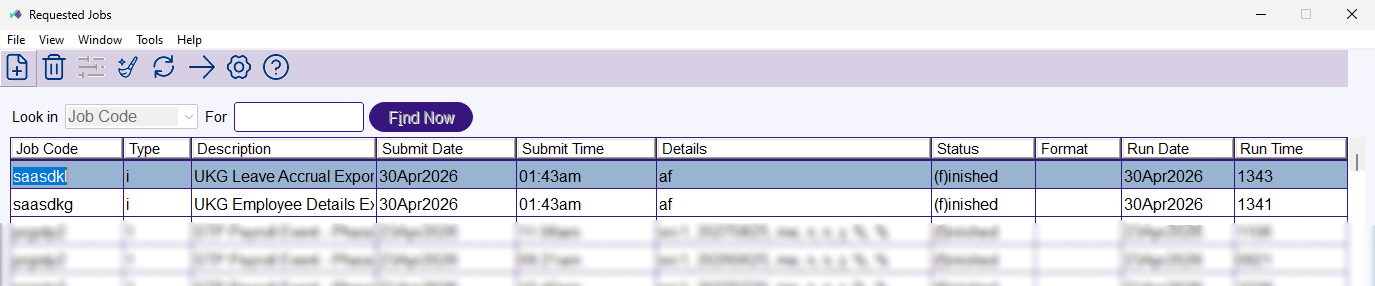
- Open Background Jobs → Requested Jobs → Requested Jobs.
- Set Look in to Job Code.
- Type saasdkg (Employee Details Export) or saasdkl (Leave Accrual Export) into For.
- Click Find Now.
The list shows each run with its Status, Submit Date/Time, and Run Date/Time. Open a row for full run details and any output messages.
Notifications
After every run, EmpowerHR sends an email to the nominated email address:
- A success email confirms the file was built and sent, and shows the number of records exported.
- If no employees match the payroll code and date range, the email still indicates success but states no records were found. No file goes to UKG.
- A failure email arrives if the file can't be built or the transfer fails after retries.
When something doesn't work
A failed run shows an error status in Requested Jobs, and a failure email arrives at the nominated email address. Open the run details to read the error message. Common causes include UKG's file transfer service being unavailable, an encryption key issue, or no employees matching the payroll code. If you need help, log a Fusion5 support ticket and include the Job Code, Run Date/Time, and the error message.
Next topic |
|---|
© 2023 Fusion5. All rights reserved.